

A merge can't be undone from the screen. Make sure both records really are the same person: same email, phone or date of birth, not just the same name.
Open the record you want to keep
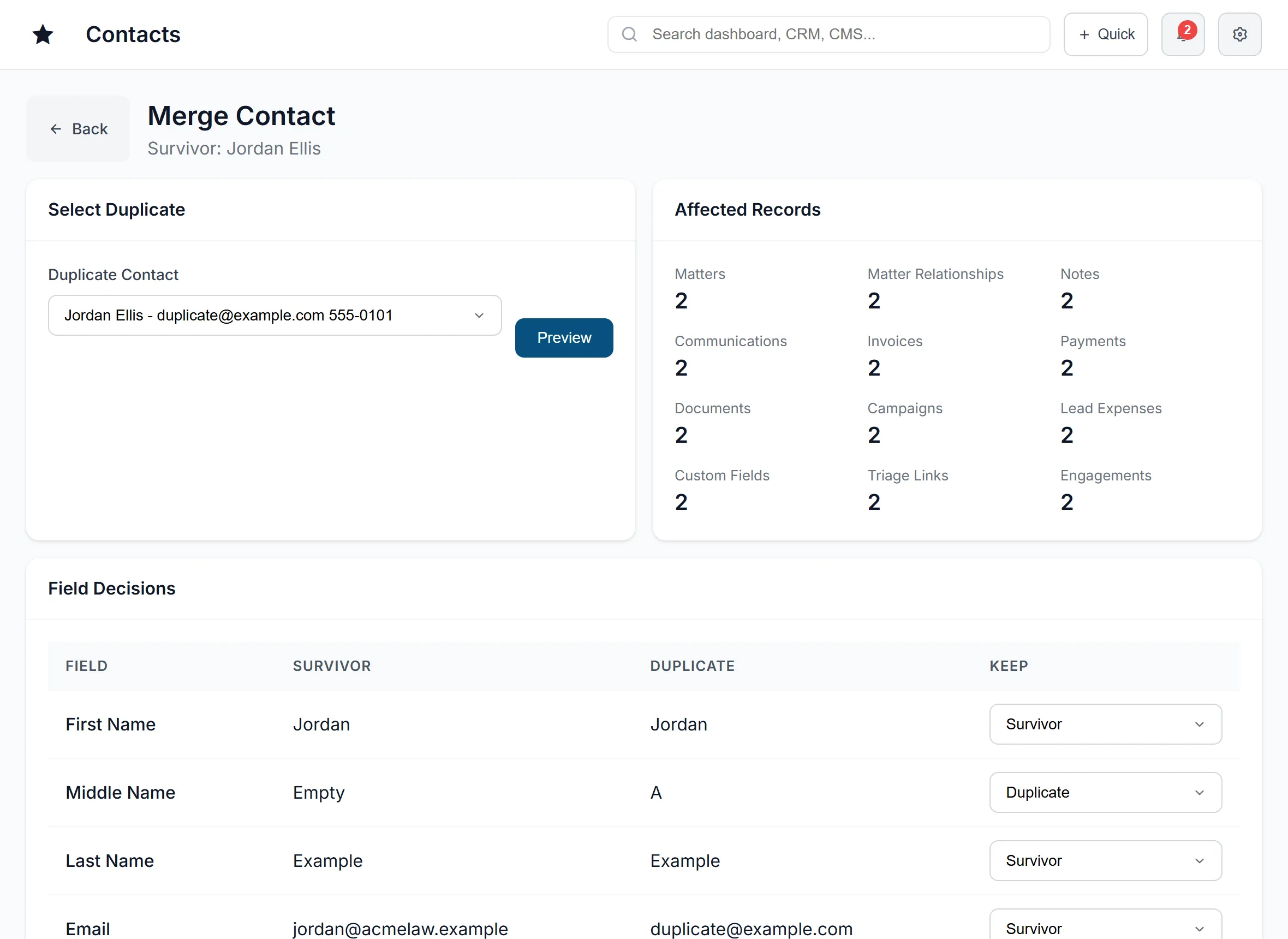
Open the contact that should survive, usually the older one with the most history. Choose to merge it. Merge Contact shows this record as the Survivor.
Pick the duplicate
Under Select Duplicate, choose the Duplicate Contact. Likely duplicates are suggested with their email and phone. Then select Preview.
Check what moves
Affected Records counts everything linked to the duplicate that moves to the survivor: Matters, Matter Relationships, Notes, Communications, Invoices, Payments, Documents, Campaigns, Lead Expenses, Custom Fields, Triage Links and Engagements. Nothing is deleted. It's all re-linked.
Choose which values to keep
Field Decisions puts the two records side by side, field by field: names, email, phone, company, address, source and notes. For each one, pick whether to Keep the survivor's value or the duplicate's. Take the most recent and complete value.
Merge
Select Merge Contacts. The duplicate disappears, and its history now lives on the survivor.
Frequently asked questions
No duplicates are suggested.
The system found no likely matches by name, email or phone. Search for the other record by a different detail, such as an old email address.
Should I run a conflict check afterwards?
If the duplicate had matters or relationships the survivor didn't, yes. Run a conflict check on the merged contact.
Last reviewed 2026-11-25