

Most leads arrive through Triage. Use this for walk-ins, phone calls and referrals that never came through a form.
Start a new contact
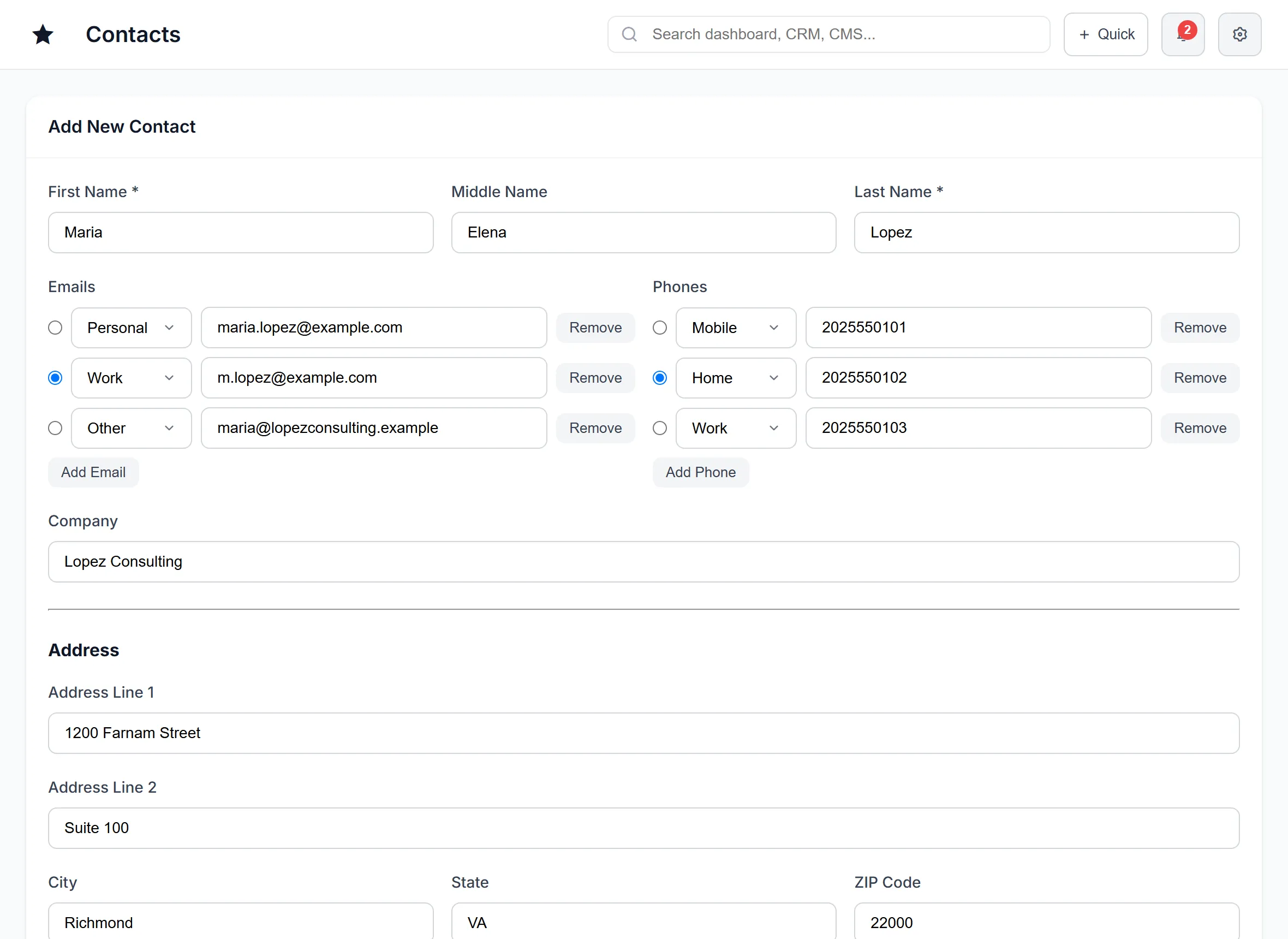
Choose Contact from the Quick menu, or go to CRM → Contacts and add one. Add New Contact opens.
Fill in the person
- First Name, Middle Name, Last Name
- Emails: label each one Personal, Work or Other. Add Email adds another.
- Phones: label each Mobile or Home. International numbers work, for example +502 5555 5555.
- Company and Address
Record the source and type
Under Source Information, choose the Source (Referral, Website…) and the Type: Prospect for someone considering the firm, Client for someone who has hired you. Add Notes and your firm's Additional Information fields.
Watch for duplicates
As you type, Potential Existing Contacts lists people who may already be in the system with matching names, emails or phones. If one is the same person, open that contact instead of creating a new one.
Duplicates split a person's history in two and can hide a conflict of interest. Check the suggestions every time.
Create a matter for them
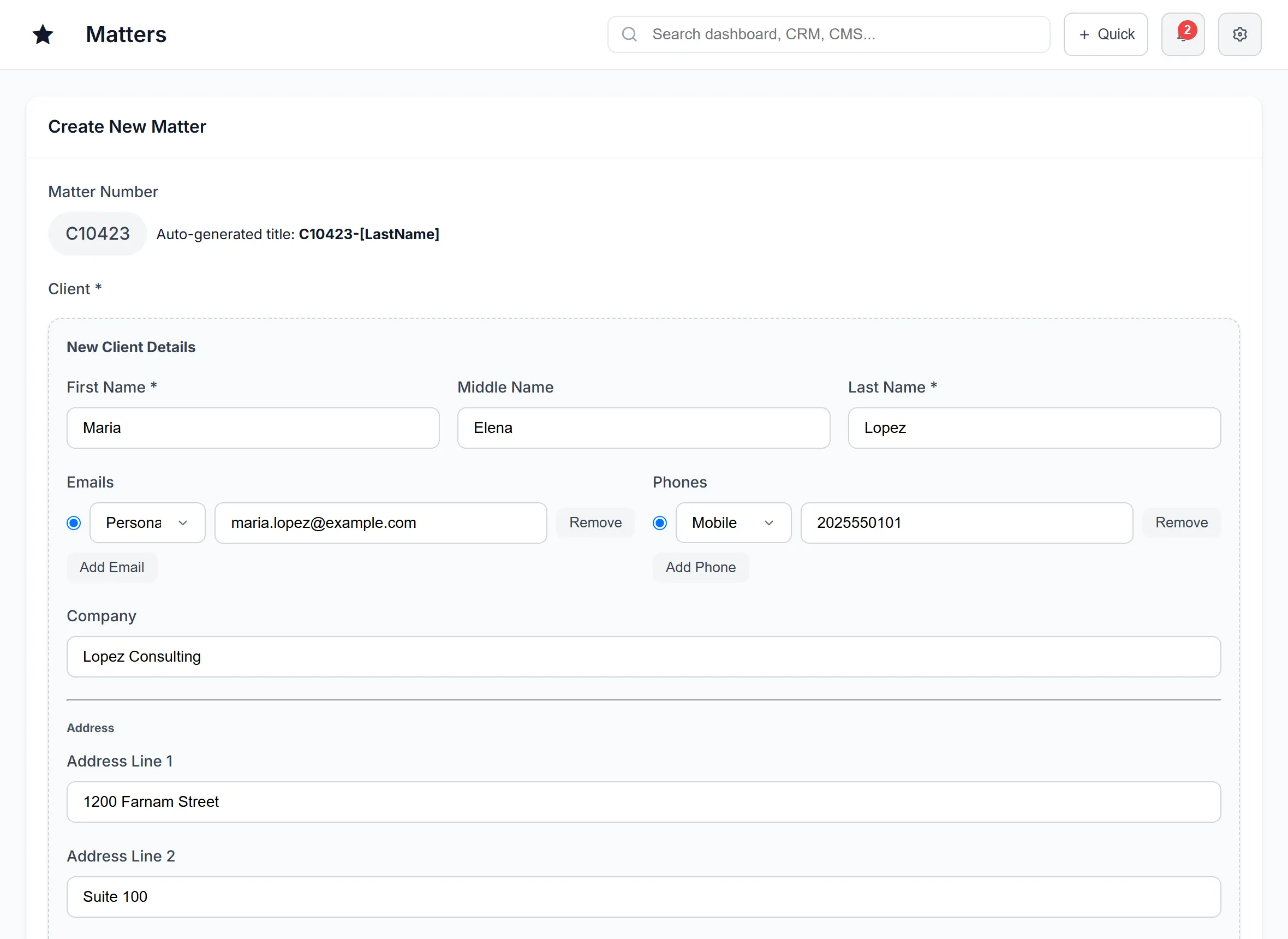
Choose Matter from the Quick menu. Create New Matter gives the matter number and builds the title from it (for example C10423-Lopez). Pick an existing contact as the Client, or select Use New Client Instead to enter a new person right on the form.
Set status and practice area
Choose the Status, Practice Area, intake specialist and estimated value, then save. The matter appears in the pipeline.
Frequently asked questions
Should I use Client or Prospect?
Prospect, until the engagement agreement is signed. The CRM is built around prospects. Clients' work happens in Nexus.
A required field won't let me save.
Fields marked * are required by your firm. If one doesn't apply, ask your admin whether it should stay required.
Last reviewed 2026-11-25