

Open Forms
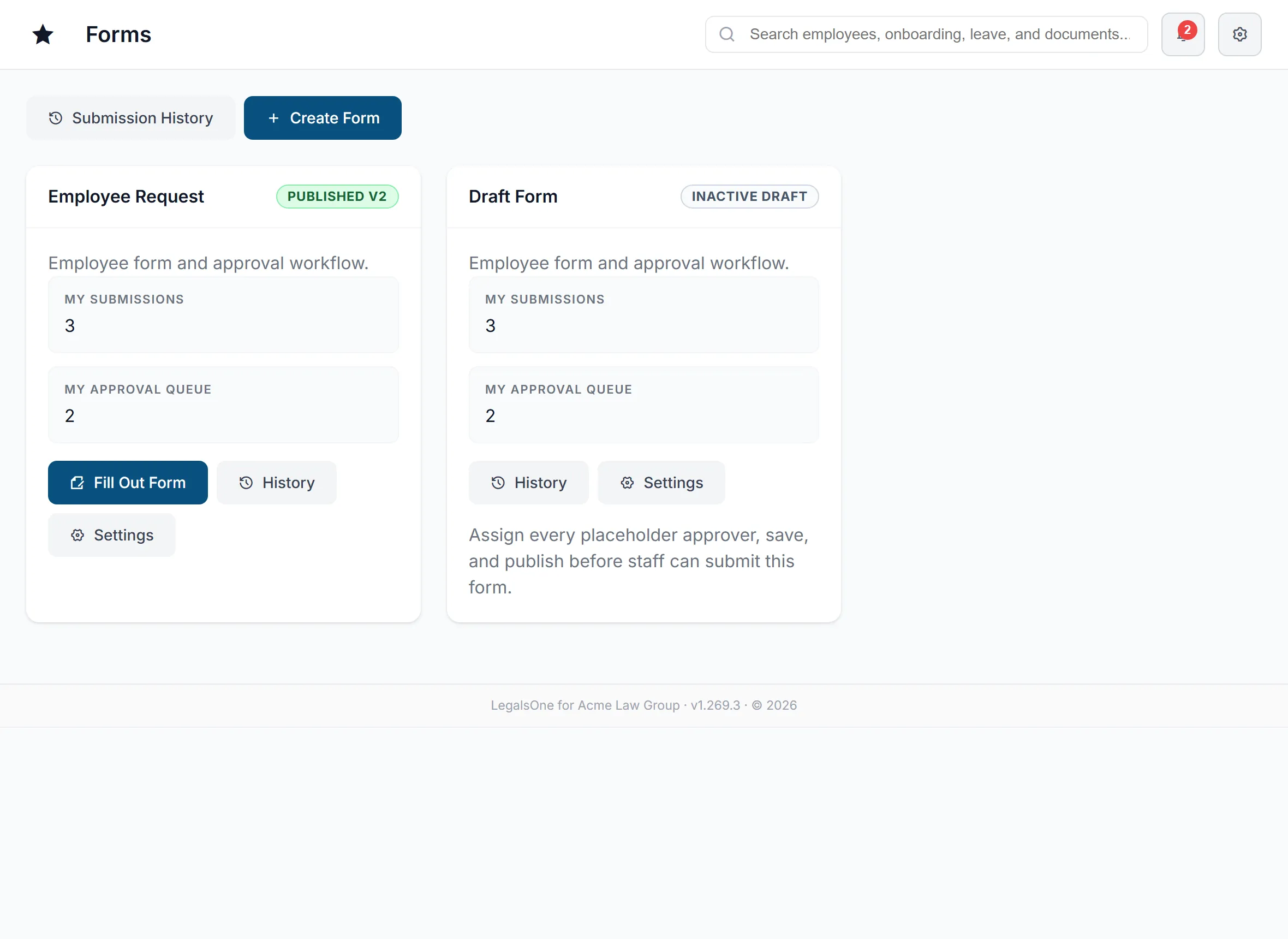
In HRM, select Forms. Each published form shows its name, a short description, My submissions and My approval queue (forms waiting for you to approve).
Fill it out
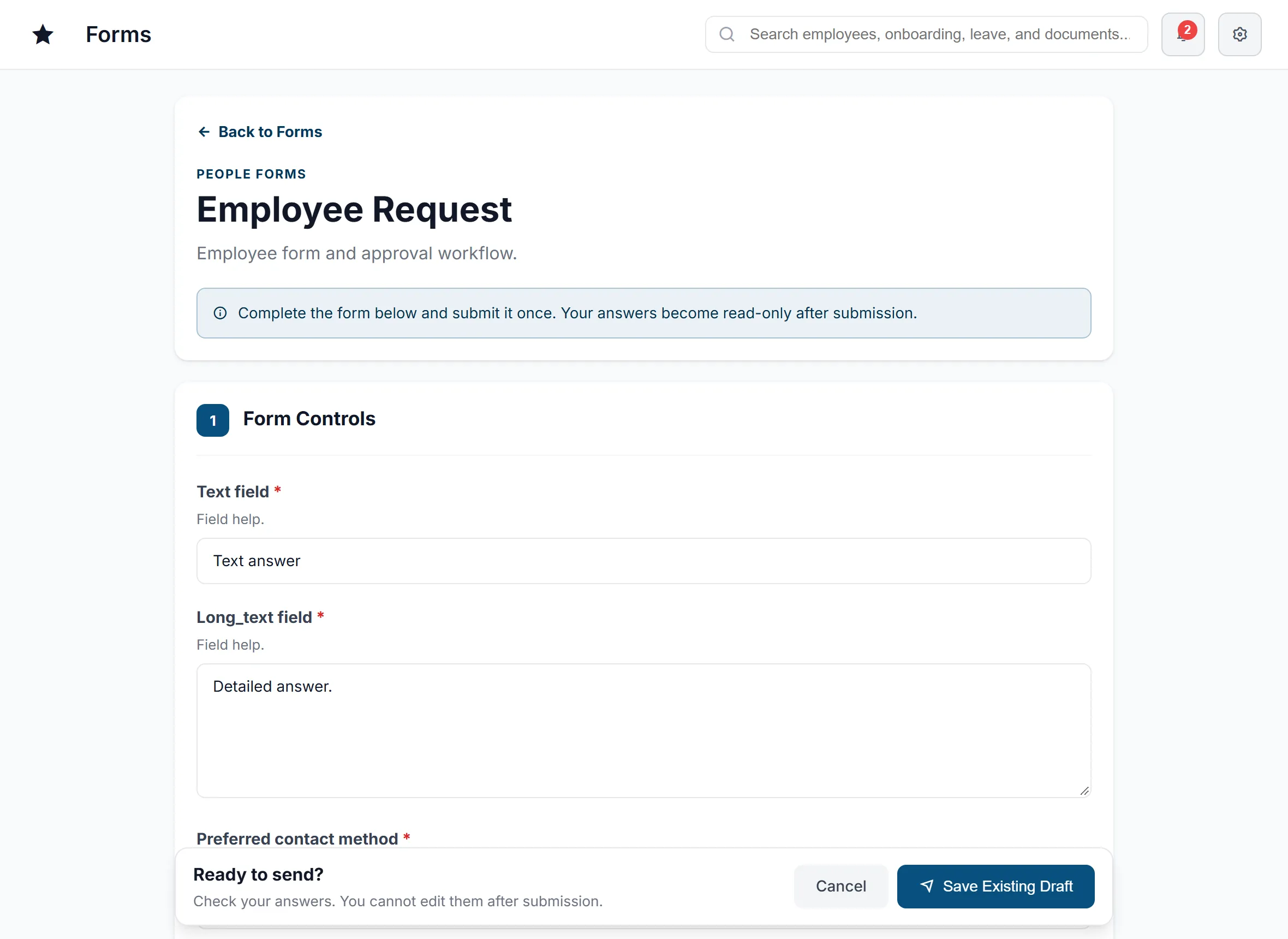
Select Fill Out Form. Complete each field. Required ones are marked *. Fields can be text, dropdowns, multiple choice, dates, a user, or a matter (start typing a matter number or title).
Attach files
For an attachment field, choose a PDF, image or Word file up to 15 MB. Attachments are emailed securely to each approver and kept in People.
Submit once
Select submit. Your answers become read-only after submitting, so check them first.
If you made a mistake, ask the approver to send it back rather than submitting a second copy.
Follow it
Use History to see your past submissions and where each one stands. Approvers see new submissions in My approval queue.
Frequently asked questions
Who builds forms?
HR, with Create Form. They add fields, choose approvers and publish.
Last reviewed 2026-11-25