

Check your balances
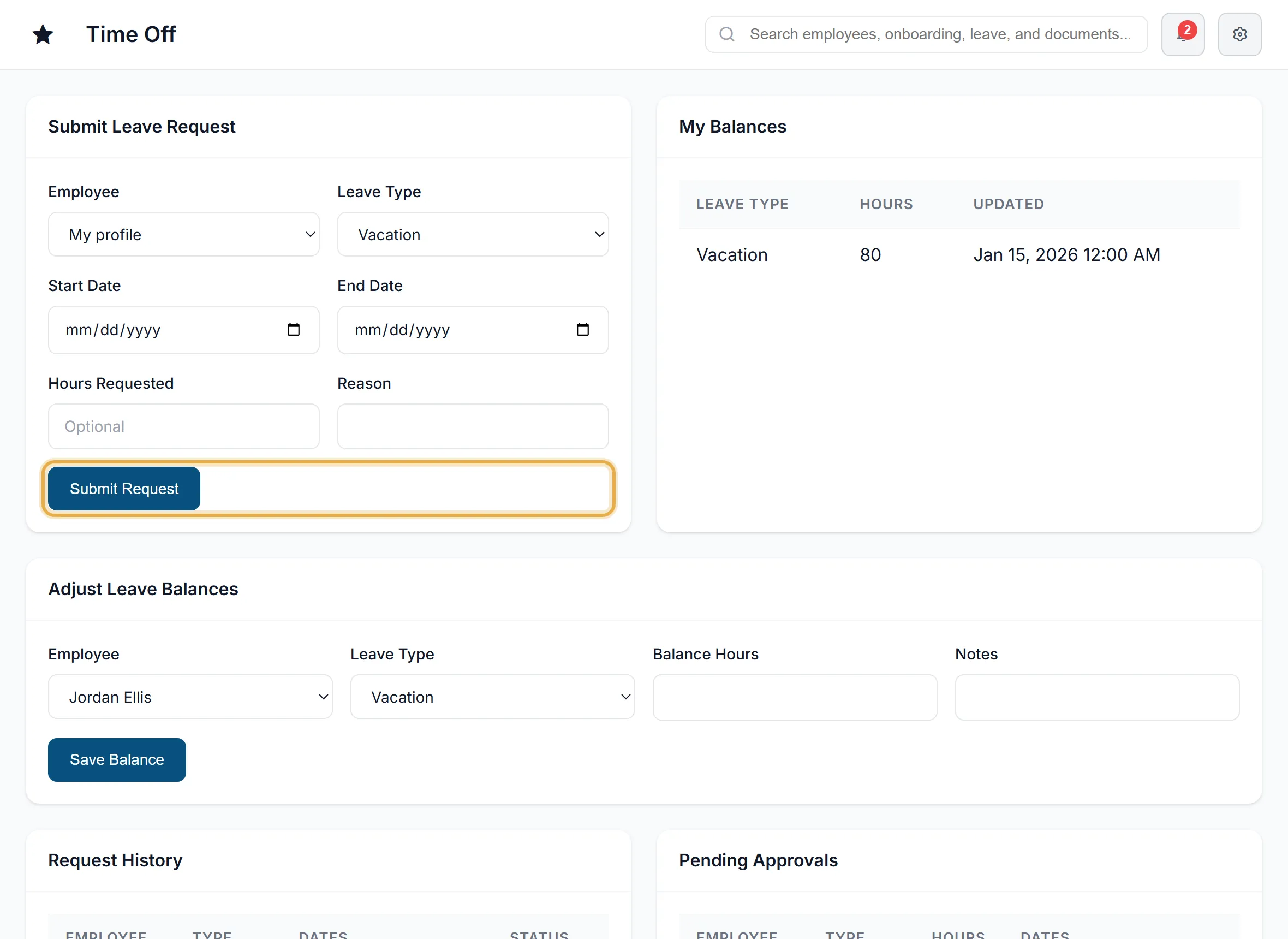
In HRM, select Time Off. My Balances lists each leave type (for example Vacation) with your remaining hours and when it was last updated.
Submit a request
Under Submit Leave Request, the Employee is you (My profile). Choose the Leave Type, Start Date, End Date and Hours Requested, add a Reason if you like, and select Submit Request.
Follow it
Your manager is notified. Your firm may also copy others, such as the office manager. Request History lists every request with its type, dates, hours and Status, and you're notified when it's reviewed.
The notification email includes your name, leave type, dates and hours. It never includes your reason.
Cancel if plans change
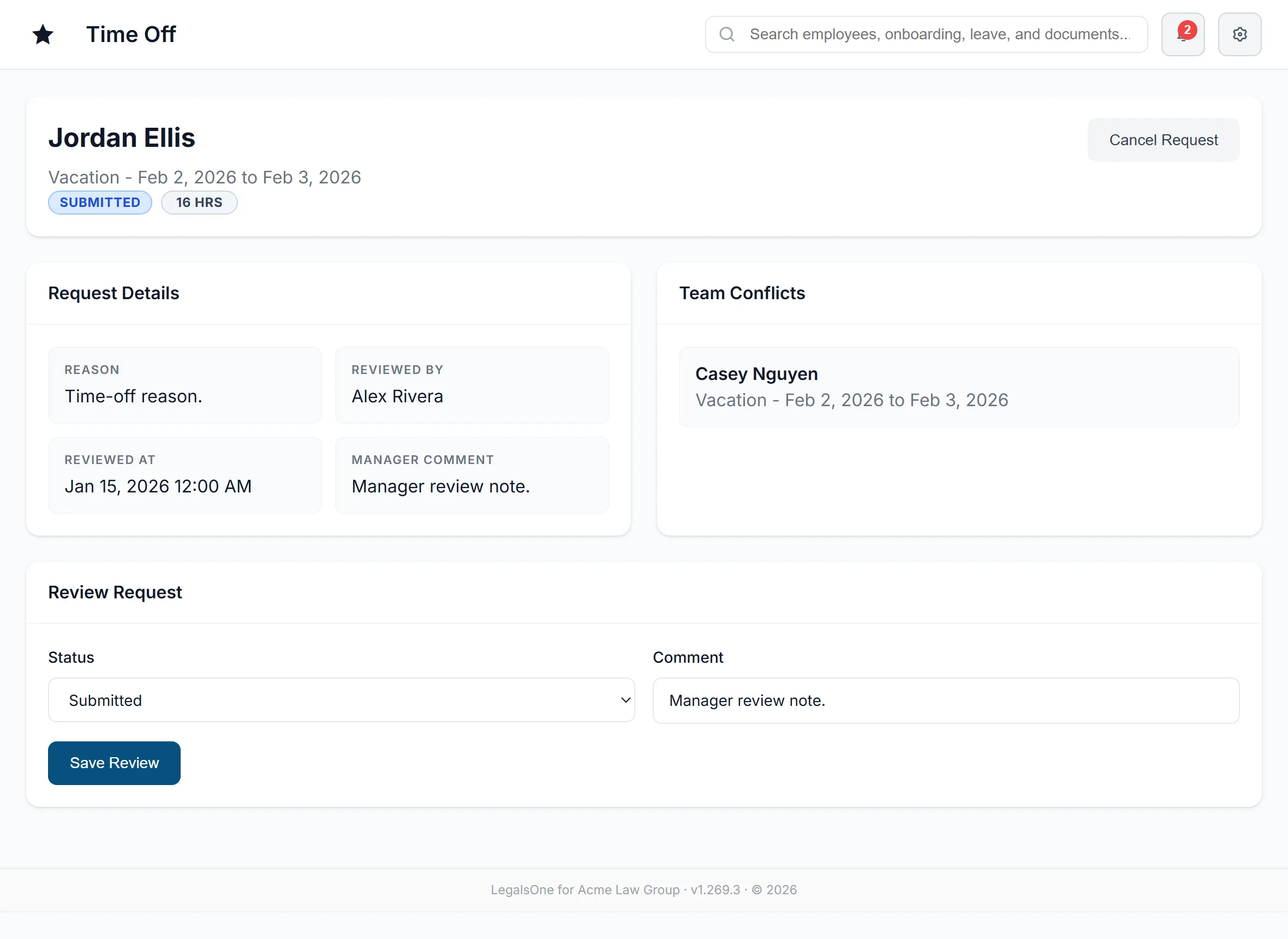
Open the request and select Cancel Request.
For managers: review a request
Open it from Pending Approvals. Request Details shows the reason, and Team Conflicts lists anyone else off on overlapping days so you can check coverage. Under Review Request, set the Status, add a Comment (the employee sees it as the manager comment) and select Save Review.
Frequently asked questions
My balance looks wrong.
Ask HR. People with permission can Adjust Leave Balances for an employee and leave a note explaining why.
My manager isn't getting my requests.
Requests go to the manager on your employee profile. Ask HR to check it.
Last reviewed 2026-11-25