

Create the person's intranet account first (Settings → Users) so you can link it here. See Add, edit and deactivate users.
Start the record
In HRM → Profiles, select Add Employee. This creates the full HR record, links the intranet user, and can start the onboarding checklist from the hire date.
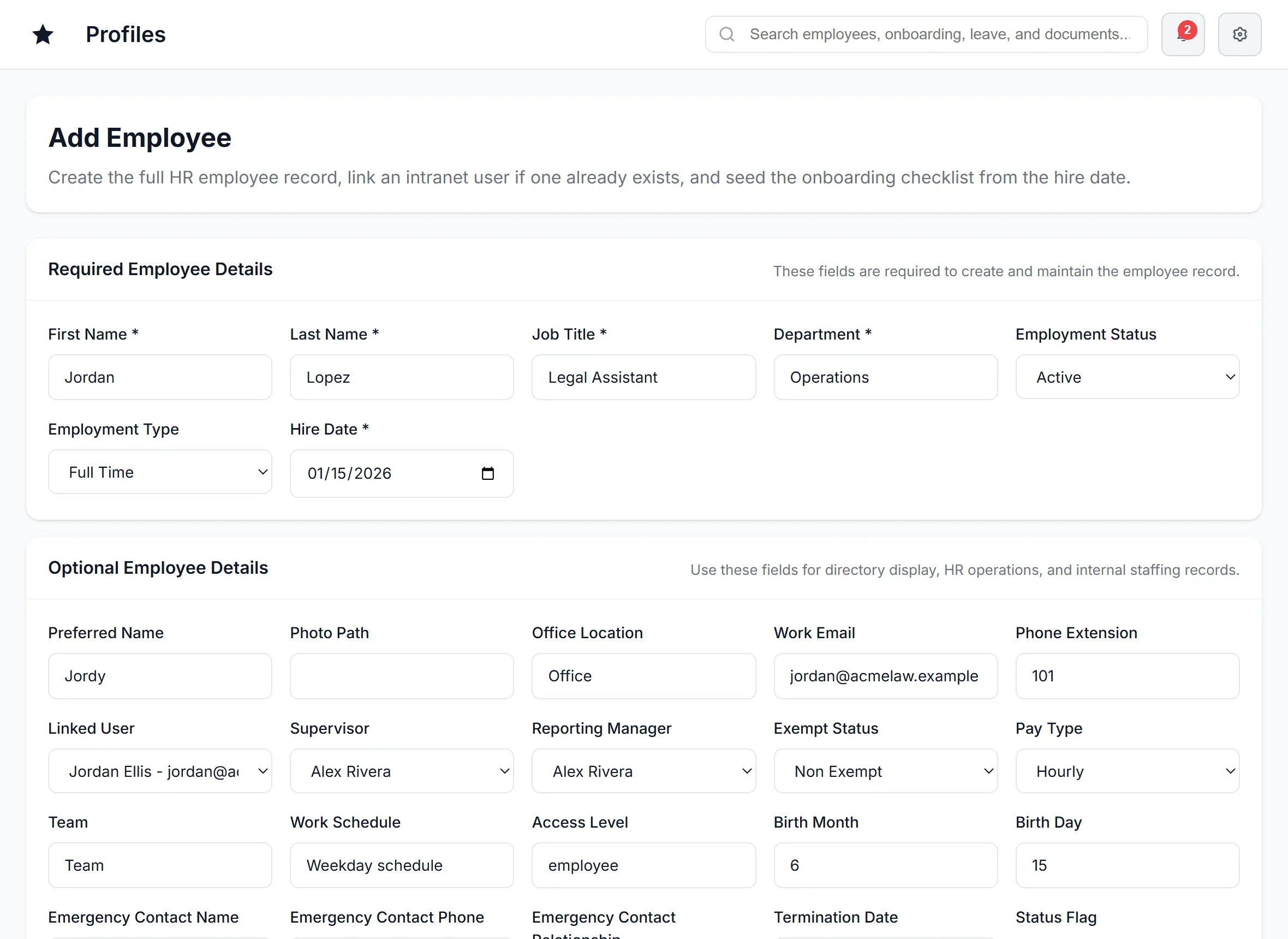
Fill in the required details
- First Name and Last Name
- Job Title and Department
- Employment Status: Active, Inactive, On Leave or Terminated
- Employment Type: Full Time, Part Time, Contract, Temporary or Intern
- Hire Date
Add the optional details
These drive the directory and HR operations: Preferred Name, Office Location, Work Email, Phone Extension, Linked User (their intranet account), Supervisor and Reporting Manager, Exempt Status, Pay Type, Team, Work Schedule, birthday month and day, and the emergency contact.
Set the Reporting Manager. Time-off requests and onboarding items route to that person.
Save and onboard
Save the record, then assign their onboarding checklist. See Onboard a new employee.
Frequently asked questions
Someone is leaving. Do I delete their record?
No. Set Employment Status to Terminated and add the Termination Date, then deactivate their intranet account. The HR history stays on file.
Last reviewed 2026-11-25