

Create the form
In HRM → Forms, select Create Form. The Form Builder has four steps: Details, Fields, Approvals and CMS. No code is needed.
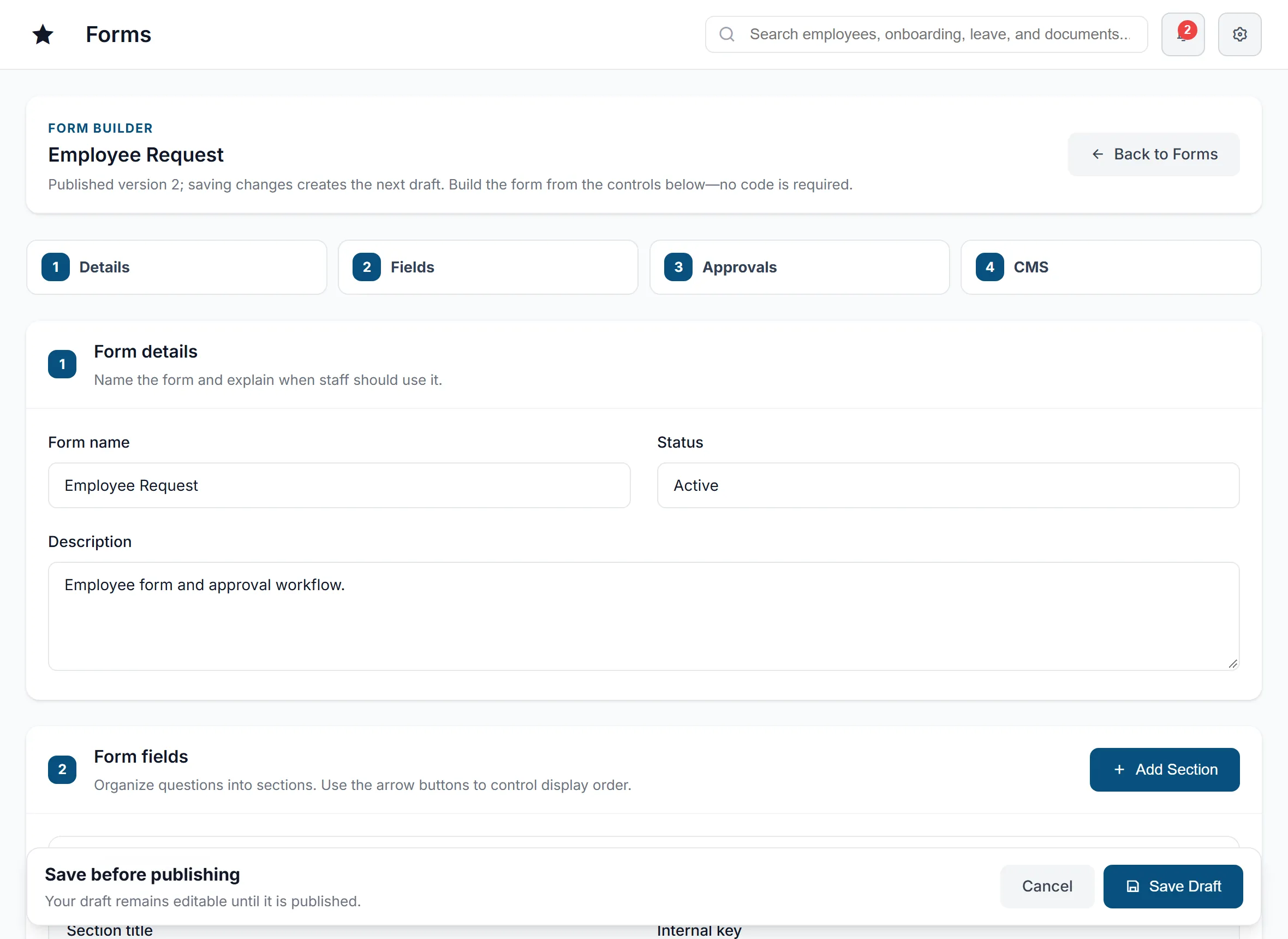
Details
Name the form and describe what it's for, so staff pick the right one.
Fields
Add sections and fields. Field types include short and long text, dropdowns, radio buttons, multi-select, checkboxes, dates, email, a department, a staff user, a matter picker, a file attachment (PDF, image or Word, up to 15 MB) and calculated fields (for example quantity × price). Mark fields required, add help text, and show a field only when another answer matches.
Approvals
Choose who approves submissions, in order if there's more than one. Approvers see new submissions in My approval queue, and attachments are emailed to them securely.
CMS link (optional)
If the form relates to client work, for example a request to write off a client's balance, connect it to a matter so the submission is easy to find from the case.
Publish
Publish the form. Later edits create a new draft version, and the published version stays live until you publish again.
Replace paper and email requests with one form each. Submissions are tracked, timestamped and searchable.
Last reviewed 2026-11-25