

Open User Management
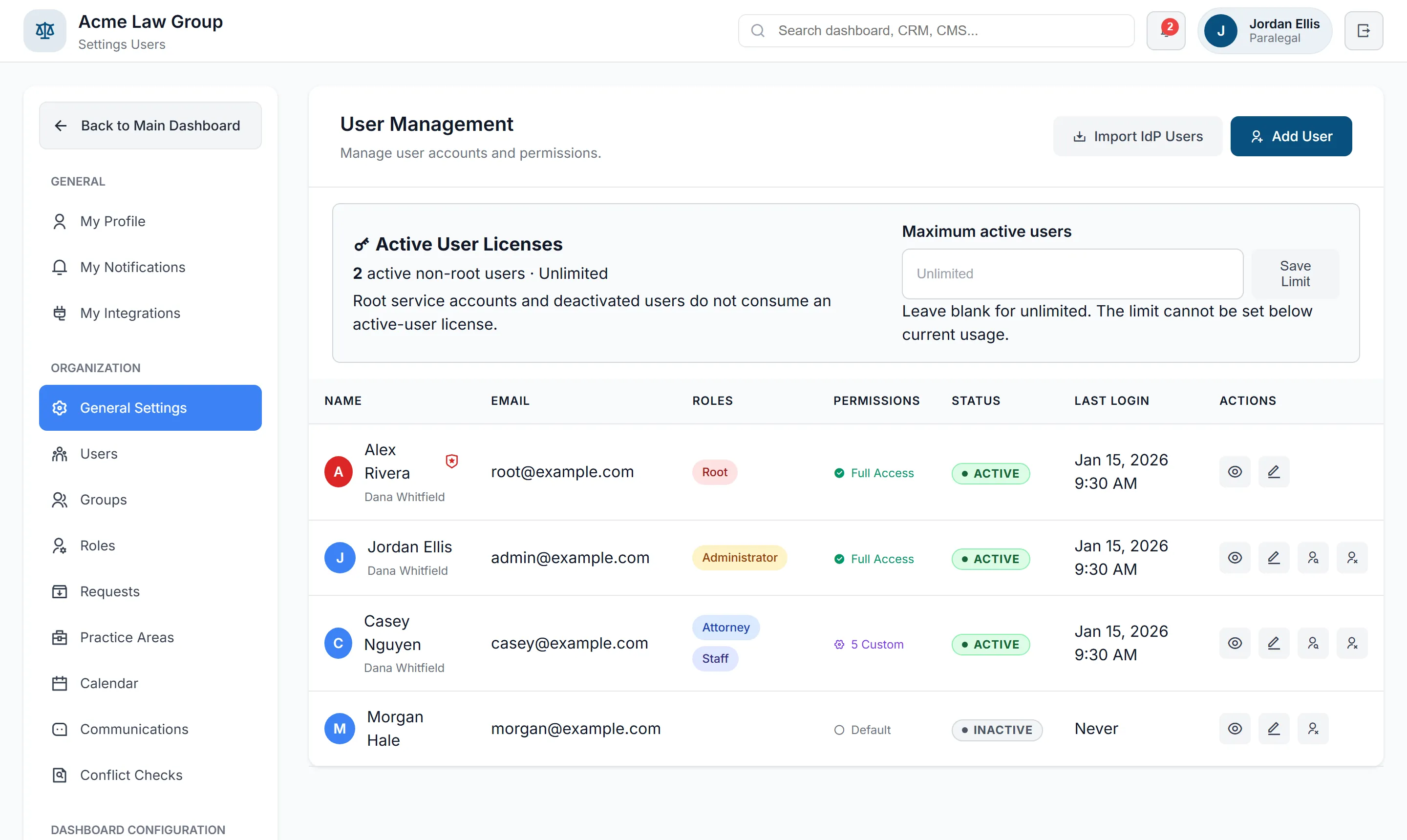
Open Settings → Users. Every user is listed with their email, roles, permissions (Full Access, a role default, or a number of custom ones), Status and Last Login. Active User Licenses shows how many active users you have against your limit.
Add a user
Select Add User (or Import IdP Users to bring people in from Microsoft or Google). Under Basic Information, enter First Name, Last Name, Email Address, Title, Primary Role and Hourly Rate ($). Tick Additional Roles to add more permissions on top.
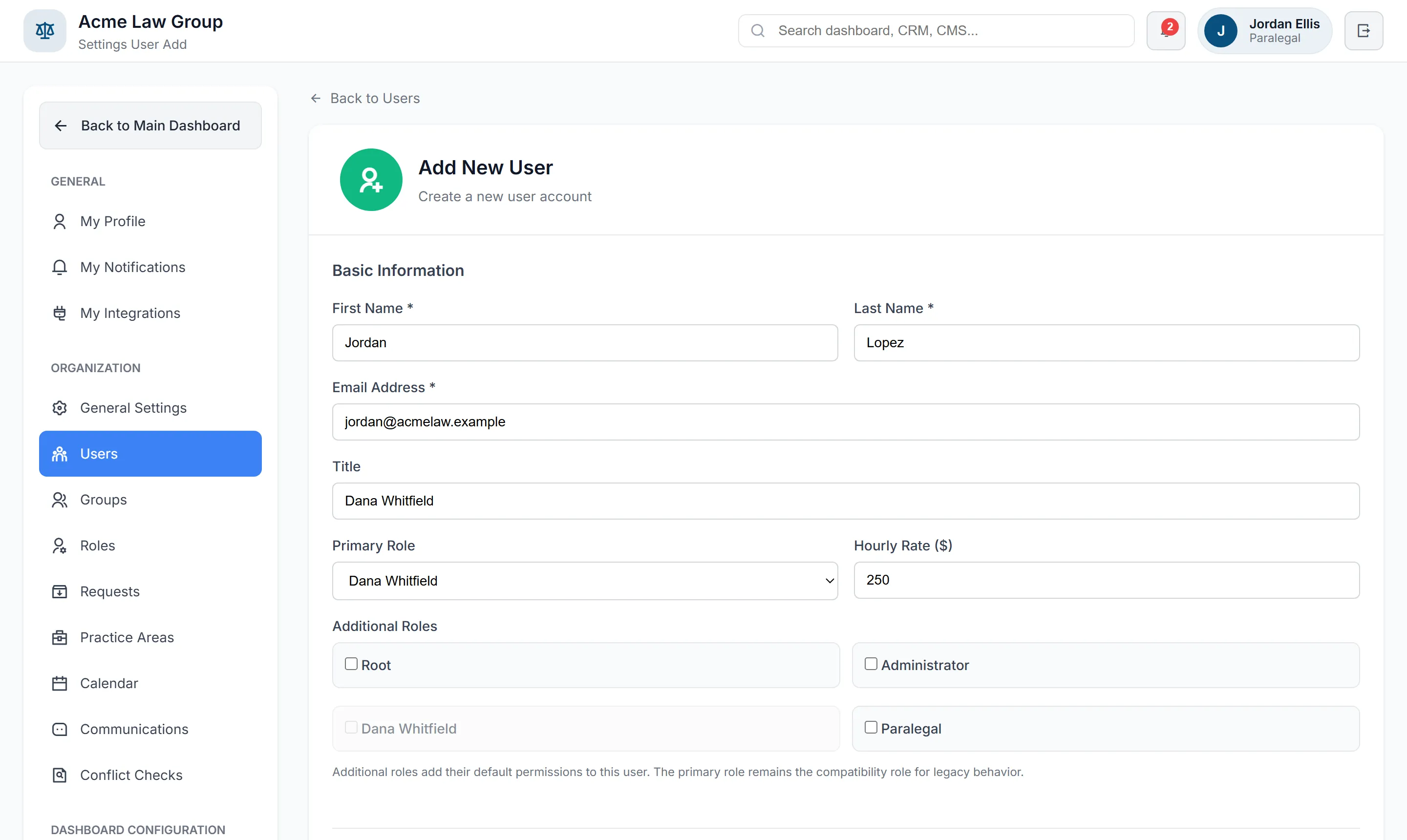
Set account options
Under Account Settings:
- Send welcome email with login credentials: they get their login and a temporary password.
- Password: leave blank to generate one (at least 8 characters).
- Require password change on first login: recommended.
- Account is active
- Enable two-factor authentication: recommended for everyone.
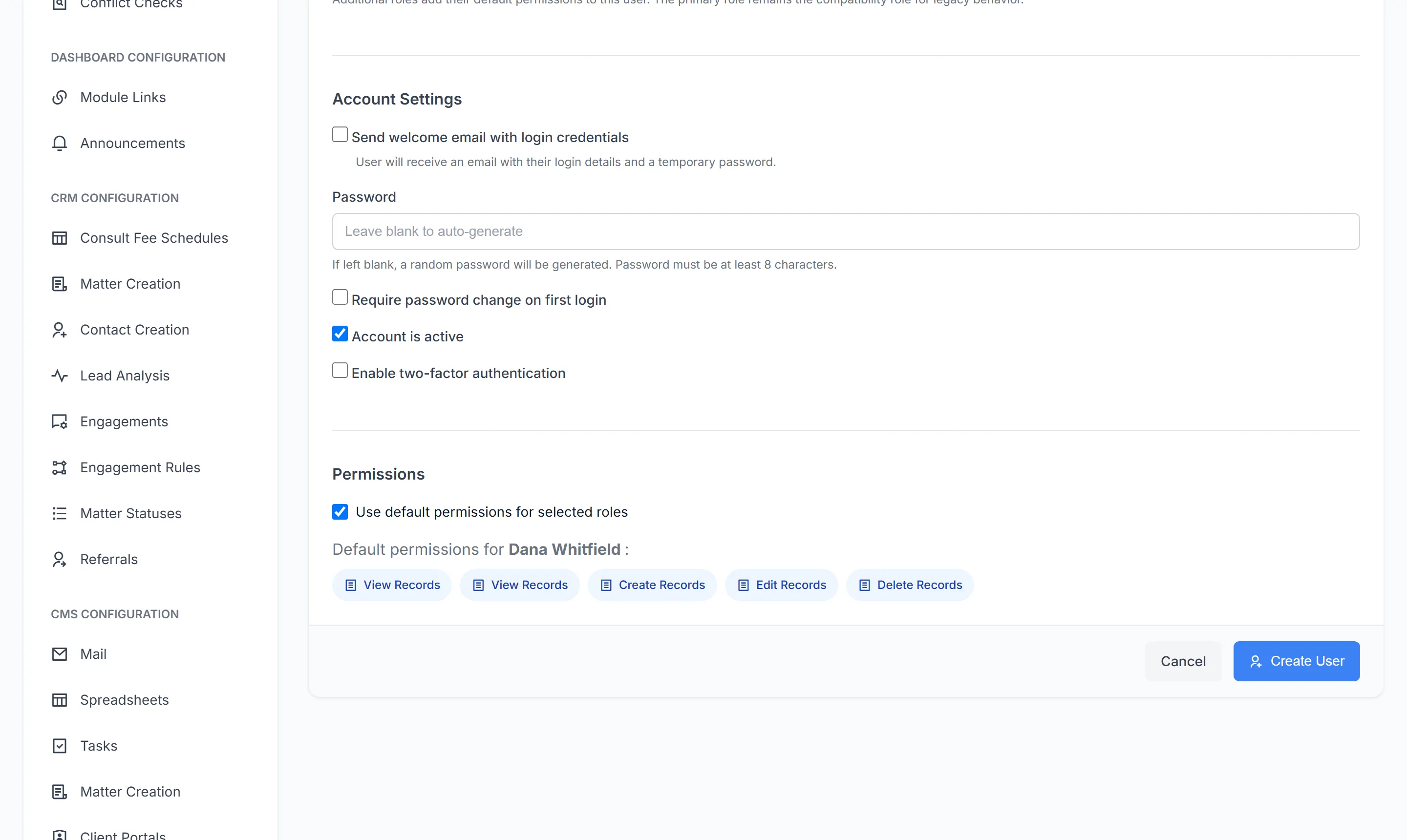
Then save. If your firm signs in with Azure AD or Google Workspace, the email must match their work account.
Edit a user
Open a user to change their roles, rate, title or custom permissions. Custom permissions override the role for that person only. Use them sparingly.
Deactivate people who leave
When someone leaves, edit them and untick Account is active. Deactivated users can't sign in and don't use a license, but their history stays: time entries, notes and training records. Reassign their open tasks and matters first.
Deactivate, don't delete. Deleting a user can break the history on matters they worked on.
Frequently asked questions
"Active user license limit reached."
You've hit the active-user limit. Deactivate someone who has left, or contact LegalsOne about more seats. Root service accounts and deactivated users don't count.
Last reviewed 2026-11-25