

Open Communications
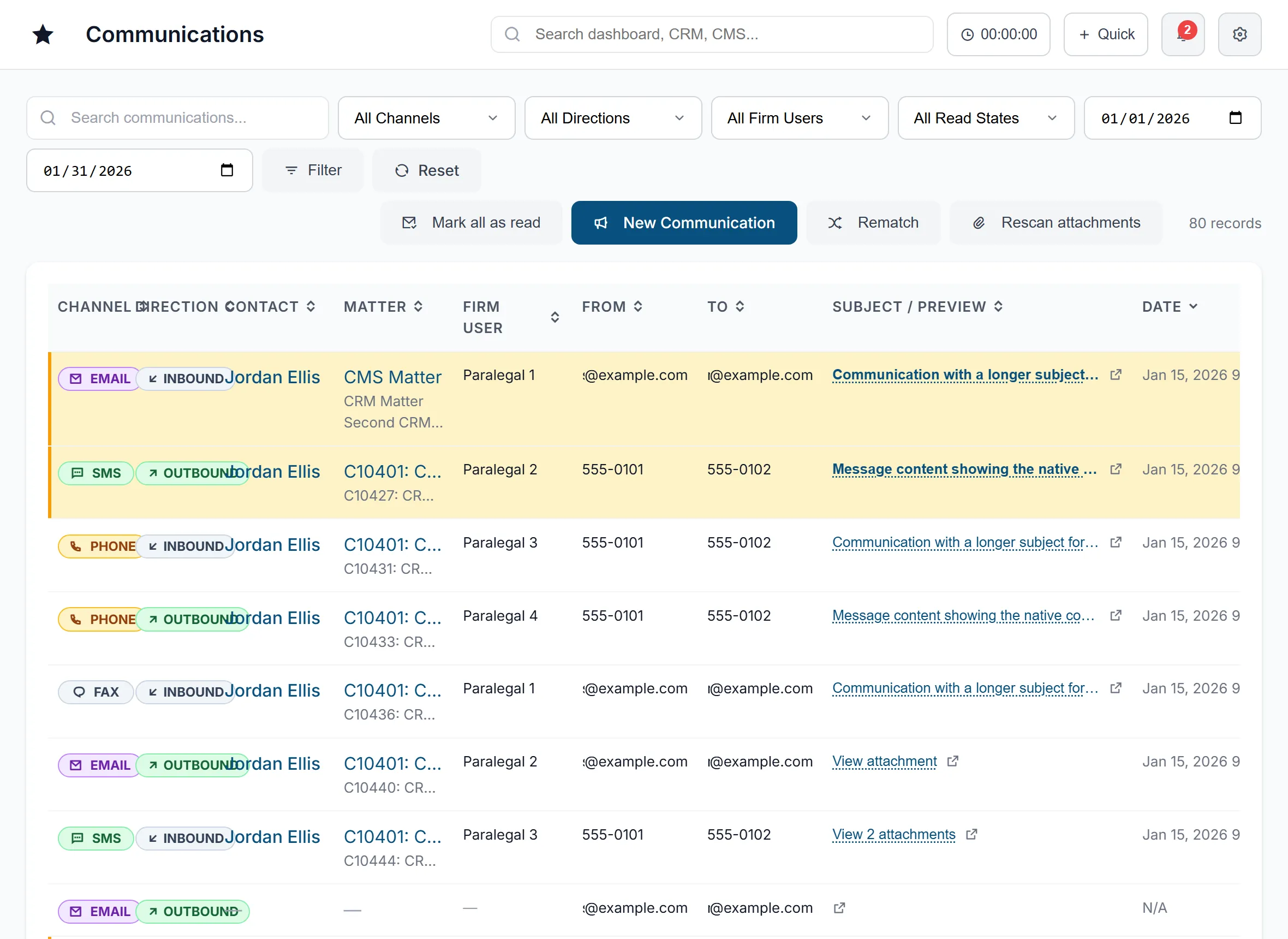
Select Communications in the CMS or CRM sidebar. Each row shows the channel (Email, SMS, Phone, Fax), direction (inbound or outbound), contact, linked matters, firm user, sender and recipient, a preview and the date. Unread rows are highlighted.
Filter to what needs you
Filter by All Channels, All Directions (Inbound or Outbound), All Firm Users and All Read States (Unread or Read). Mark all as read clears the highlights once you've dealt with them.
Open a message
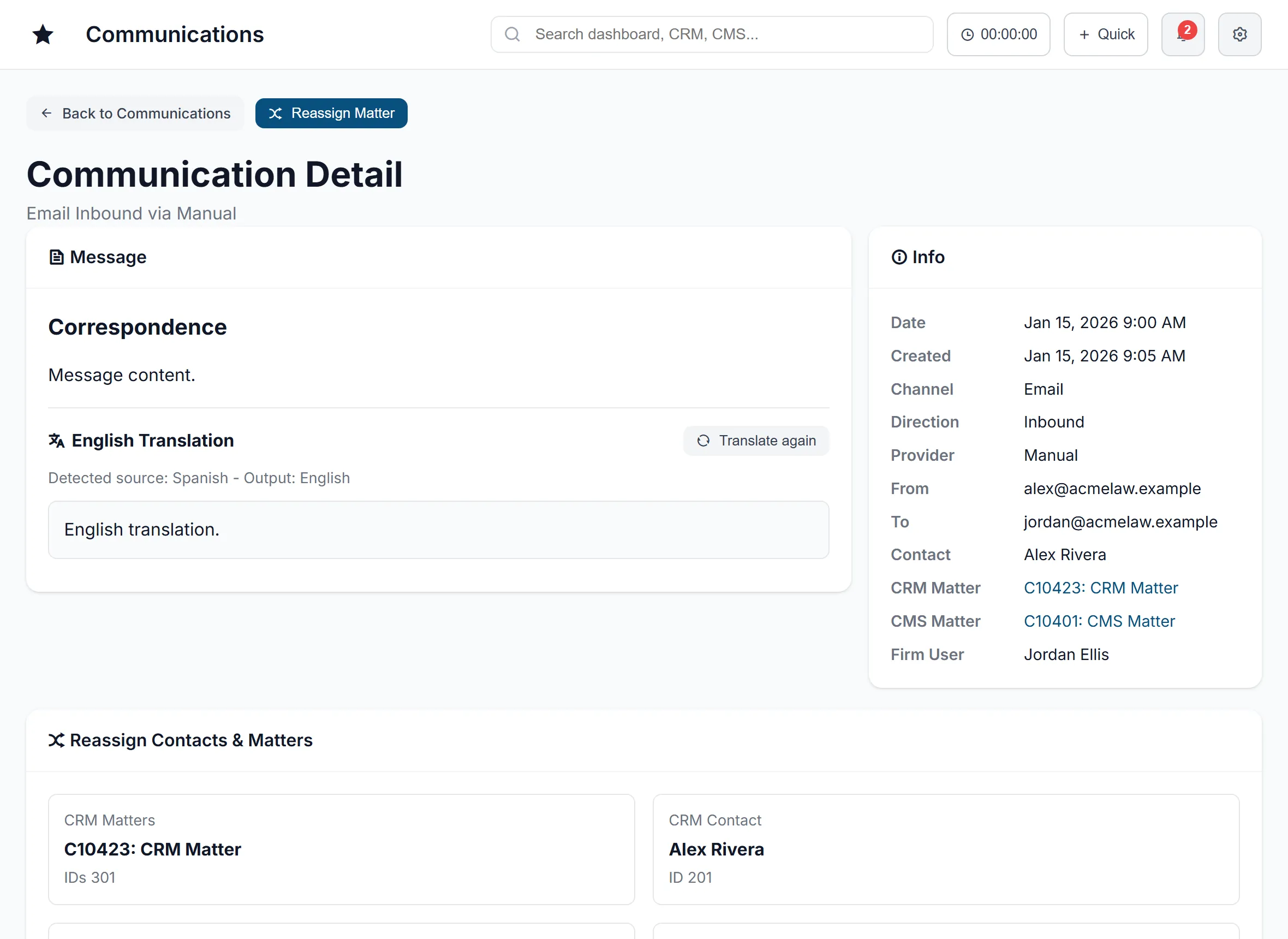
Select a row for Communication Detail: the message, its attachments, and an Info panel with date, channel, direction, provider, sender, recipient, contact, and the CRM and CMS matters it's linked to.
Read a translation
Messages in another language show an English Translation with the detected source language. Translate again refreshes it. The original stays with the message.
Move it to the right matter
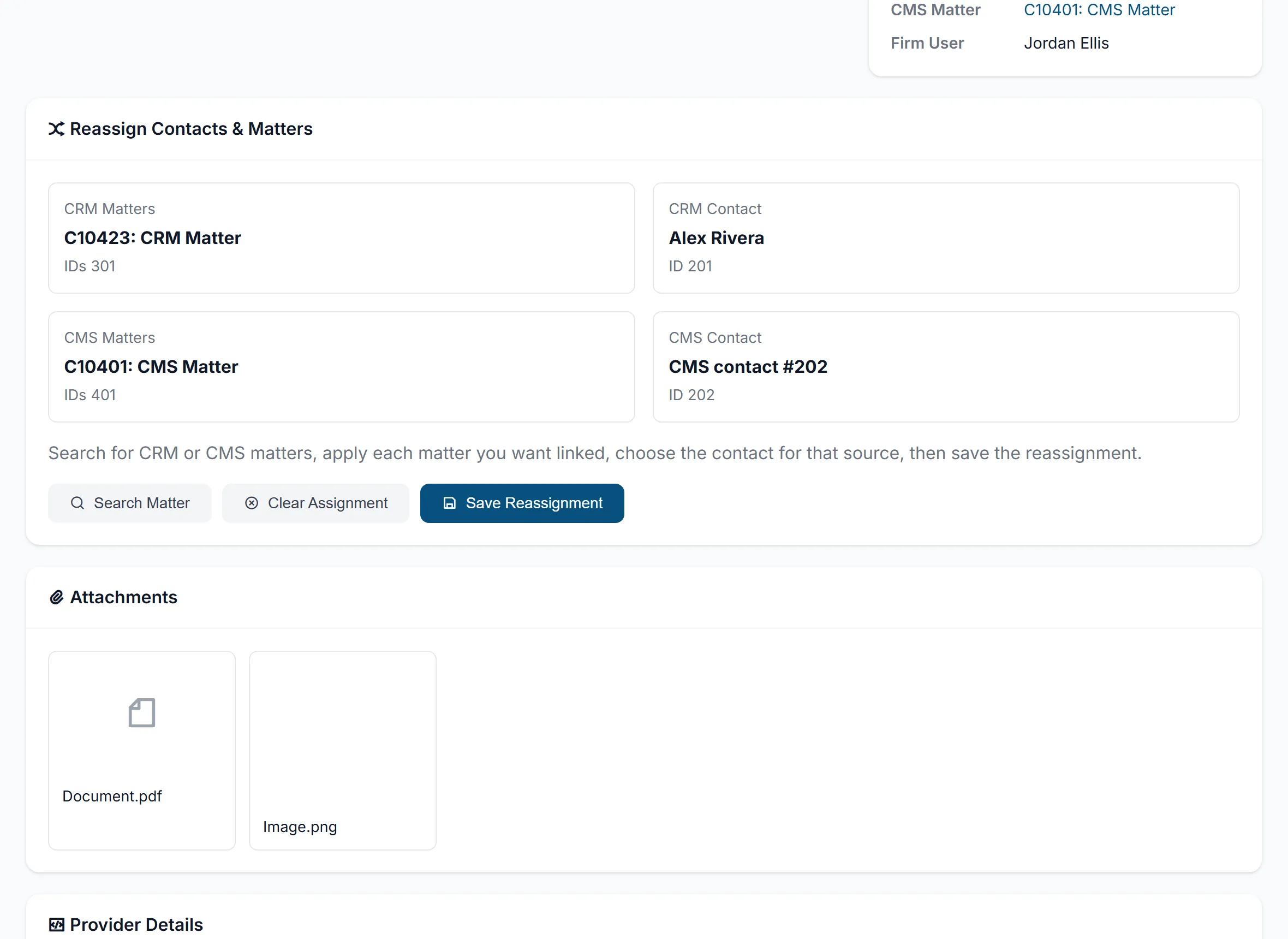
If a message landed on the wrong matter, or on none, select Reassign Matter. Search by matter, contact, email or phone, apply each matter it belongs to, choose the contact for each source (CRM and CMS), then Save Reassignment. Clear Assignment removes a wrong link.
Rematch on the list page re-runs automatic matching for messages that arrived before a contact or matter existed.
Frequently asked questions
Why wasn't this email matched automatically?
Messages attach to a contact and matter only when the match is reliable, for example a known email address. Unknown senders wait in the list for someone to assign them.
Last reviewed 2026-11-25