

Add an expense to a matter
Open the matter and, in Work Log, select + Expense, or choose Expense entry from the Quick menu. Enter the date, amount, vendor, description and expense type, attach the receipt, and say whether it's billable and reimbursable.
Expense types:
- Hard Cost: money paid to someone else, such as filing fees, court reporters or postage.
- Soft Cost: in-house costs, such as copies or mileage.
- Advanced Client Cost: costs the firm advanced and expects back from the client.
Open the Expenses workspace
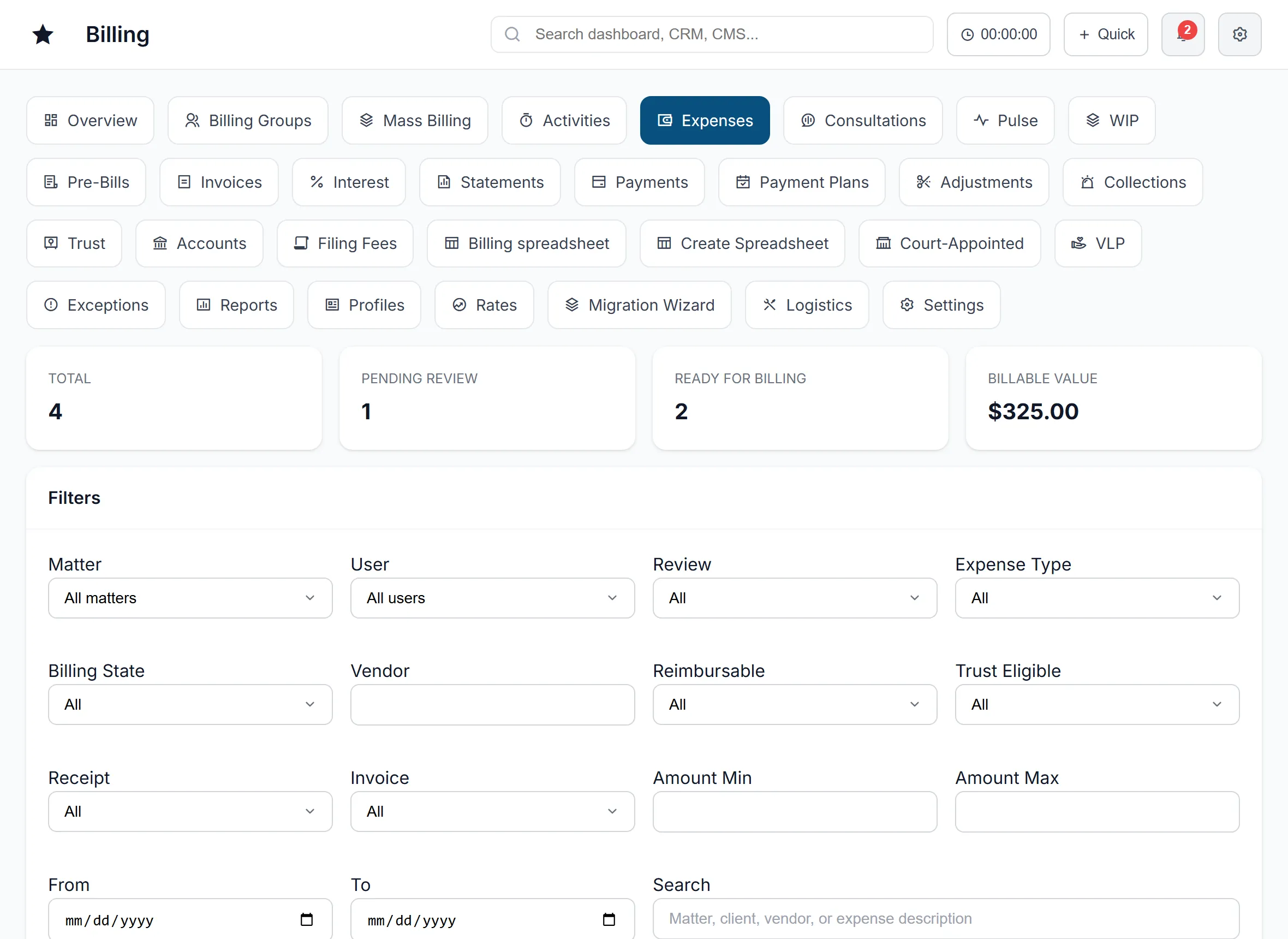
Billing staff open CMS → Billing → Expenses. The counters show Total, Pending Review, Ready For Billing and Billable Value.
Filter
Filter by matter, user, Review status (Submitted, Approved, Rejected), Expense Type, Billing State (Pending Approval, Ready For Billing, Non Billable, Billed), vendor, Reimbursable, Trust Eligible, Receipt (has or missing), linked invoice, amount and date. Then Apply Filters.
Approve in bulk
Tick the expenses and choose a Bulk action: Approve, Reject, Reopen or Mark non-billable. Approved expenses are ready for the next bill.
Filter Receipt: Missing receipt before each billing cycle and chase those first. Clients and auditors both ask for receipts.
Merge duplicates
Expense Merger combines expenses entered twice, for example when the same filing fee was logged by two people.
Last reviewed 2026-11-25