

Everything about a client's matter lives on one page in Nexus. This tour goes from top to bottom.
Open the matter
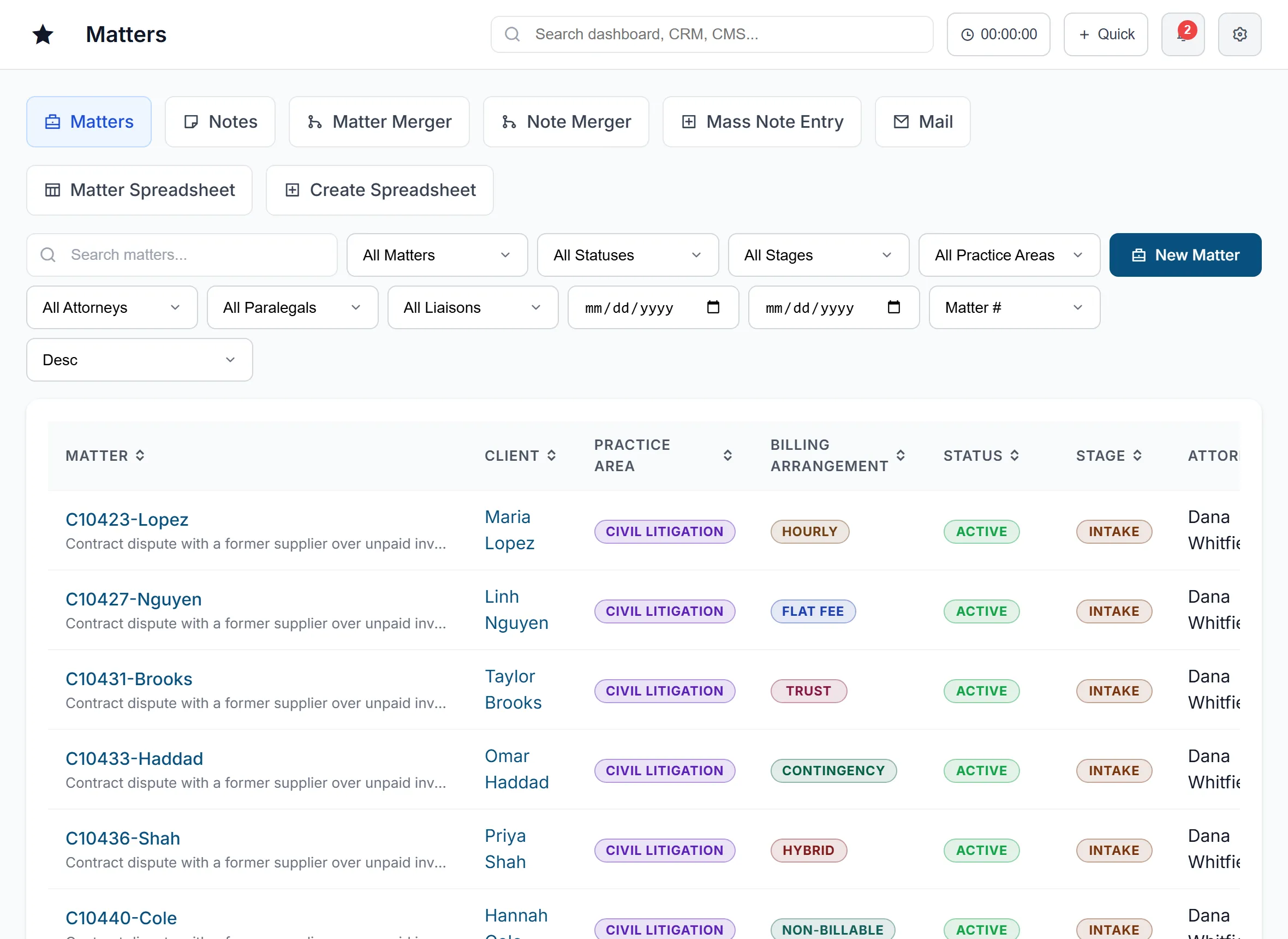
In CMS → Matters, search or filter (by status, stage, practice area, attorney or paralegal) and select the matter. Star it to keep it in your sidebar.
Use the action bar
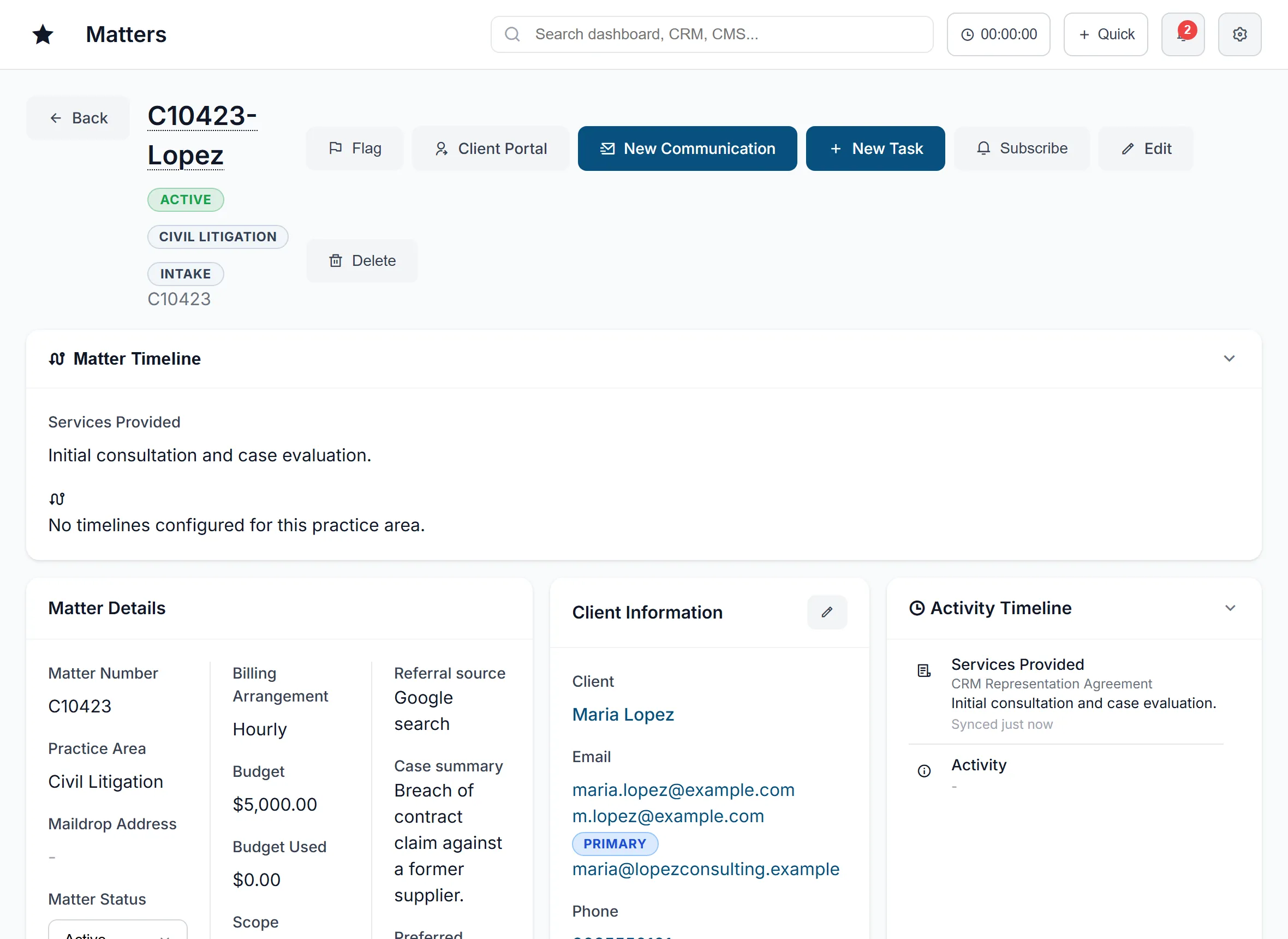
Under the matter title, number, status and practice area is the action bar:
- Flag: mark it for attention
- Client Portal: manage what the client sees (guide)
- New Communication: email or text the client (guide)
- New Task: add a task to this matter
- Subscribe: get notified about activity on this matter
- Edit: change the details. Delete is limited to admins.
Check details and stage
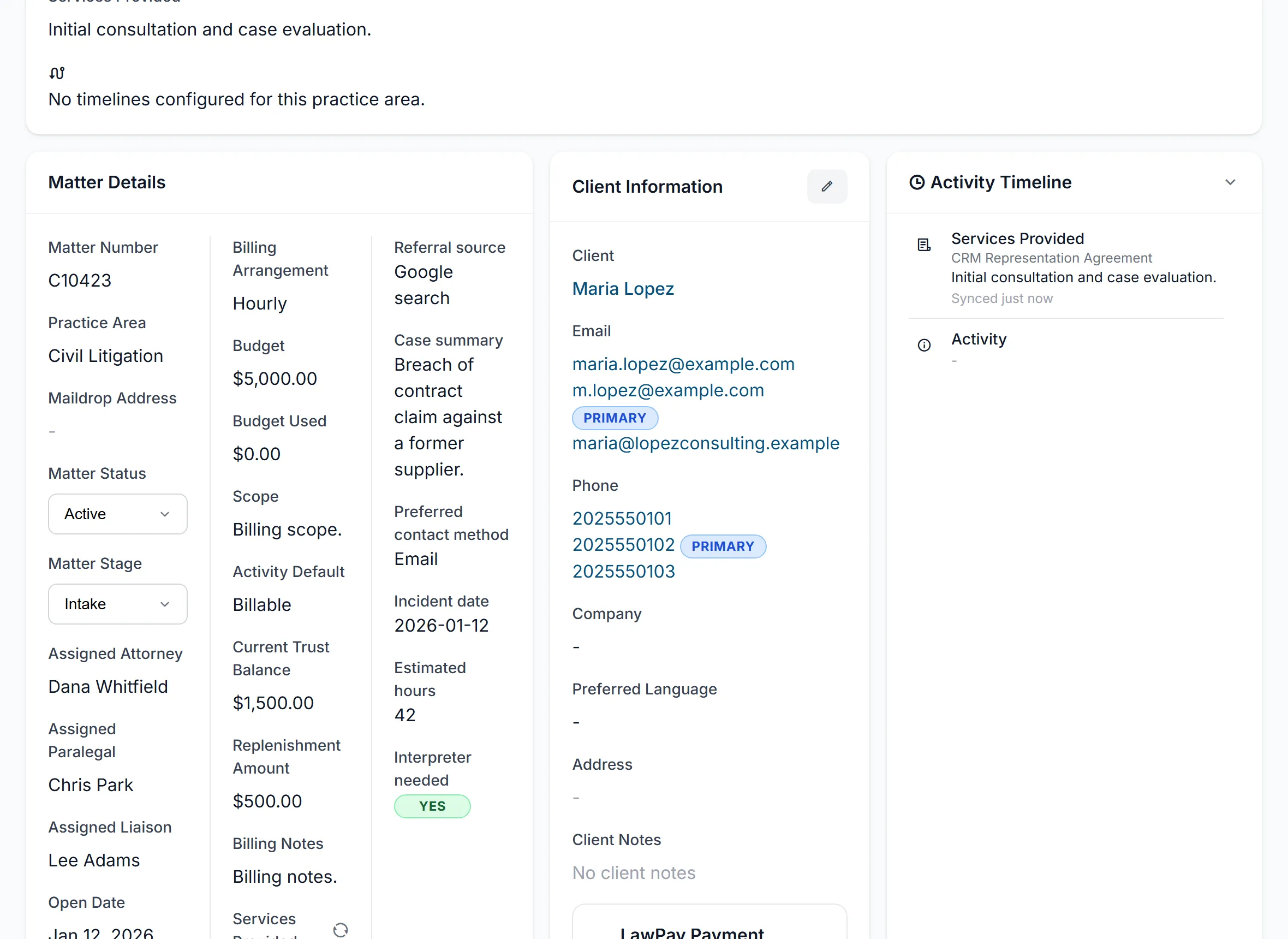
Matter Details shows the matter number, practice area, Matter Status and Matter Stage (pick the stage as the case moves on), the Assigned Attorney, Assigned Paralegal and Assigned Liaison, open and close dates, and the billing arrangement and budget. Matter Timeline shows the steps for this practice area if your firm uses timelines.
Check the client and related contacts
Client Information lists every email and phone number, with the primary ones marked, plus preferred language and client notes. Under Related Contacts, use Add CMS Contacts to add a co-client, spouse or witness, with the Relationship.
Read and add notes
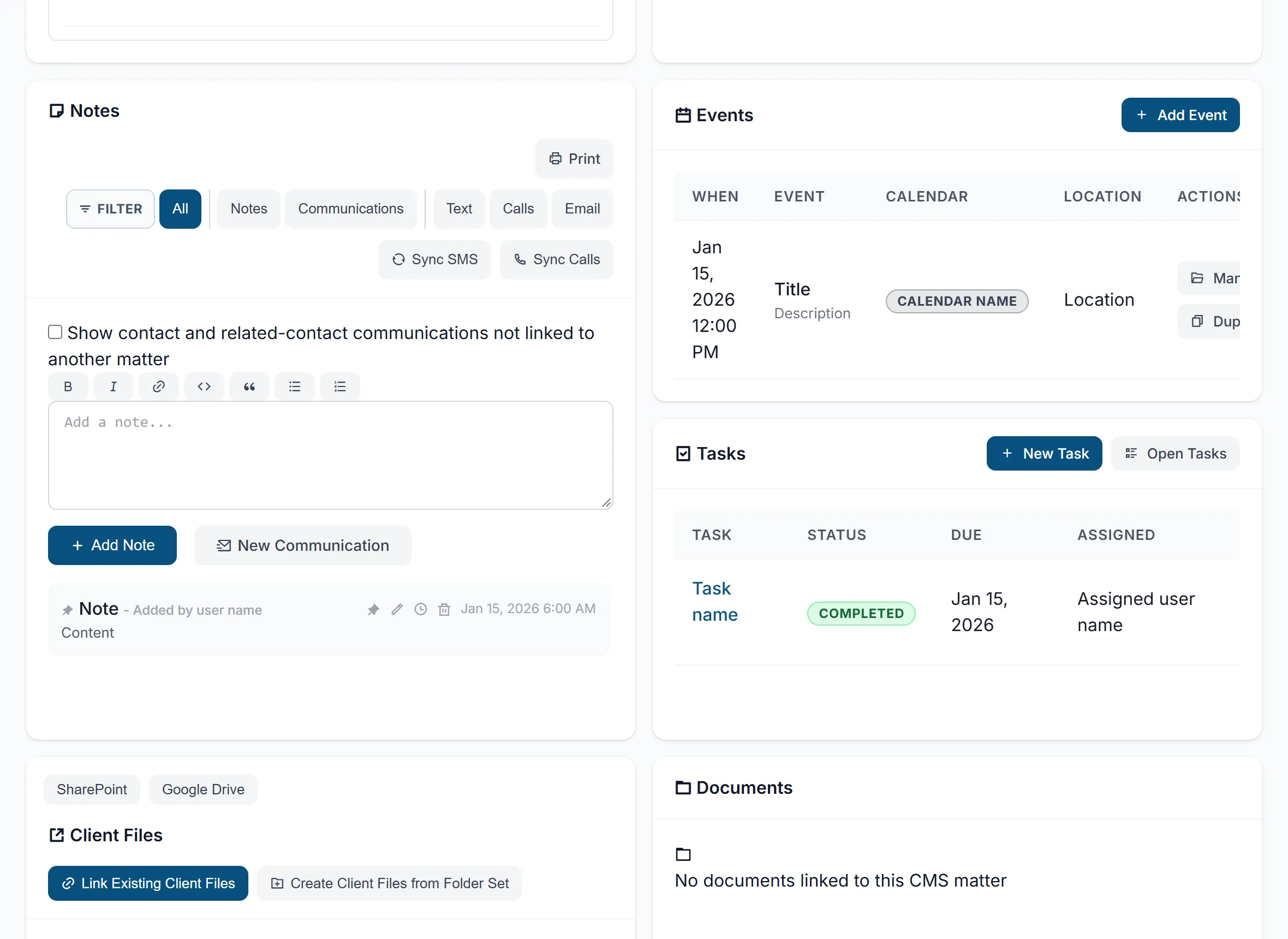
The Notes section is the matter's running history: staff notes, emails, texts and calls in one timeline. Filter it to communications only, pin important notes, and use the clock icon on any item to log time for it.
Find documents
Documents holds the matter's files, including Client Portal Documents that the client uploaded, with their review status. Open, download or review files from here.
Check billing and the Work Log
The Billing card shows Total Invoiced, Collected, Outstanding, Trust Balance and the trust Replenishment amount, with Create Bill and Create Trust Request below. Work Log beside it lists the matter's time and expenses.
Frequently asked questions
I can't see the billing card.
Billing is permission-controlled. Ask your admin if you need it.
What's the Maildrop Address?
A matter-specific email address. Copy or forward an email to it and the email files itself on the matter.
Last reviewed 2026-11-25