

Every time entry you save becomes an activity in the matter's Work Log. Pick the fastest method for the moment:
| When you are | Use | Where |
|---|---|---|
| Working on something right now | Timekeeper | The timer in the Nexus header |
| Recording one entry | Matter Work Log | CMS → Matters → open the matter → Work Log → Activity |
| Looking at a note, email, text or call | Clock shortcut | The clock icon on that item in Notes |
| Entering a day or a week | Mass Entry | CMS → Billing → Activities → Mass Entry |
| Using Pulse desktop capture | Pulse | CMS → Billing → Pulse (guide) |
| Right after a call, from any page | Quick menu | Quick → Time entry |
Check four things on every entry: the right matter, the date and start time the work happened (not when you are typing), the timekeeper who did it, and a description that says what was done and why it moved the matter forward.
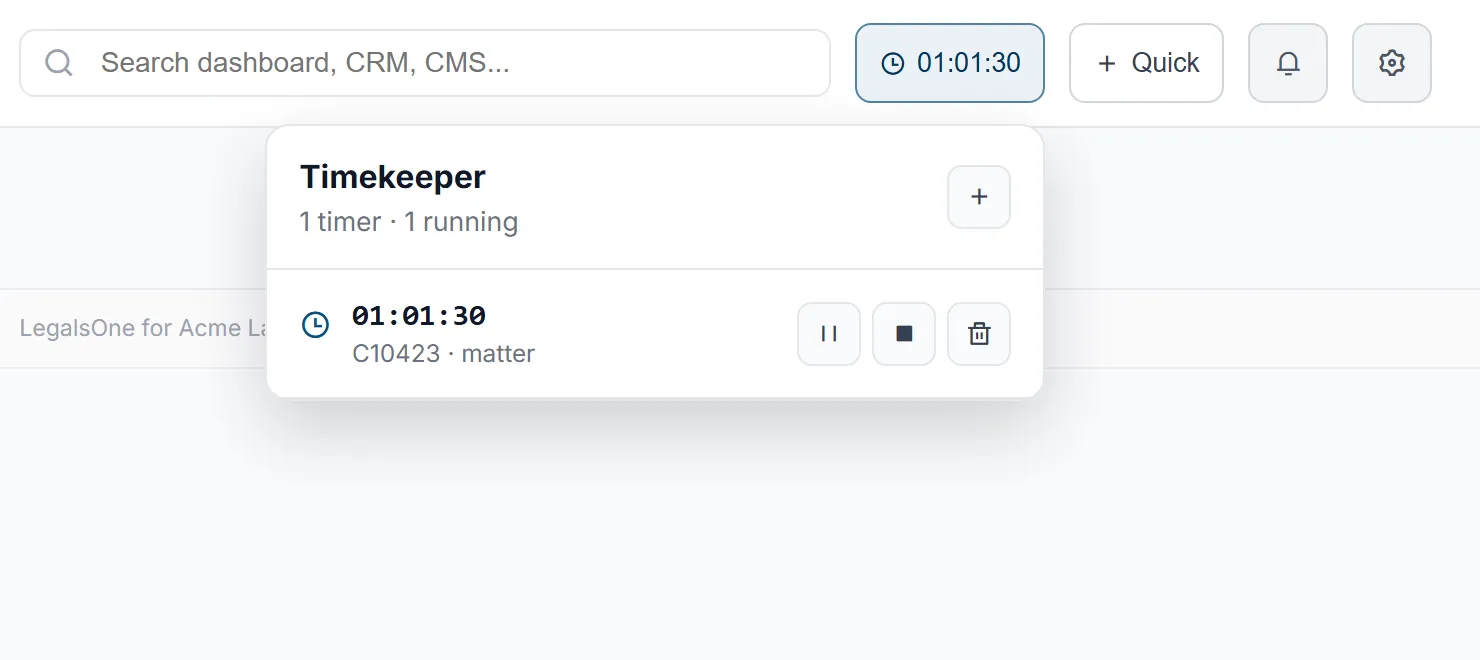
Run the timer while you work
The Timekeeper sits in the Nexus header (it shows 00:00:00 when idle). Start it, choose the matter, and it keeps running while you move around Nexus. Pause it when you're interrupted. Finish it to turn the time into an activity, add your description and save.
Enter one activity in the Work Log
- In CMS → Matters, open the matter and scroll to Work Log.
- Select + Activity.
- Complete Date, Start Time, Duration, User and Description.
- Check Billable activity only if the time should be billed. It starts with the matter's Activity Default.
- Check Copy to notes if you also want the description as a matter note.
- Select Log Activity and confirm the row appears in the Work Log.
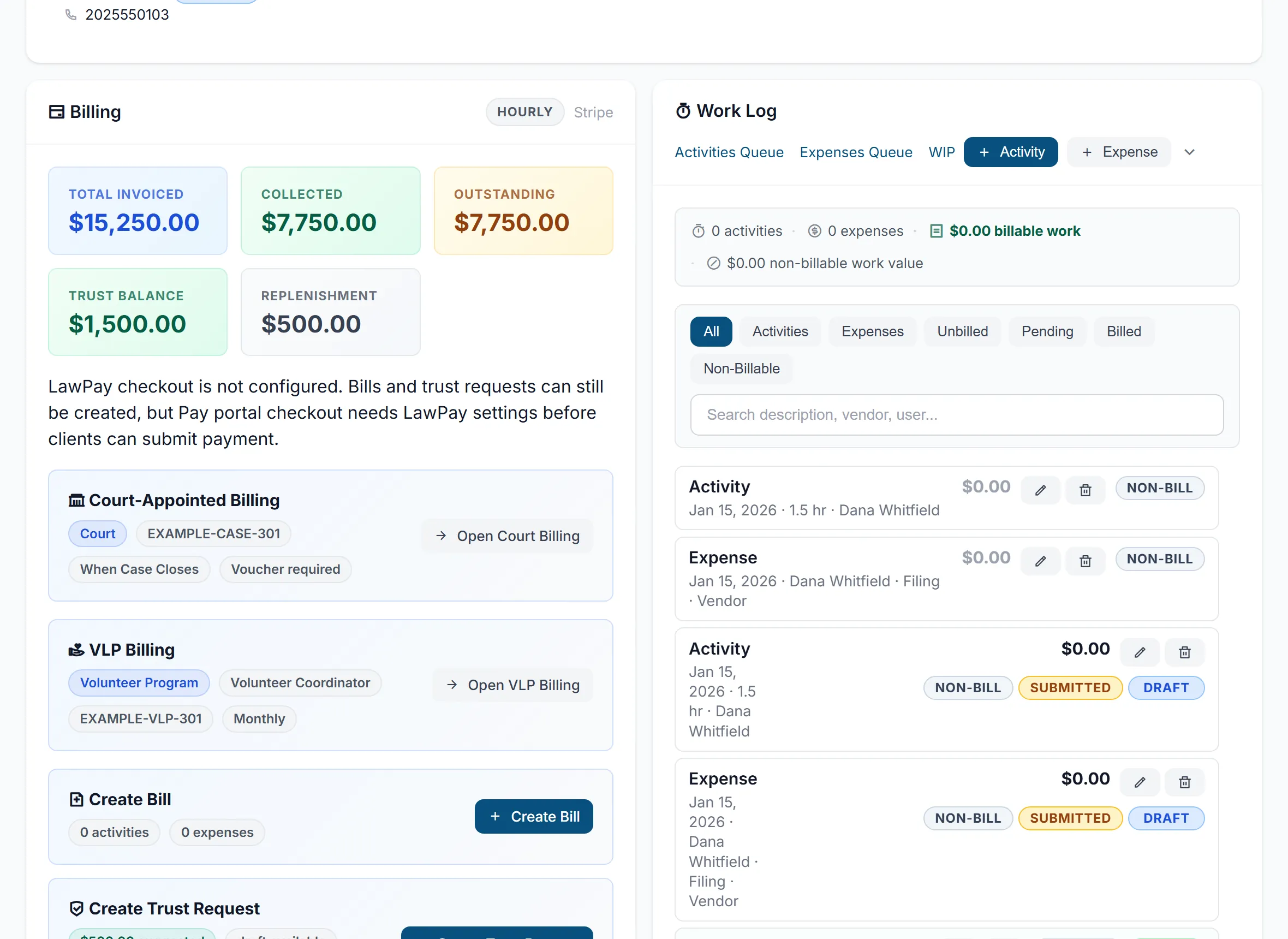
Duration accepts .1, .5, 45m, 1h45m or 1h 5m. The minimum is 0.1 hour. Don't round it yourself: the firm's rounding, rates and approval rules apply when you save.
Advanced holds special cases: Activity Code, Custom Rate ($/hr), No charge, Flat-fee milestone, Contingency-related, and Skip approval for this activity where your role allows it.
Start from a note or communication
In the matter's Notes section, select the clock icon (Add activity) on a note, email, text or call. The Log Activity form opens with that item's date and time:
- Notes, emails and texts start at
0.1hour. - Phone calls use the recorded call length, rounded up to the next tenth, when it's available.
The text isn't copied into the description, so write a billing-ready one. Nothing is saved until you select Log Activity.
Enter a full day with Mass Entry
- Go to CMS → Billing → Activities and select Mass Entry.
- For each row choose a Matter, then fill in Date, optional Start, Hours, Details and Timekeeper.
- Check Billable for each row. Picking a matter applies its default.
- Add rows as you go and watch the billable and non-billable totals at the bottom.
- Select Save Activities.
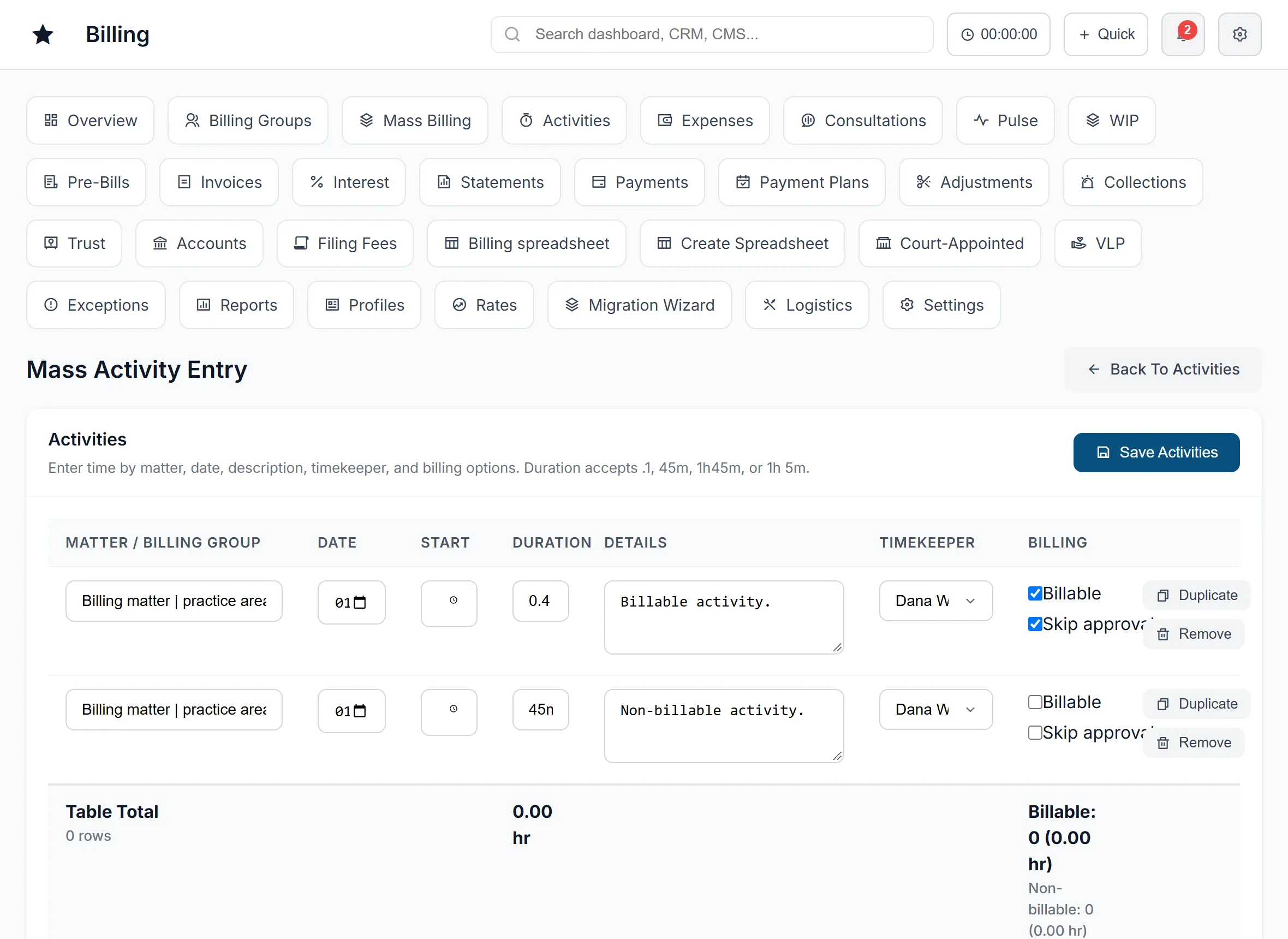
If any row has an error, nothing in the batch is saved. Fix every highlighted row and save again.
Review your saved time
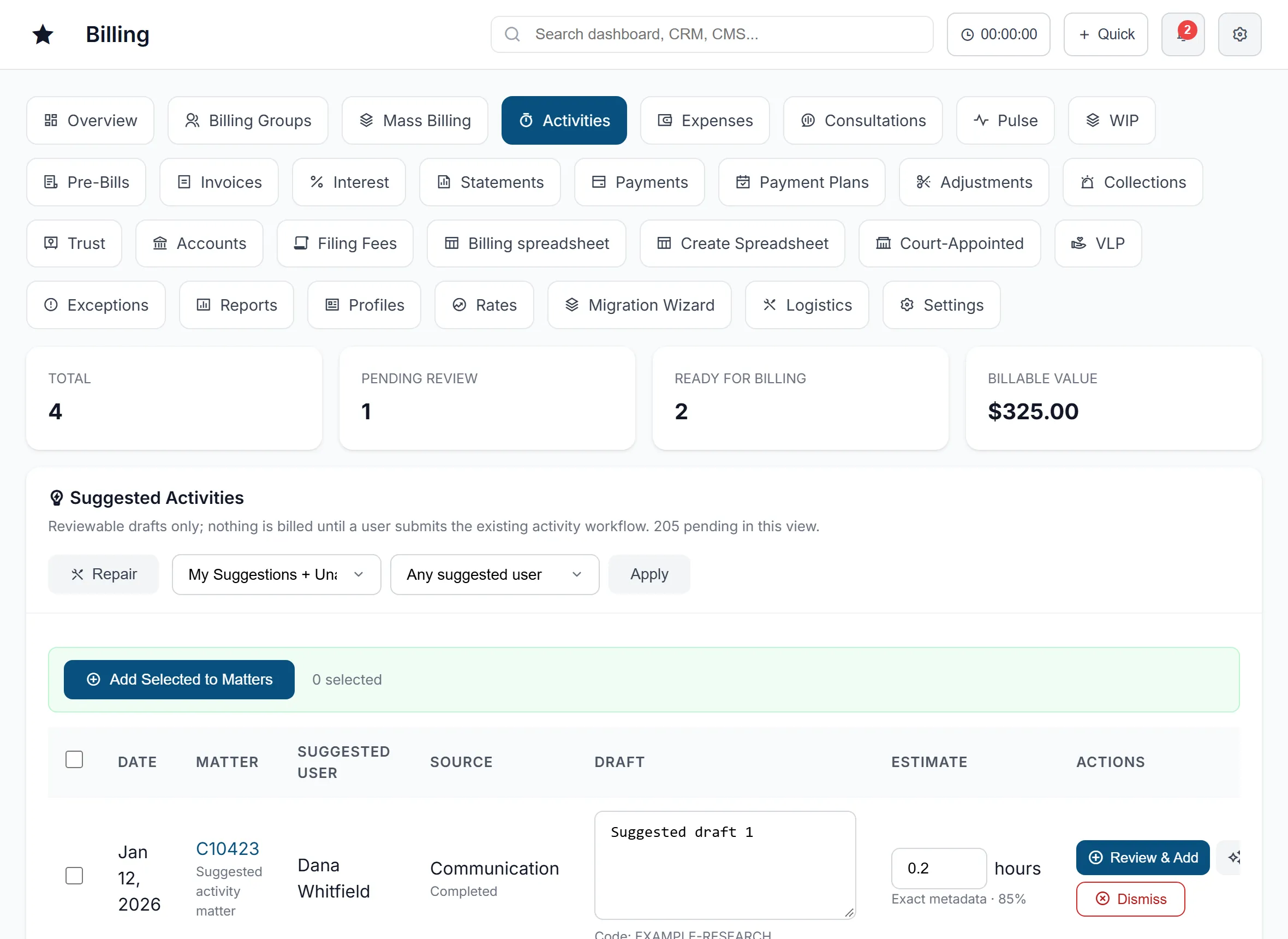
CMS → Billing → Activities lists saved activities with totals, items pending review and what's ready for billing. Suggested Activities proposes time from recent work, such as communications you sent. Review each suggestion, then add it to the matter or dismiss it.
Fix an entry that's wrong
Open the matter, go to Work Log, select the pencil (edit) icon on the activity, correct it and save. Billed or locked activities can't be edited. Follow your firm's billing-correction process instead of adding an offsetting entry.
Frequently asked questions
Does opening Billing → Activities create anything?
No. That page is for reviewing saved time. Use Mass Entry to add new time.
A bulk email added a zero-hour row to the Work Log. Is that my time?
No. Bulk communications add a zero-duration, non-billable record for the audit trail. If you spent time on it, add a separate activity.
What do SUBMITTED, DRAFT and NON-BILL mean on a Work Log row?
They show where the entry stands. Draft entries are still being prepared, submitted entries are waiting for approval, and non-bill entries won't appear on an invoice.
Last reviewed 2026-11-25