

Your role needs Pulse access, and your firm must use the Pulse desktop app. Pulse records which application, window or website is in the foreground and for how long. It doesn't record keystrokes or screen contents.
Pair your computer
Open the Pulse app and choose to connect. Your browser opens LegalsOne. Sign in if asked, and the app pairs itself. A pairing link works once and expires after 15 minutes. If it expires, start again from the app.
Open the Pulse workspace
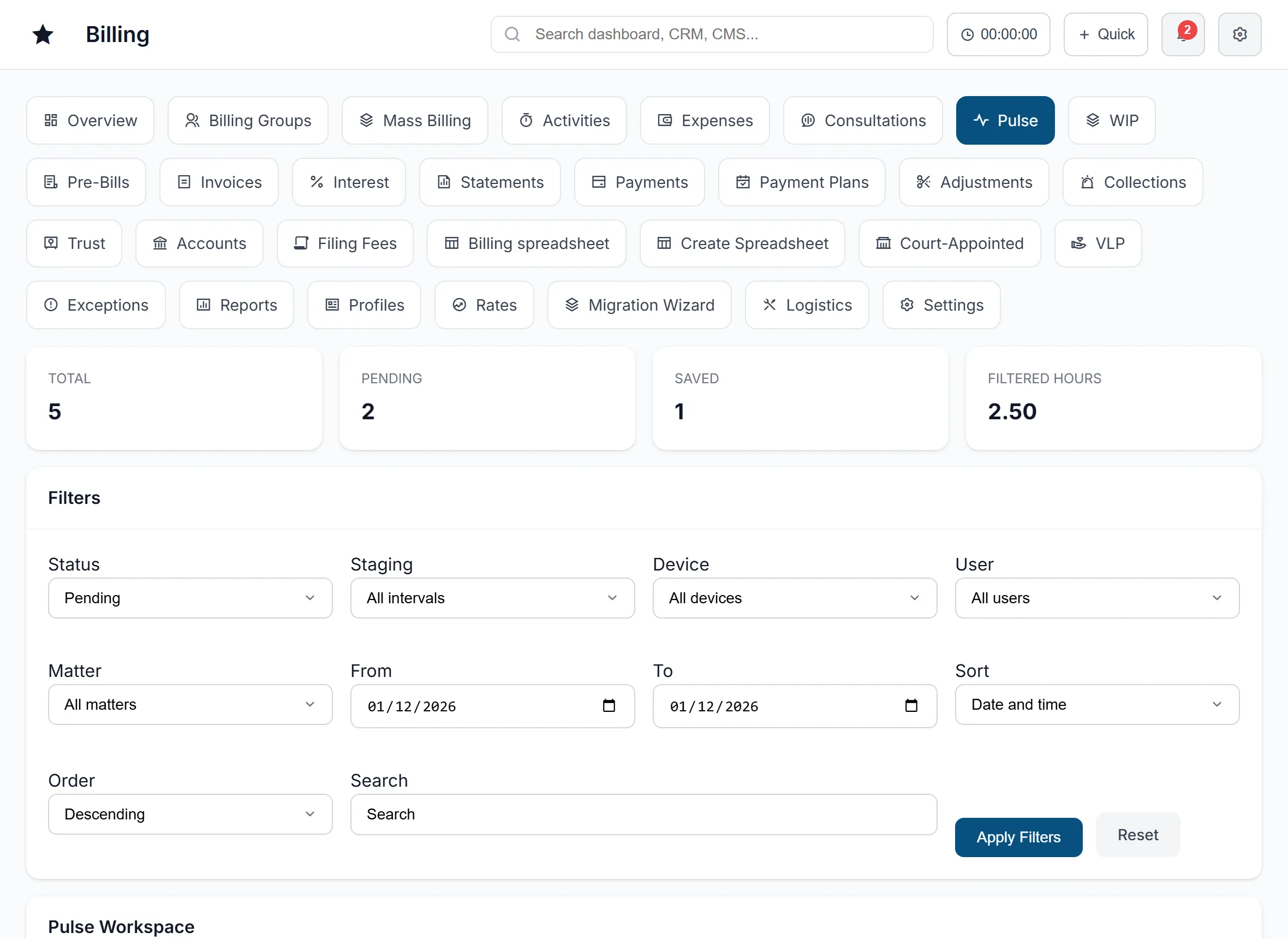
In CMS, go to Billing → Pulse. The counters show Total, Pending, Saved and Filtered Hours. The Pulse Workspace lists the matching foreground intervals.
Filter to your intervals
Use the filters, then Apply Filters:
- Status: Pending, Ignored, Saved or All
- Staging: Needs matter or Ready to save
- Device, User, Matter and a date range
- Search by app, window, domain or matter
Assign a matter and describe the work
For each interval choose the Matter and edit the Description so it says what the work was. Drafts save automatically, but a draft isn't time yet.
Merge intervals that belong together
Back-to-back intervals in the same app are merged automatically. If several separate intervals were really one task, select them and merge them, or use Re-merge Similar. Check the merged details before saving. You can unmerge if needed.
Save
Select Save on one ready row, or Select Ready and then Save Selected. Each row, or each merged group, becomes one activity in the matter's Work Log, using the matter's billable default and the firm's rounding, rates and approval rules.
Pulse has no billable or no-charge switch. To change that, edit the activity in the Work Log after saving.
Frequently asked questions
Personal browsing shows up in Pulse.
Ignore those intervals. Admins can also block noisy apps, sites or window titles so they stop appearing.
I got a new computer.
Pair the new one, and ask your admin to revoke the old device.
Last reviewed 2026-11-25