

Open Mass Note Entry
In CMS → Matters, open the Mass Note Entry tab. Each row is one note.
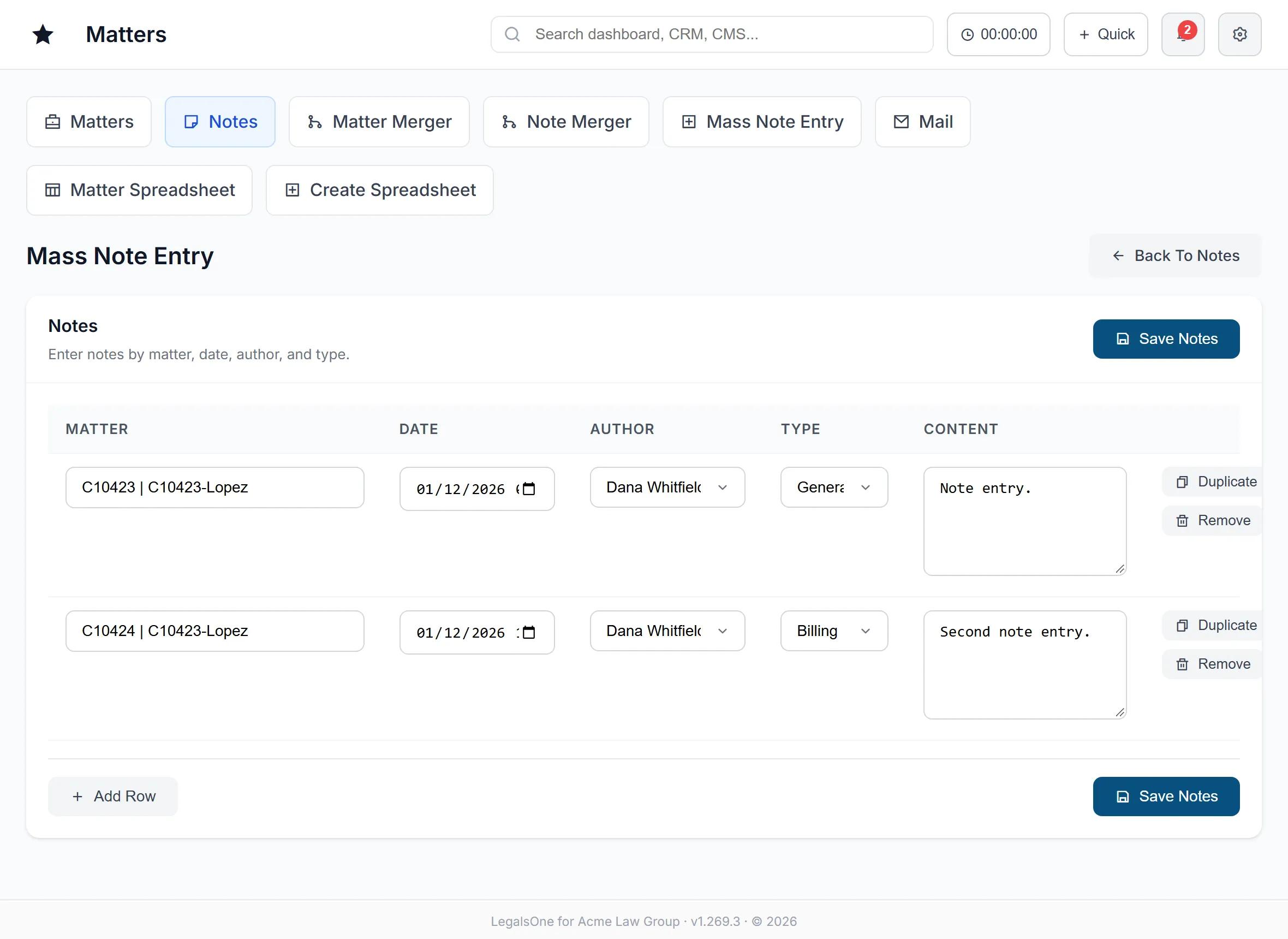
Fill in the rows
For each row, choose the Matter, Date, Author and Type (General, Client Communication, Case Update or Billing), and write the Content. Add Row adds another, Duplicate copies a row, and Remove deletes one. Select Save Notes when you're done. Rows with problems are flagged, so fix them and save again.
Use Mass Note Entry at the end of a day of calls, or after a court date with several matters on the docket, so every matter gets its update in one sitting.
Open the bulk matter update
Open the Matter Merger tab. Despite the name, it's where you change many matters at once.
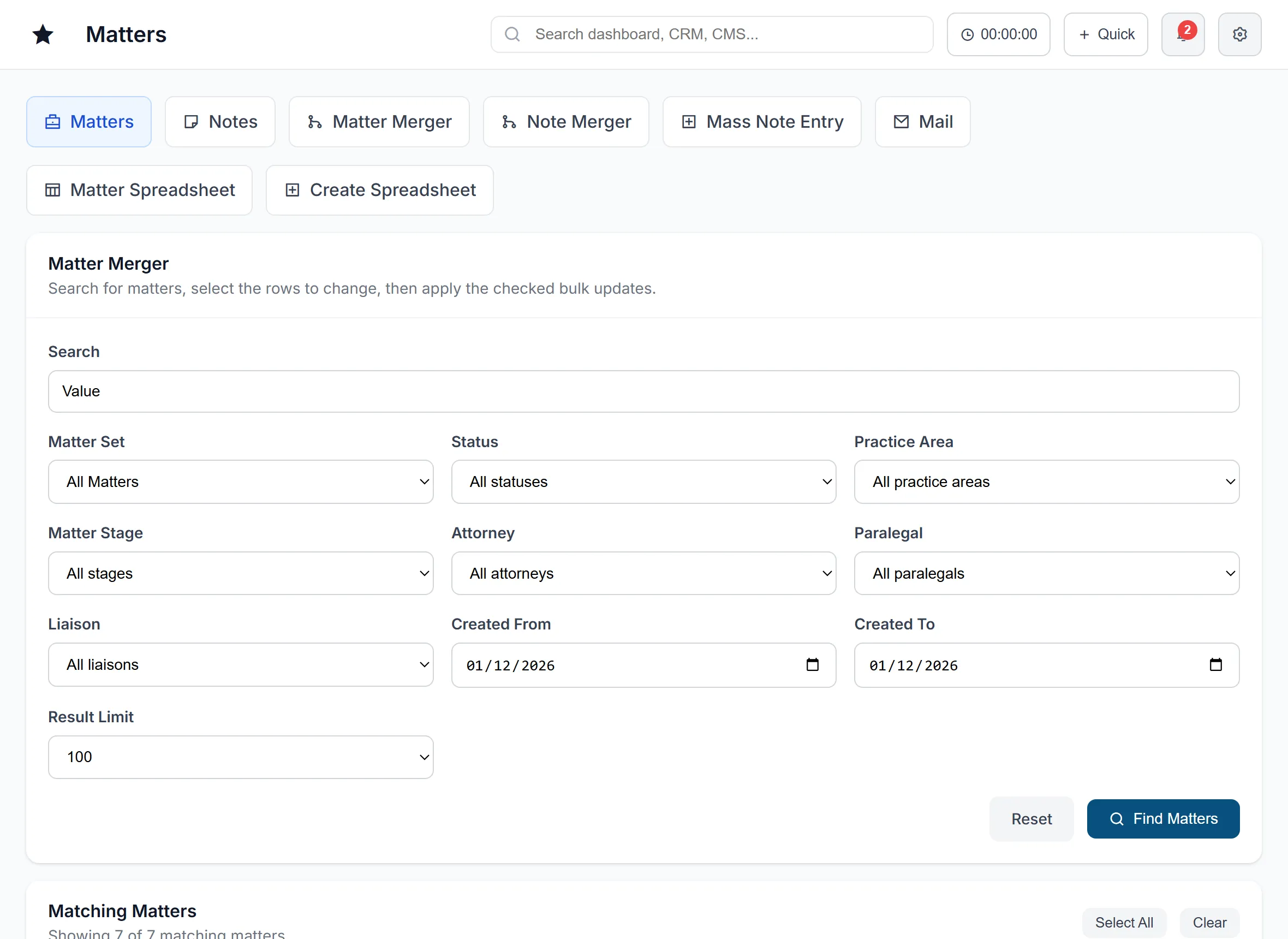
Find the matters
Search by matter number, title, description, client or email, and filter by Matter Set (All, Active, Pipeline, Closed), status, practice area, stage, attorney, paralegal, liaison and created date. Choose a Result Limit, then Find Matters.
Select and apply
Select All or tick individual matters, choose the changes to make (for example a new paralegal, stage or billing arrangement), tick each change you want applied, and apply. Only the checked changes are made.
Bulk updates change every selected matter. Check the selection count before applying, especially for billing arrangements.
Frequently asked questions
Can I combine two duplicate matters?
Ask your admin. Combining matters is a separate, admin-only action.
Last reviewed 2026-11-25