

Immigration forms are set up by an admin: the current edition's PDF is uploaded and its fields are mapped to profile data. Each form's Setup column shows whether it's ready.
Check the form catalog
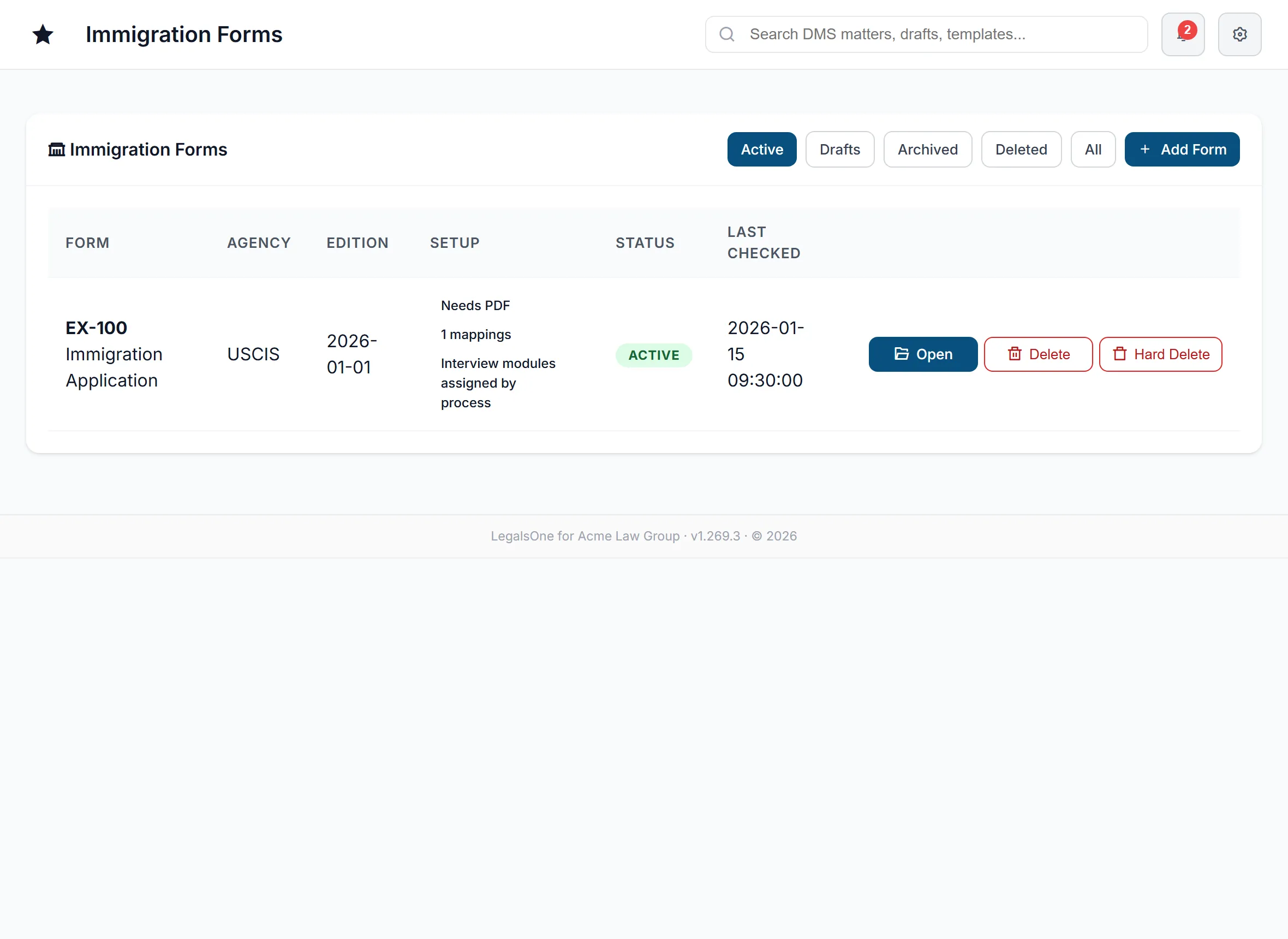
DMS → Immigration Forms lists each form with its agency, Edition, setup state (for example how many fields are mapped) and when it was Last Checked for a newer edition.
Open the form for the matter
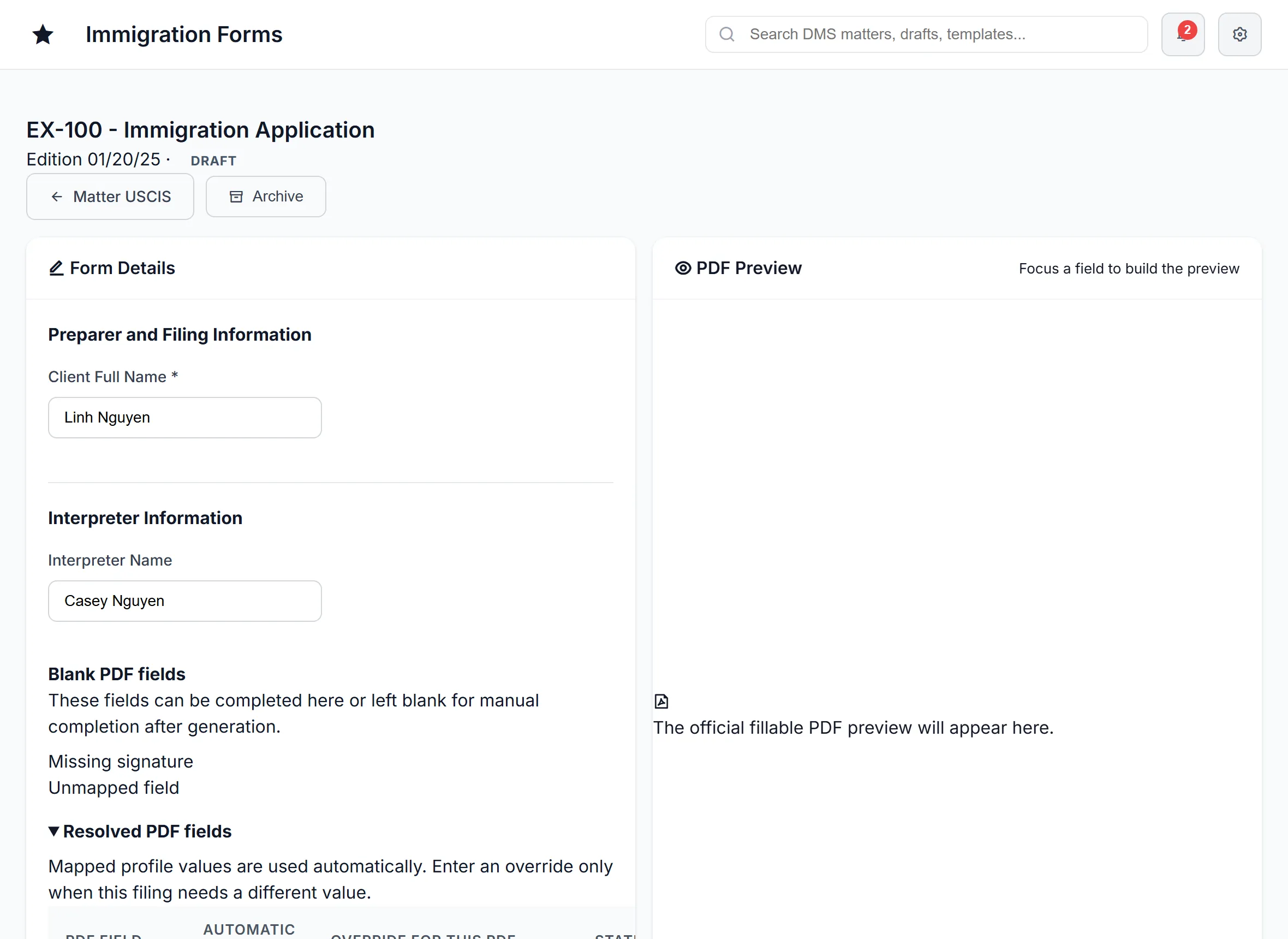
From the matter's Immigration tab in Dockets, open the form you need. The workspace shows the form name, edition and status (Draft until finalized).
Review the resolved fields
Resolved PDF fields lists each field with its Automatic Value from the client's profile and a Status, such as Ready. Mapped values are used automatically. Enter an Override for This PDF only when this filing needs a different value.
If an automatic value is wrong, fix it in the client's profile in Matter Data, not as an override, so every other form gets it right too.
Complete the blank fields
Blank PDF fields have no mapping, such as a signature or an unusual question. Complete them here, or leave them blank to finish by hand after the PDF is generated.
Preview and generate
Click into a field to see it in the PDF Preview of the official fillable form. Save Progress as you go. When it's complete, select Generate PDF, then Download PDF.
Finalize
When the filing package is finalized, the form is locked so the filed version can't change. Archive old drafts you no longer need.
Frequently asked questions
A new edition came out.
Your admin updates the form's PDF and mappings in the catalog. Drafts started on the old edition keep it. Start a new draft for the new edition.
Last reviewed 2026-11-25