

The matter must exist in Nexus and the template must be Active in DMS → Templates. The more complete the matter's data, the fewer fields you type.
Start from the matter
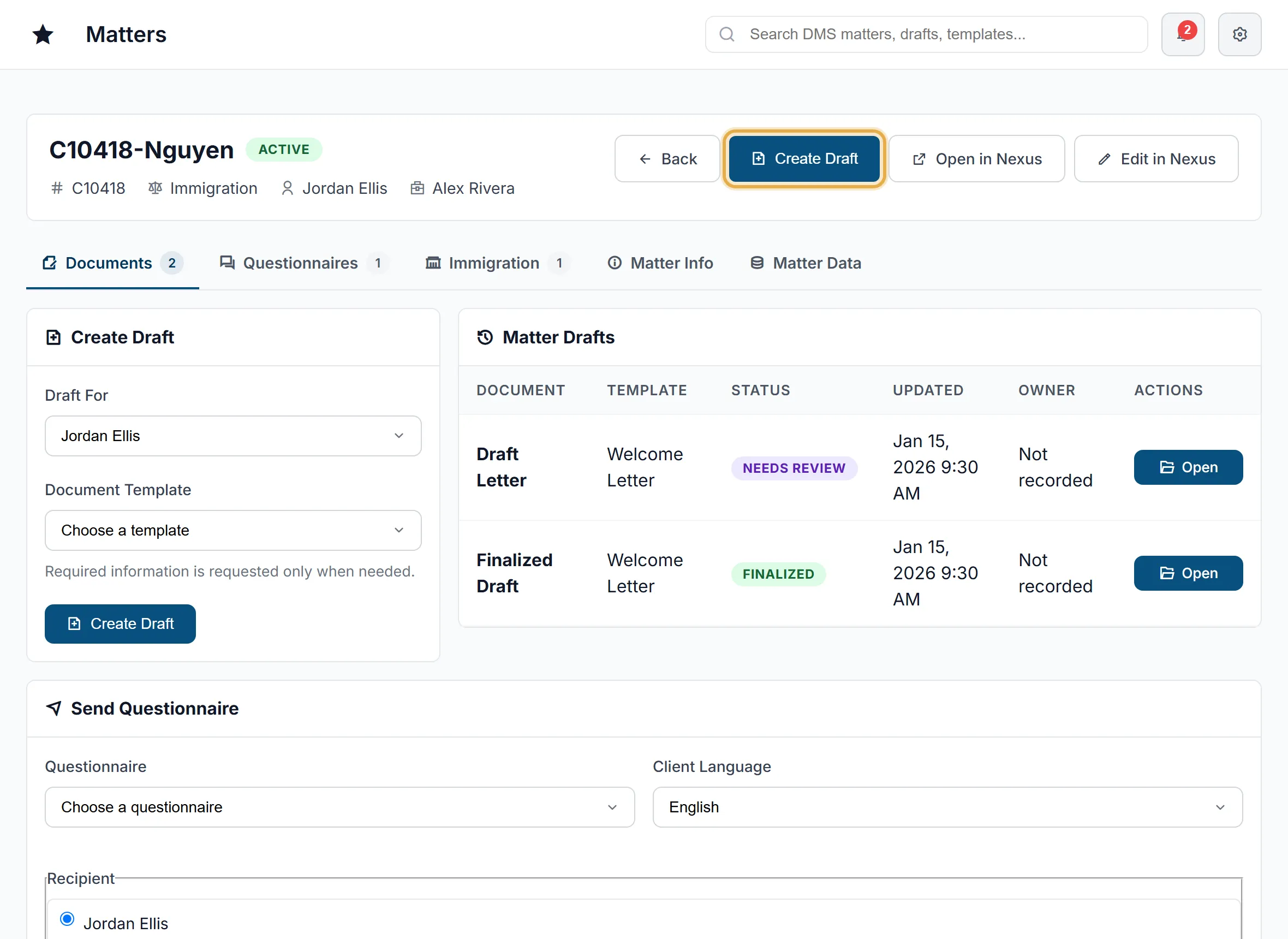
In DMS → Matters, open the matter and select Create Draft. The matter workspace has tabs for Documents, Questionnaires, Immigration, Matter Info and Matter Data, plus Open in Nexus and Edit in Nexus to jump back to the CMS.
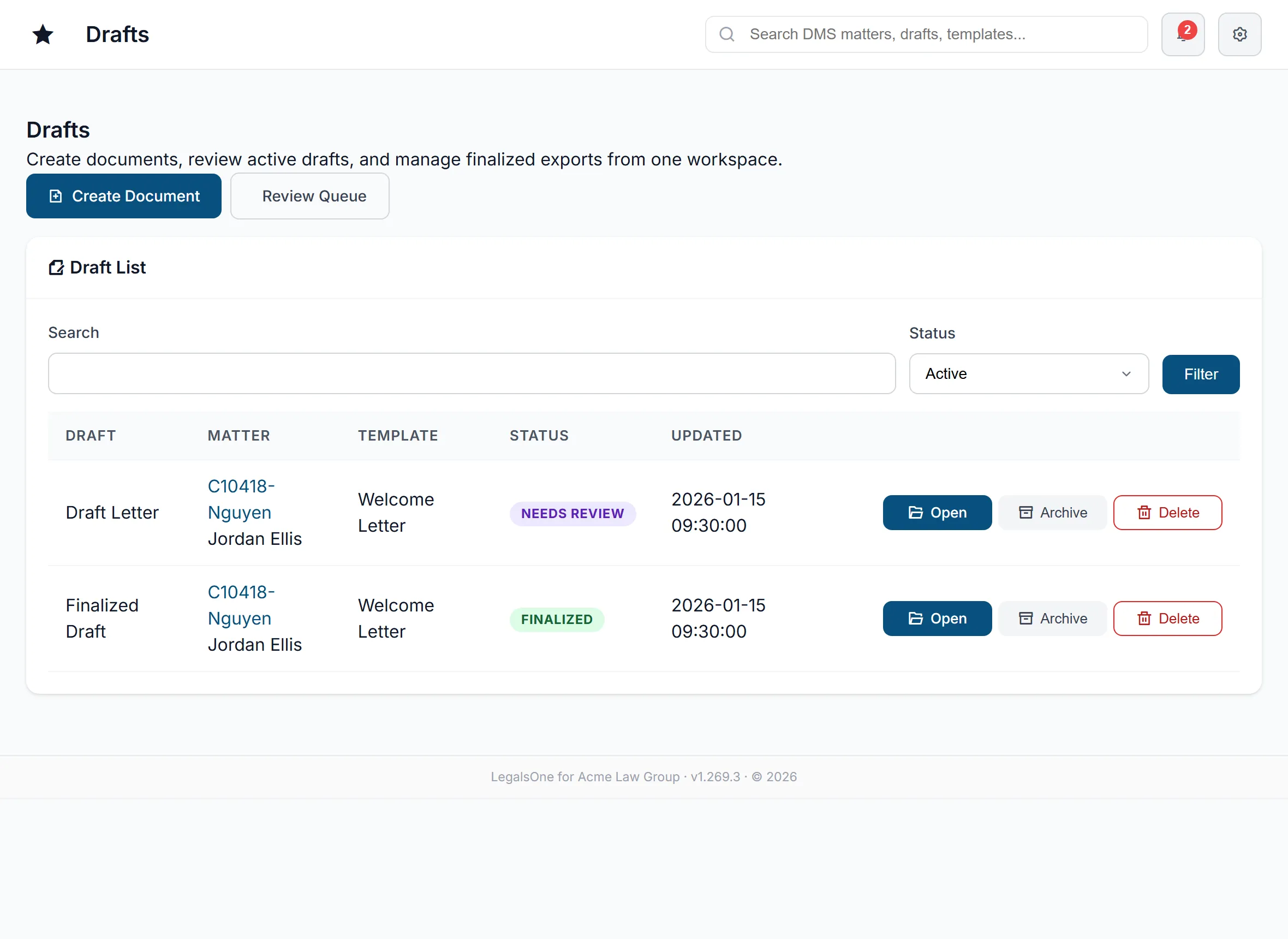
You can also start from DMS → Drafts → Create Document, where you pick the matter yourself.
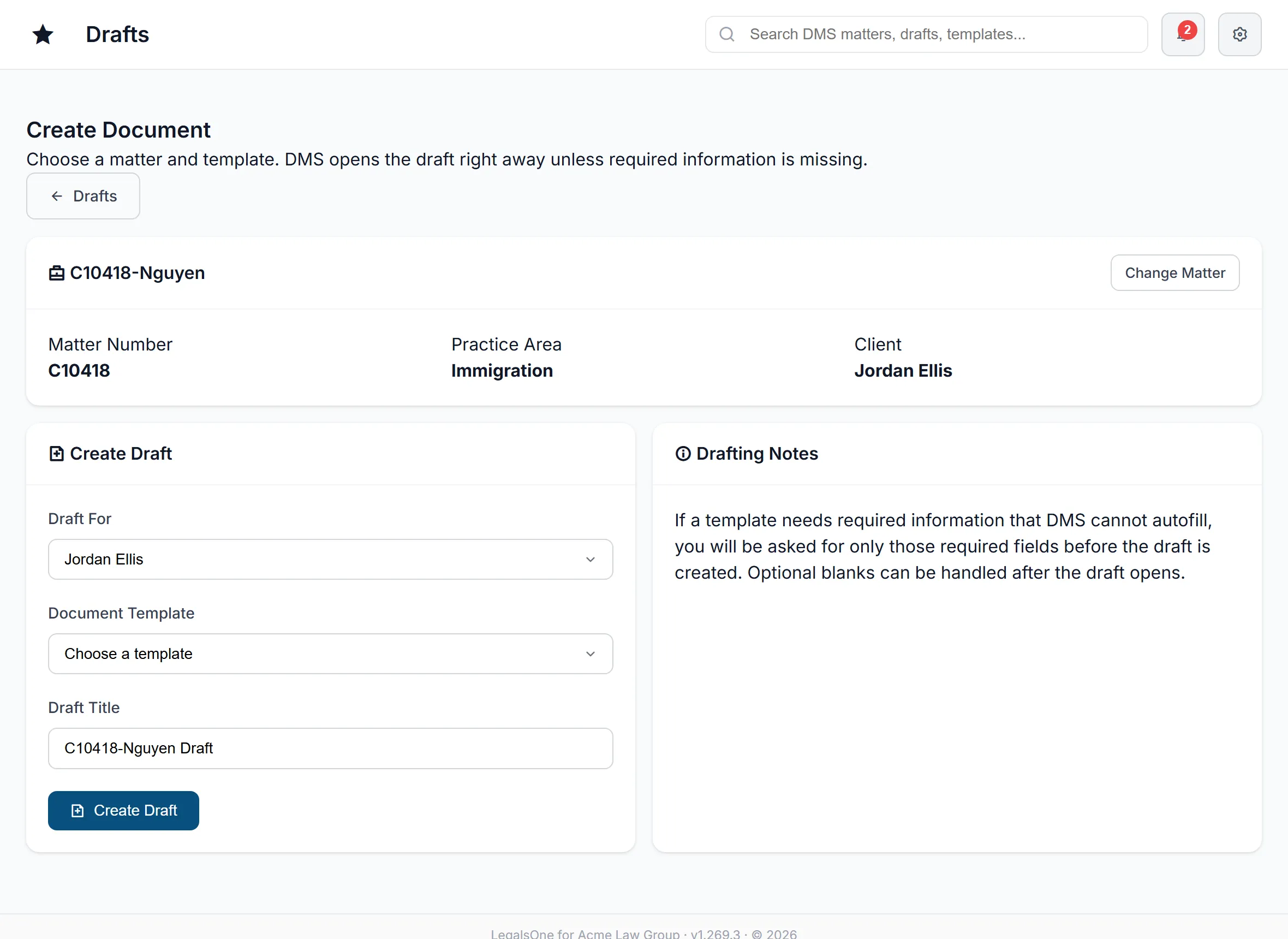
Choose the template
Under Create Draft, choose who the draft is for (Draft For) and the Document Template, and give it a Draft Title you'll recognize in the Draft List. Then select Create Draft.
Complete the required fields
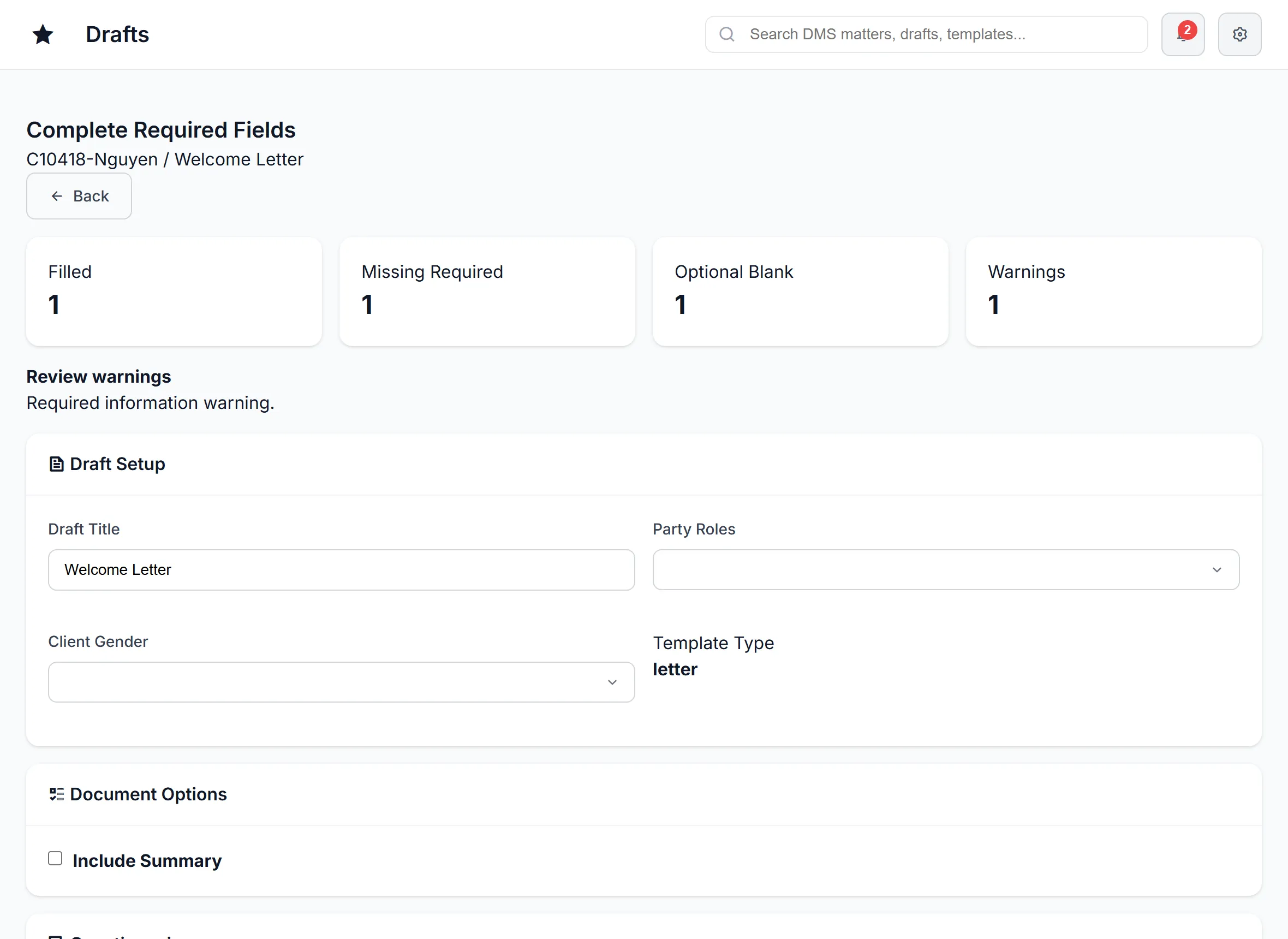
Complete Required Fields opens if the template needs anything the matter doesn't have. The counters show Filled, Missing Required, Optional Blank and Warnings:
- Missing Required must be filled before you generate.
- Optional Blank fields can stay empty.
- Read every review warning.
If a value belongs on every document for this matter, such as a date of birth or an A-number, add it to Matter Data instead of typing it into one draft. See Keep matter data complete.
Choose document options
Under Document Options, tick the optional paragraphs to include. Some choices only appear after you pick the option they belong to. If the template uses party roles or pronouns, set Party Roles and Client Gender.
Edit and preview
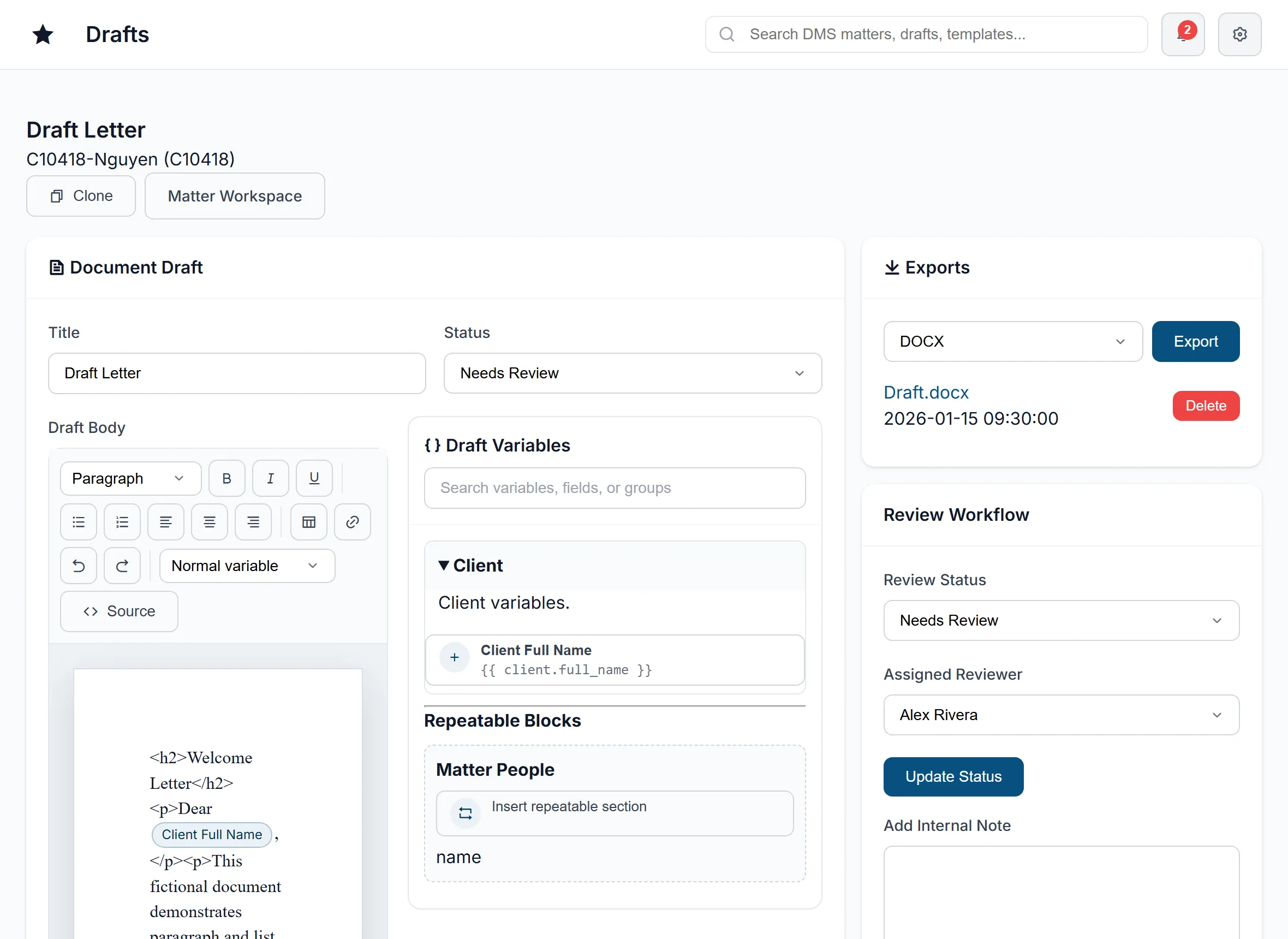
The draft editor shows the document with its Draft Variables on the side. Edit the text, insert repeatable sections, and see the preview. Download Filled DOCX opens it in Word. Regenerate DOCX rebuilds it after a field changes.
Send it for review and export
Set the Assigned Reviewer and use Update Status (for example Needs Review, then Finalized). Reviewers add notes or a change request. Every change is kept under Versions, so you can restore an earlier one. Use Export to produce the final file.
Frequently asked questions
The draft is locked.
Drafts lock at certain review statuses so the approved version can't change. Clone it to make a new version.
A field filled in wrong.
Fix it in Matter Data, then select Regenerate DOCX.
Last reviewed 2026-11-25