

Open Client Portals settings
Open Settings and, under CMS Configuration, choose Client Portals. The tabs are General, Sign-in & security, Documents & alerts, Templates and Readiness & issues. Legal Team Media holds the photos and videos clients see of your team.
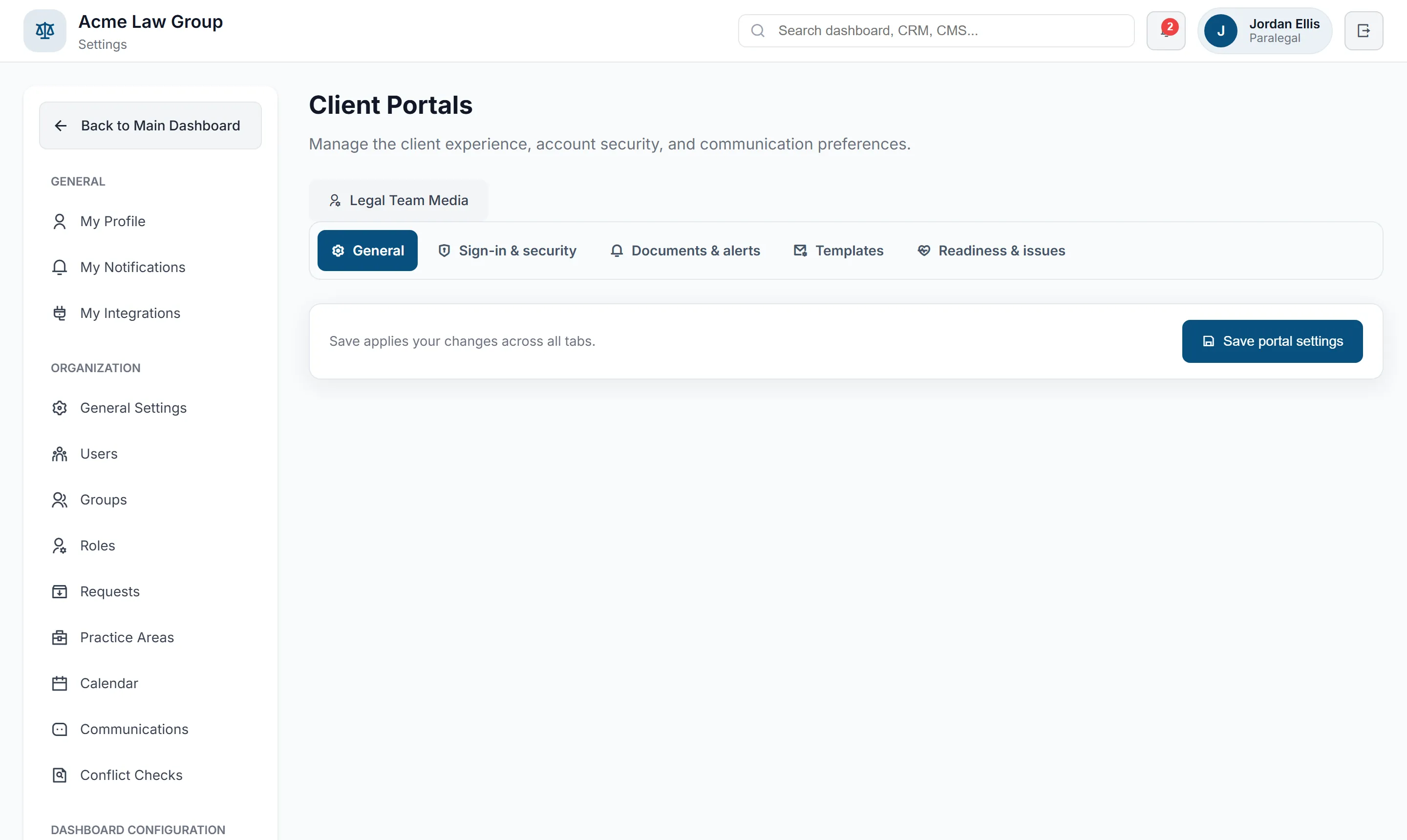
General
- Client portal theme: the New theme matches the current Forms and Pay pages. Save, then open a staff preview to compare.
- Enable the client portal
- Account creation: Manual (staff invite each client) or Automatic on activation
Sign-in & security
Choose how clients verify their identity. Email codes are always available, and clients can add a mobile number for text codes. Clients can't reset their own password, so staff send reset links.
Documents & alerts
Set upload rules and which client actions alert staff: messages, uploads and task submissions. Staff alerts go to the matter's assigned paralegal and subscribers, plus any fallback addresses you set.
Templates
Edit the client-facing emails and texts: invitations, document requests, reminders and alerts. Keep the Client activity – staff email template active so staff hear about uploads and messages.
Check readiness
Readiness & issues lists anything still missing, such as an email sender or a domain setting, before you invite your first clients.
Pilot the portal with a few friendly clients first, then send everyone Sign in to your client portal with their invite.
Last reviewed 2026-11-25