

Stages are the phase a matter is in (Intake, Discovery, Petition…), used for filters and reports. Timeline steps are the visual case path shown at the top of the matter page.
Add matter stages
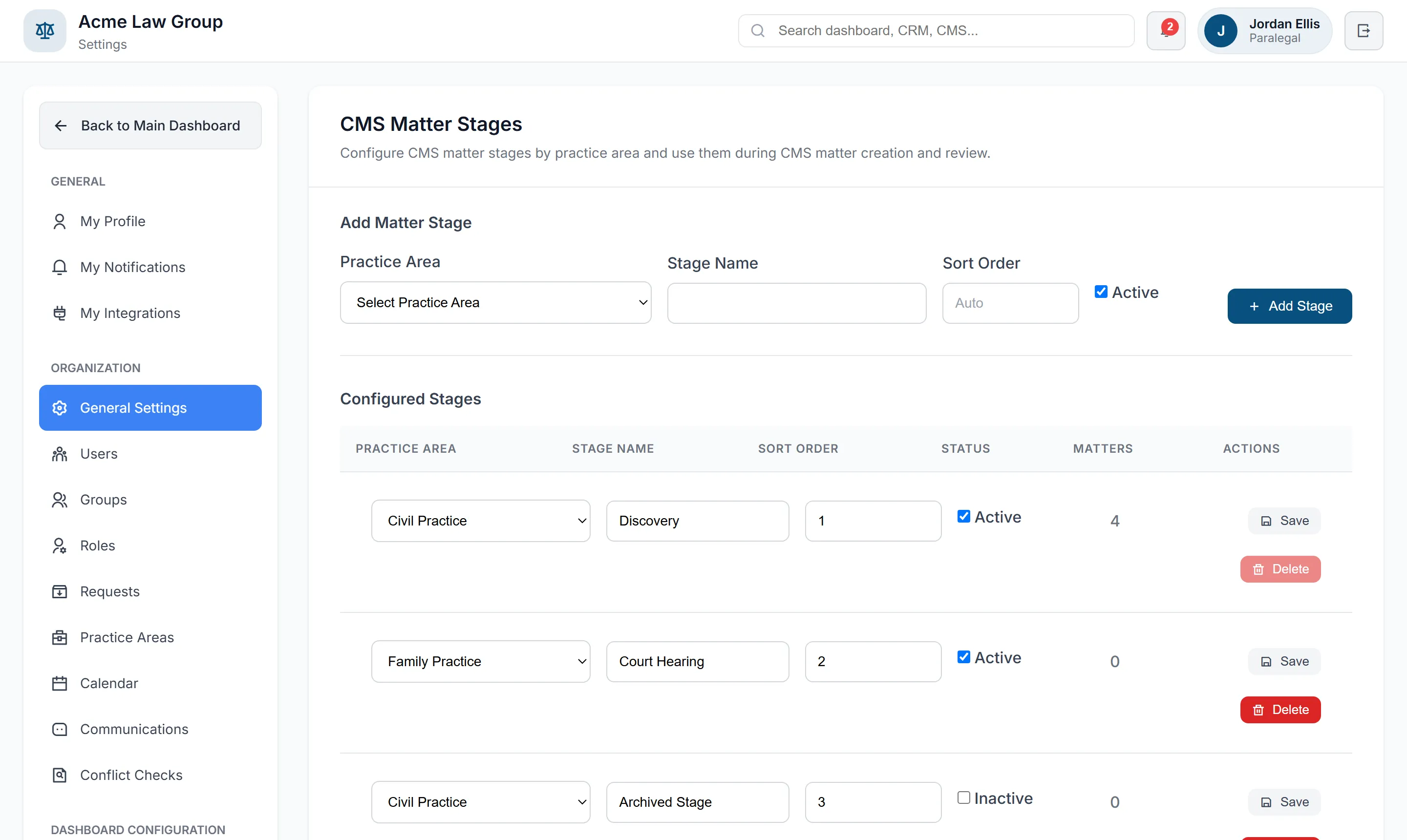
Open Settings → Matter Stages under CMS Configuration. Under Add Matter Stage, choose the Practice Area, enter the Stage Name, leave Sort Order on Auto or set a number, tick Active and select Add Stage.
Manage stages
Configured Stages shows each stage's status and how many Matters use it. Save changes, or Delete stages no matter uses. Make used stages Inactive instead of deleting them.
Add timeline steps
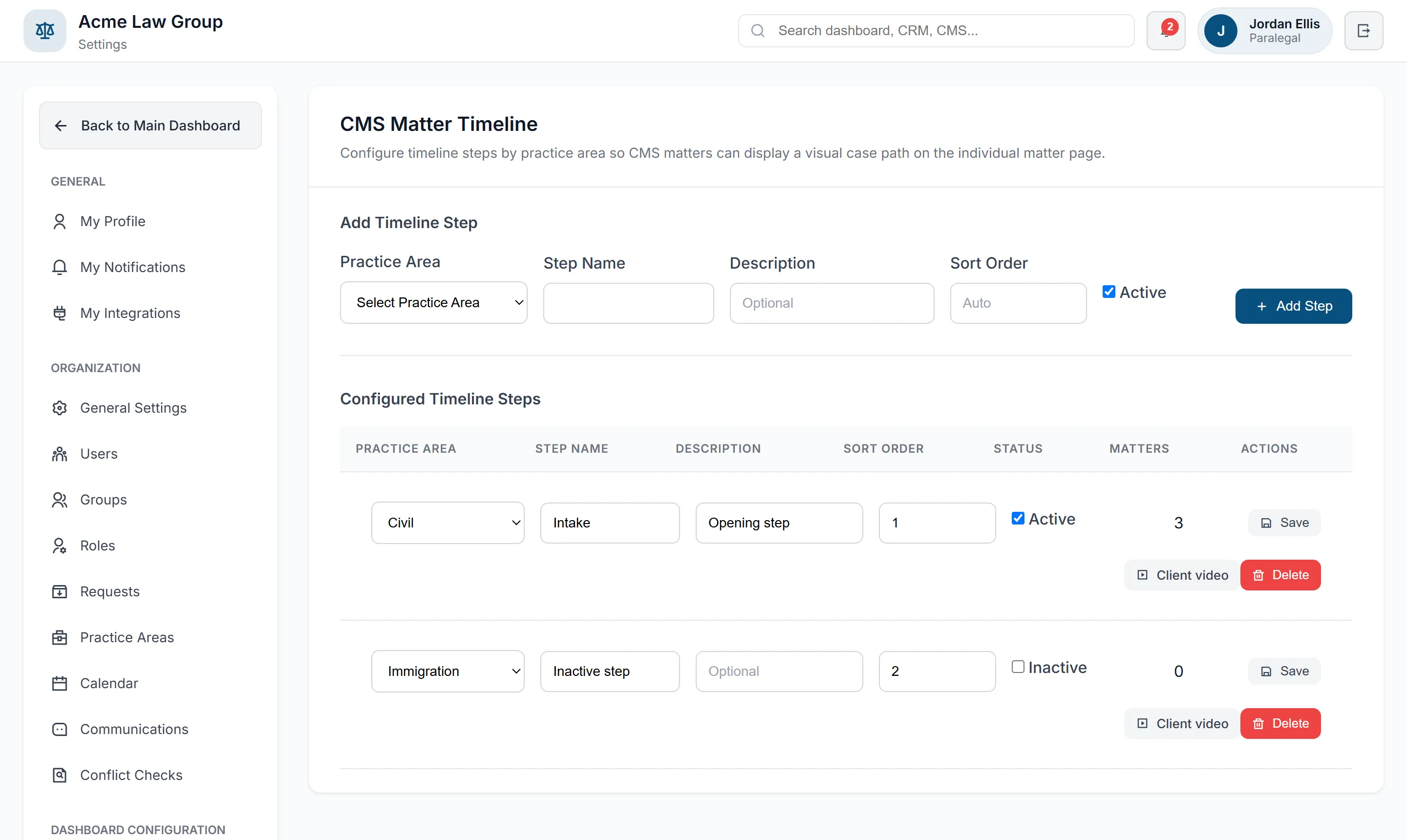
Open Matter Timeline. Under Add Timeline Step, choose the practice area, enter the Step Name and an optional Description, set the order, tick Active and select Add Step.
Add client videos (optional)
A timeline step can have a Client video explaining that step, for example "What happens at your biometrics appointment". Clients see it in their portal timeline.
Write timeline steps the way a client would describe their case: "Gather documents", "Application filed", "Interview", "Decision". The client portal shows them too.
Last reviewed 2026-11-25