

Open Contact Creation
Open Settings, and under CRM Configuration choose Contact Creation.
Set required fields
For each standard field (email, phone, notes, source…), tick Required and set a Character Limit if needed. First Name and Last Name are always required.
Require an email or a phone, plus the source. Without contact details intake can't follow up, and without a source marketing reports are guesswork.
Edit the source list
Under Source Options, list the sources staff can pick, one per line in the format value|Label, for example google_lsa|Google Local Services. Keep the existing values so older contacts and imports still show the right label.
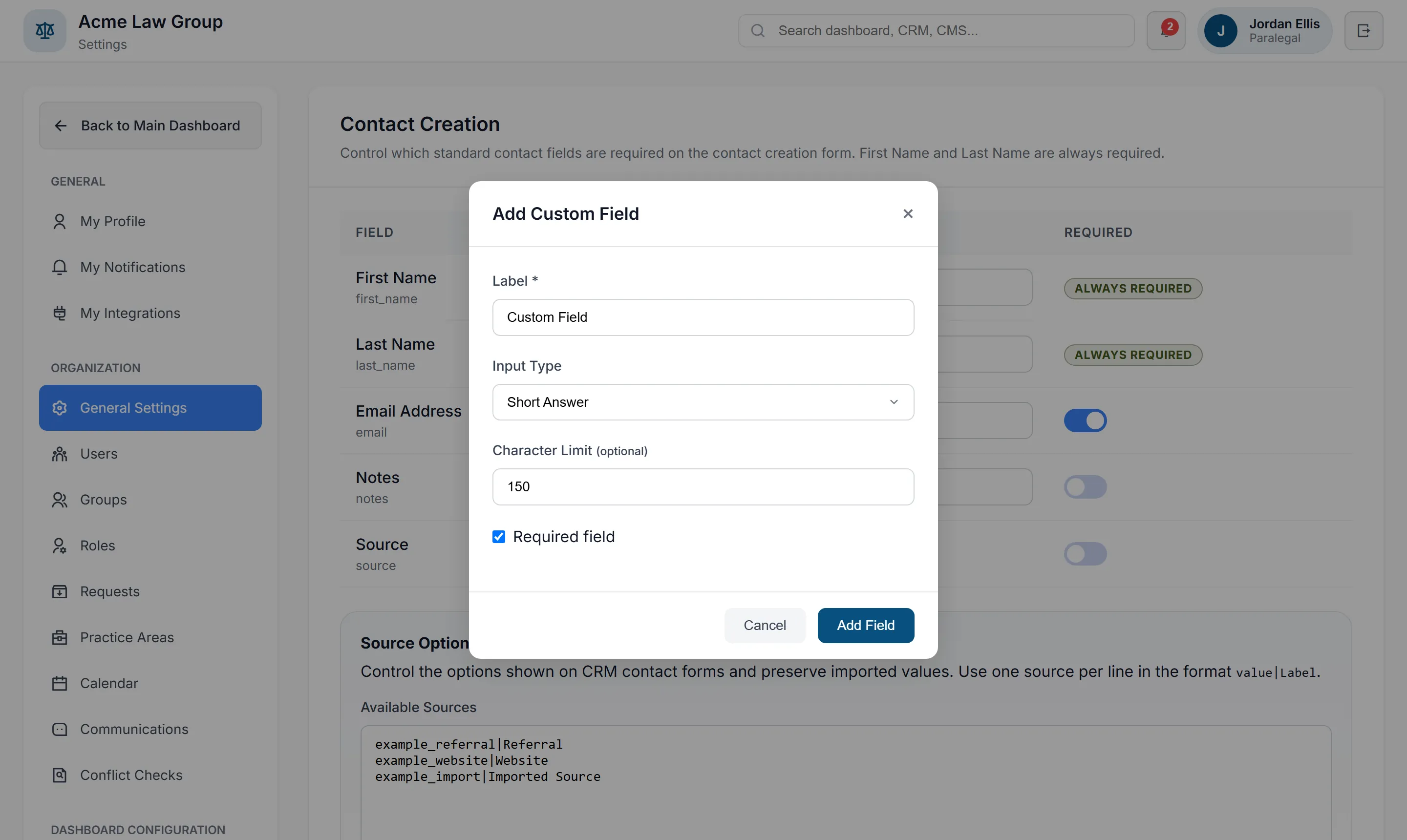
Add custom fields
Firm-specific questions, such as "Referral source" or "Preferred contact method", are custom fields. Add them as short text, long text, dropdown, date, number or checkbox, for contacts or matters, in CRM or CMS. They then appear on the forms as Additional Contact Fields.
Save
Save your changes. New and edited contacts follow the new rules straight away.
Last reviewed 2026-11-25