

AI summaries need Beacon AI turned on for your firm. Zoom call import needs your firm's Zoom connection. Consult notes work without either.
Open the CRM matter
In CRM → Matters, open the prospect's matter and scroll to Consultations. It shows the consultation events from the calendar and the consultation activity recorded so far.
Add consult notes
Select the option to add consult notes. Add Consult Notes asks for:
- Consulted By: the attorney who held the consultation
- Date of Consult
- Fee Type: Flat Fee or Trust, and the Fee Amount
- Time Entry: the hours, in 0.1 increments
- Location: In Person or Phone
- Services Provided: what was discussed or provided
- General Notes: facts, goals and recommended next steps
Select Save Consult Notes.
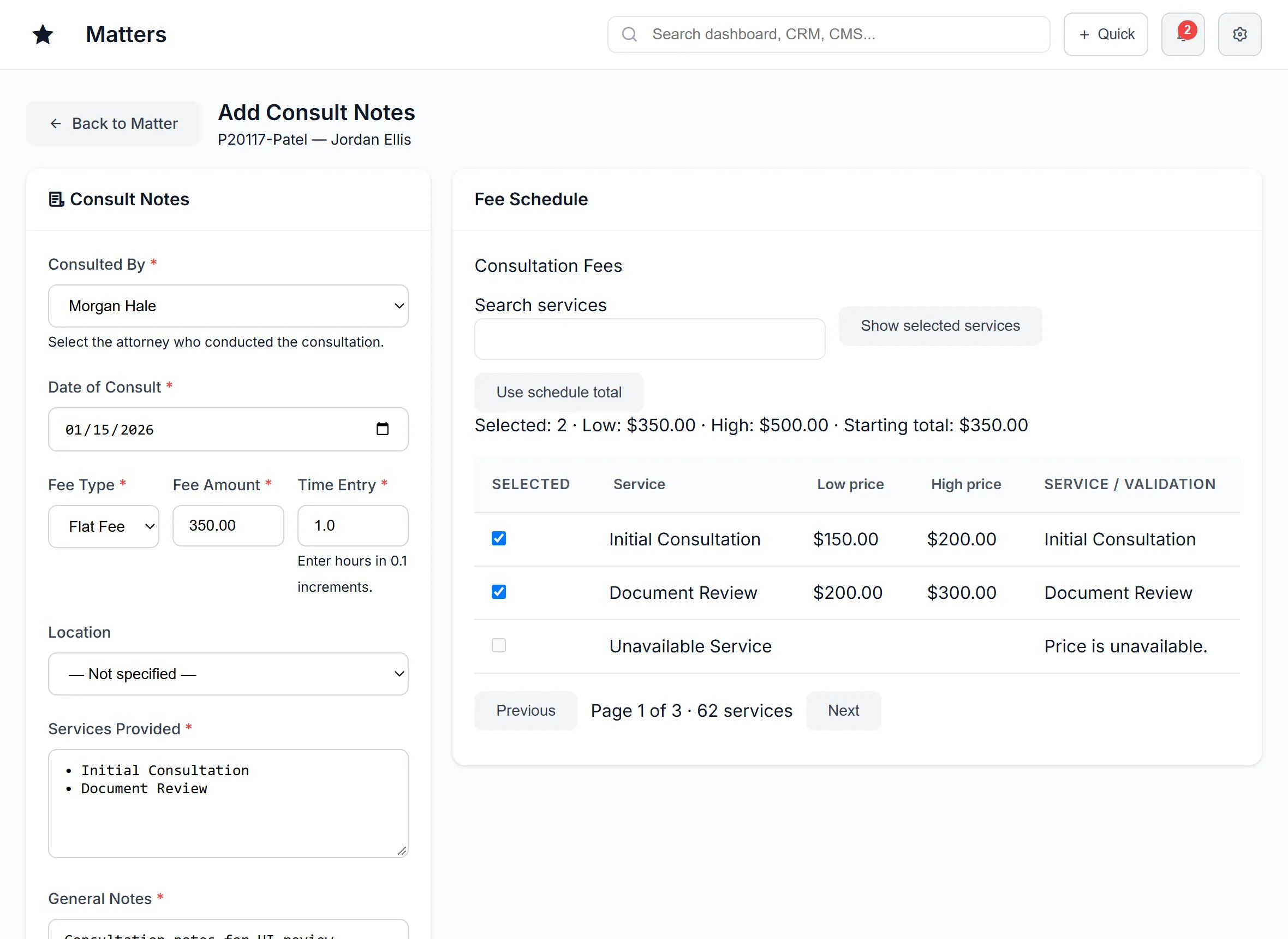
If your firm uses fee schedules, a Fee Schedule panel appears beside the form. Tick the services you discussed, and the low, high and starting totals are worked out for you. Use schedule total fills in the fee.
Attach the call recording
Choose what matches how the consultation happened:
- Zoom call: search for the call (by call ID if you have it), pick the right one and match it to the matter. The recording and transcript come with it.
- In person or another tool: upload the audio file. It's queued for transcription.
Read the transcript
When transcription finishes, select View Transcript to read the conversation with speakers and times.
Run and review the AI summary
With Auto AI Summary on, Beacon AI drafts a summary from the transcript and notes. You can also run it yourself, stop it, or run it again after adding notes. Read it against the transcript and correct names, dates and anything it got wrong.
An AI summary is a draft for a lawyer to check, not legal advice. Never send it to a client, or decide on representation from it, without a lawyer reviewing it first.
Save the summary document
Generate the Summary document to keep a clean copy on the matter. If you edit the notes later, regenerate it so the two match.
Frequently asked questions
The Zoom call isn't found.
Calls appear after Zoom finishes processing them, which can take a little while. Search by call ID. If calls never appear, ask your admin to check the Zoom connection.
Where does the consult time go?
The Time Entry on the consult notes records the attorney's consultation time. Consultation billing is handled on the invoice, covered in Bill a consultation fee.
Last reviewed 2026-11-25