

Engagements are the follow-ups, callbacks, reminders and conversion work that need someone to act. Some are created by your firm's automation rules (for example "no contact in 3 days"). Others are added by people.
Open Engagements
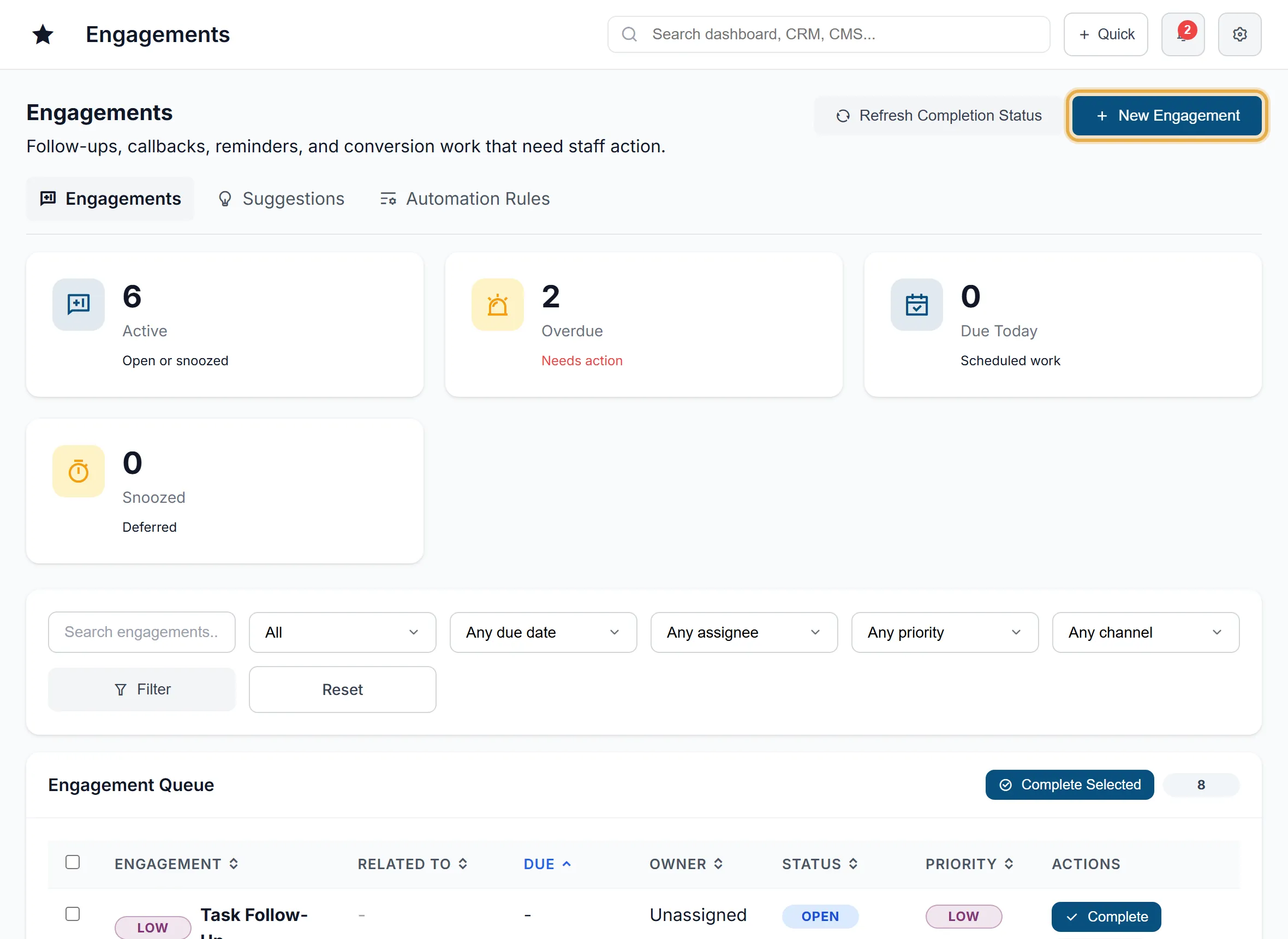
In CRM, select Engagements. The cards at the top count what needs you: Active (open or snoozed), Overdue, Due Today and Snoozed.
Filter to your work
Search, or narrow the queue by:
- state: Open, Completed, Canceled or All
- due date: Due today, Upcoming or Unscheduled
- assignee: yourself, a colleague or Unassigned
- priority: Low, Normal, High or Urgent
- channel: Task, Phone, Email, SMS, Meeting, Document, Billing or Other
Select Filter to apply, or Reset to clear.
Work the queue
Each row shows the engagement, what it's Related To (the contact, matter, document or invoice), when it's Due, its Owner, Status and Priority. For each one:
- Complete it once it's done.
- Snooze it until a better time. It comes back on its own.
- Delete it if it no longer applies.
Tick several rows and use Complete Selected to clear them at once.
Sort by priority and work Urgent and Overdue first. Then Due Today. Then glance at Upcoming so tomorrow has no surprises.
Add an engagement
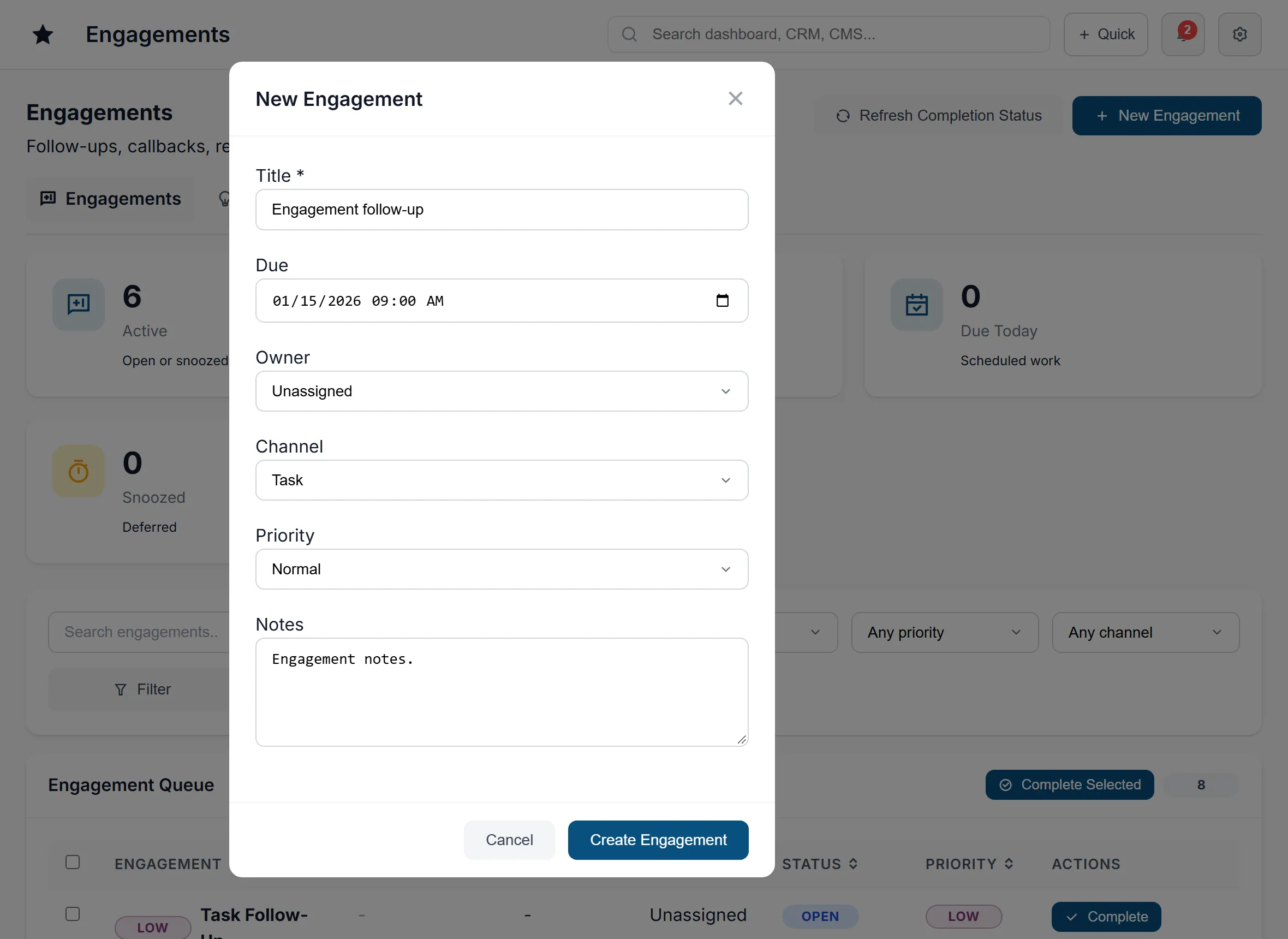
Select New Engagement. Choose the channel, the related contact or matter, a due date and time, the owner and priority, and add notes. Use it for promises you make on calls: "Call back Thursday after she talks to her husband."
Check Suggestions
The Suggestions tab lists follow-ups the system recommends from recent activity. Accept the useful ones and dismiss the rest.
Refresh completion
Refresh Completion Status re-checks open engagements against recent activity. For example, an email follow-up can close itself once the email has been sent.
Frequently asked questions
Can I create an engagement for a hired client?
No. Engagements only apply to matters that are not hired and not closed.
Who sets up the automatic rules?
Admins, under Automation Rules and in CRM settings (Engagements and Engagement Rules).
Last reviewed 2026-11-25