

Open Reputation
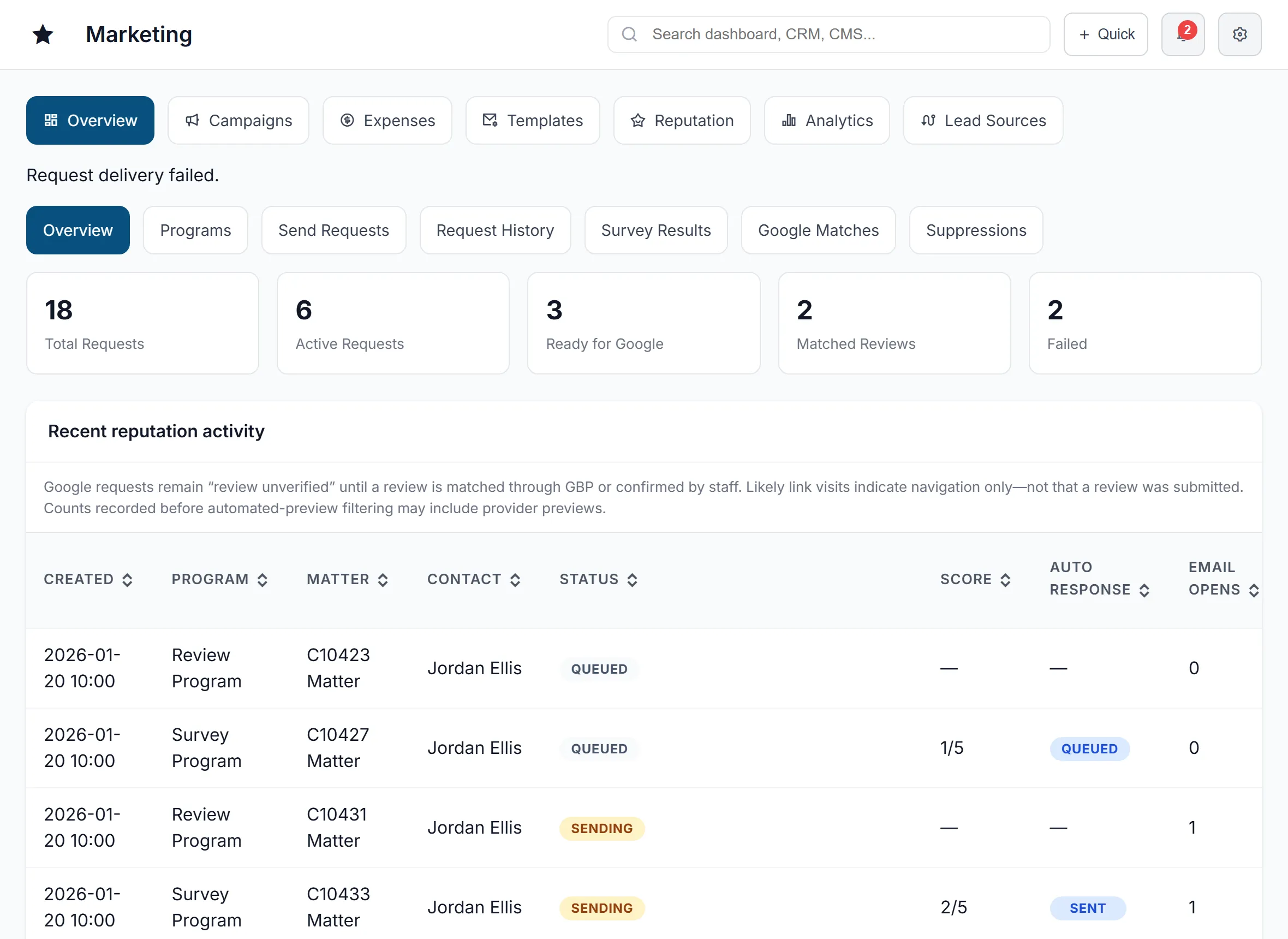
In CRM → Marketing, select Reputation. The tabs are Overview, Programs, Send Requests, Request History, Survey Results, Google Matches and Suppressions. The overview counts Total Requests, Active Requests, Ready for Google, Matched Reviews and Failed sends.
Choose a program
A program decides what clients receive: a review program sends them toward your Google listing, and a survey program asks for a score first. Admins set programs up under Programs.
Send requests
Under Send Requests, pick the matters or contacts, typically clients whose matters just closed well, and send.
Follow each request
Request History shows each request's status (Queued, Sending, Sent, Failed), survey Score, email opens, likely link visits and reminders. Cancel a queued request if you change your mind.
A Google review request stays "review unverified" until a matching review is found through your Google Business Profile or confirmed by staff. A link visit only shows that someone clicked, not that they posted.
Respect opt-outs
Suppressions lists people who shouldn't receive requests. Add anyone who asks not to be contacted.
Last reviewed 2026-11-25