

Engagement rules create follow-ups automatically, so nobody has to remember to chase a warm prospect.
Open the planner
In CRM → Engagements, open Automation Rules and the Engagement Rule Planner. It explains each part of a rule before you create one.
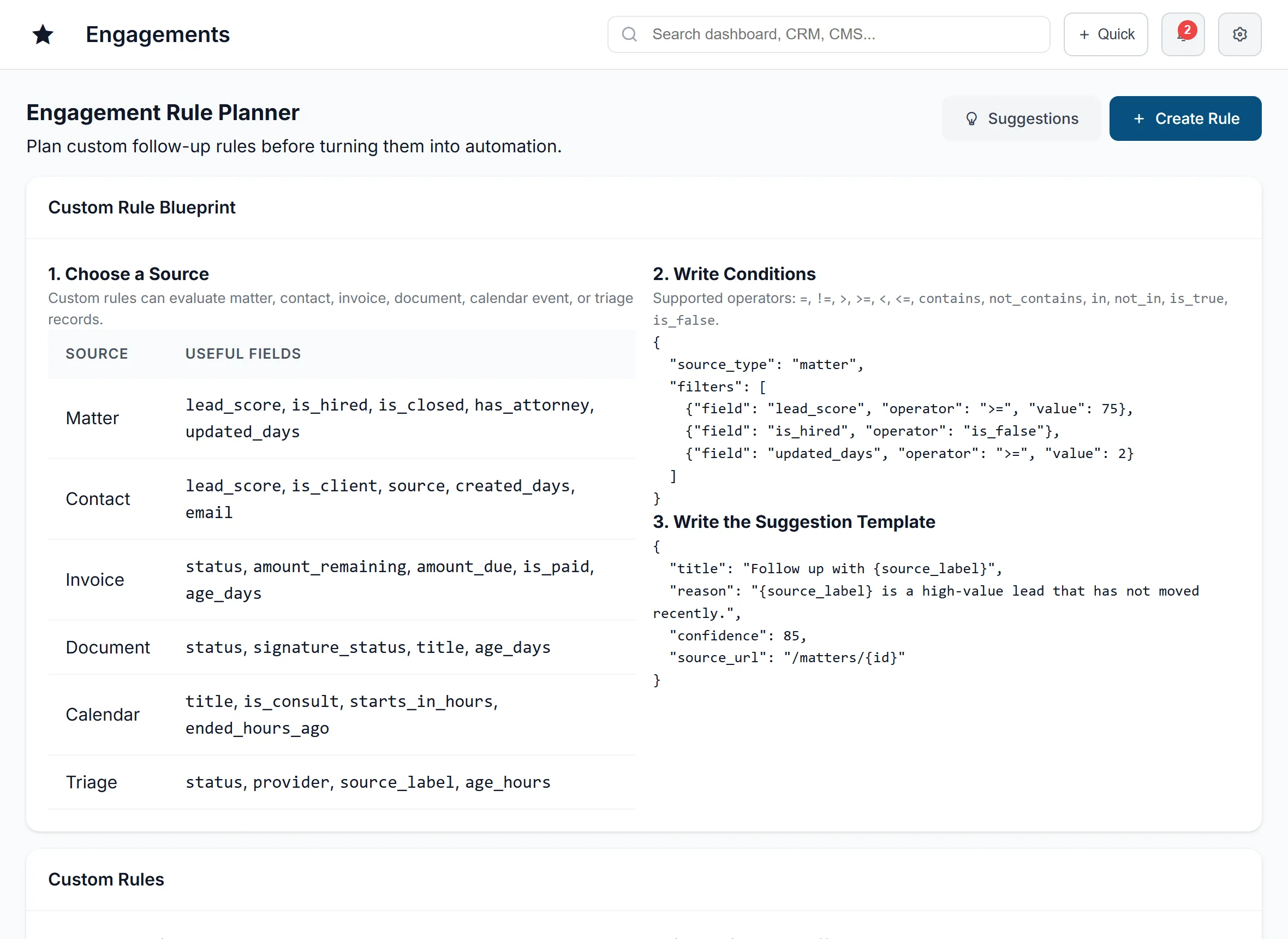
Choose a source
A rule watches one kind of record:
| Source | Useful fields |
|---|---|
| Matter | lead score, hired, closed, has attorney, days since update |
| Contact | lead score, is client, source, days since created |
| Invoice | status, amount remaining, paid, age in days |
| Document | status, signature status, age in days |
| Calendar | is a consultation, starts in hours, ended hours ago |
| Triage | status, provider, source, age in hours |
Write the conditions
Conditions compare a field to a value with operators such as =, >=, contains or is_false. For example: a matter with lead score at least 75, not hired, and not updated in 3 days.
Decide what to create
Choose the follow-up the rule makes: the channel (phone, email, task…), who owns it, its priority and when it's due.
Create and watch it
Select Create Rule. Watch Engagements for a week. If a rule creates too many follow-ups, tighten its conditions.
Start with two or three rules: new leads not contacted in 1 hour, hot leads untouched for 3 days, and consult invoices unpaid after 2 days.
Last reviewed 2026-11-25