

Open Payment Plans
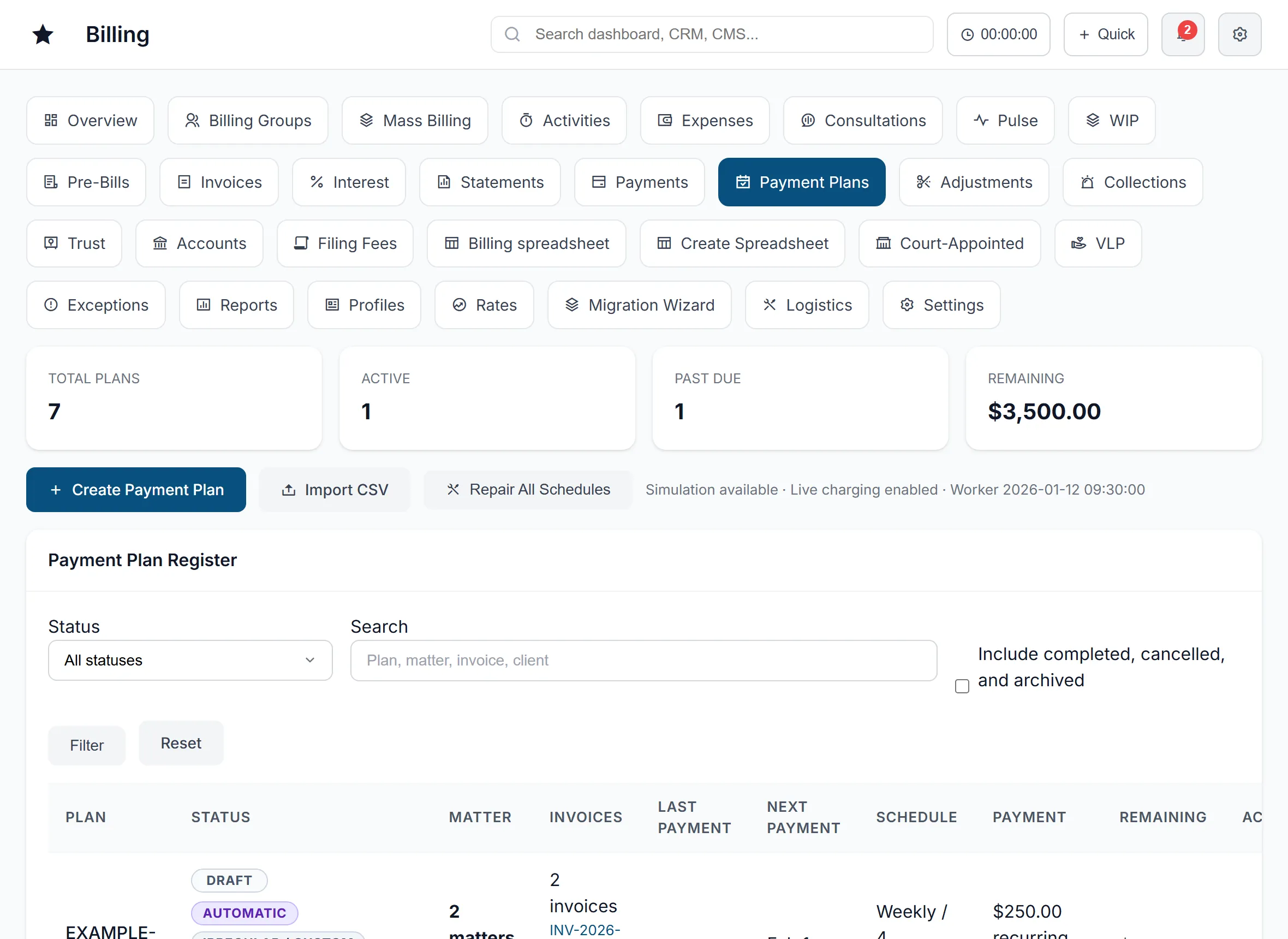
Go to CMS → Billing → Payment Plans. The counters show Total Plans, Active, Past Due and Remaining balance, and the Payment Plan Register lists every plan with its matter, invoices, last and next payment and schedule.
Create a plan and choose its type
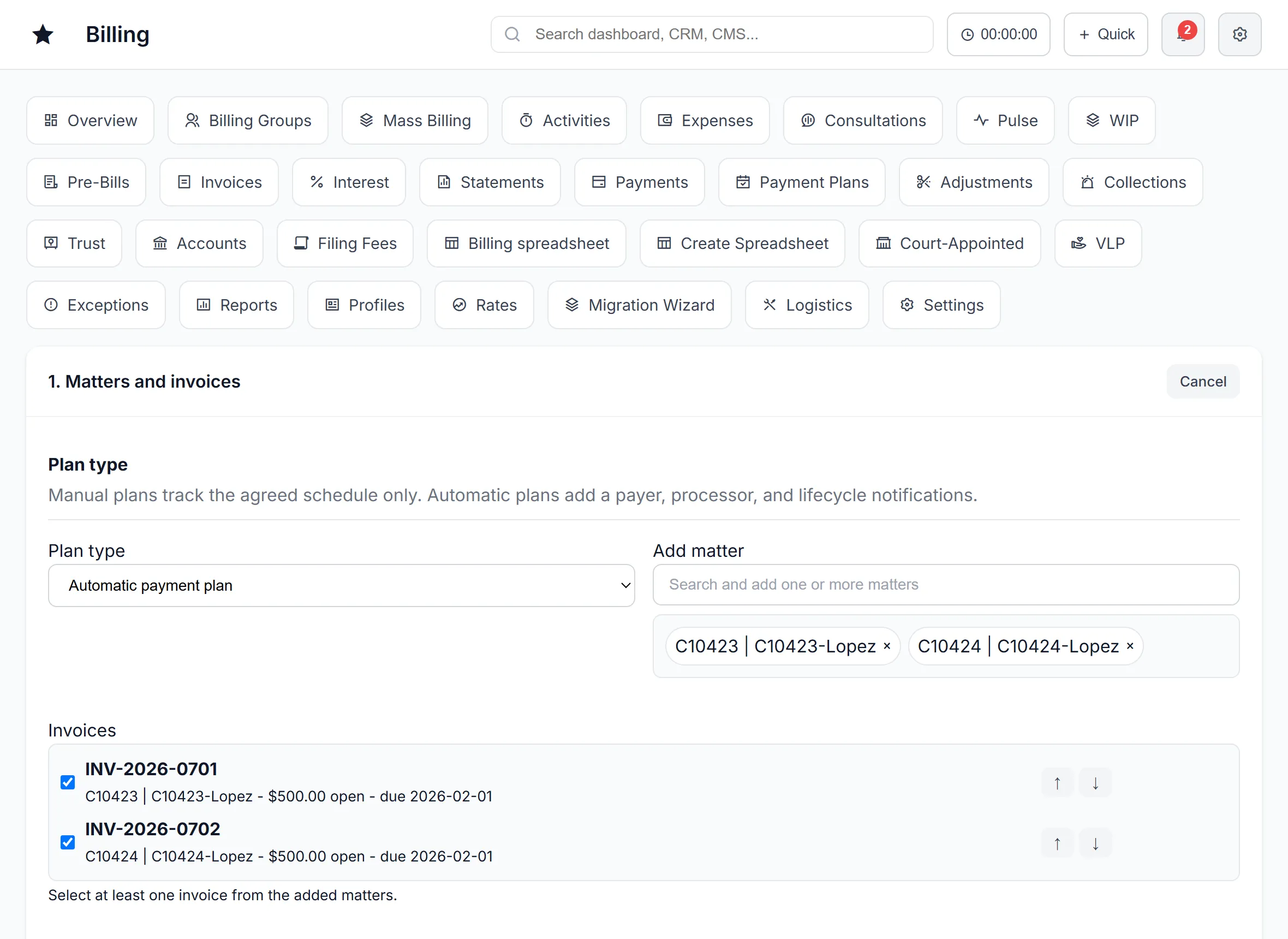
Select Create Payment Plan. Under Plan type:
- Manual payment plan: tracks the agreed schedule only. You record payments as they arrive.
- Automatic payment plan: adds a payer, a saved card or account, the payment processor and automatic notifications, and charges on schedule.
Add matters and invoices
Use Add matter to add one or more matters, then select the open invoices the plan covers. A plan can cover invoices on several matters for the same client.
Decide how payments are applied
Under Allocation method, choose:
- Pay invoices in priority order: each payment clears one invoice before the next. Use the arrows to set the order.
- Split each payment by percentage: every payment is shared across the invoices by the percentages you set.
Set the schedule
Choose the amount, frequency (weekly, monthly…) and start date. For automatic plans, pick the payer and saved payment method. Check the schedule preview, then save.
Confirm the schedule and amount with the client in writing before you activate an automatic plan.
Keep it on track
Past-due plans show in the register. Open a plan to see each scheduled payment, record manual payments, or pause and adjust the plan. Import CSV can bring in plans from another system.
Frequently asked questions
The client wants to pay more one month.
Record the extra payment. It's applied using the plan's allocation method, and the remaining balance updates.
Last reviewed 2026-11-25