

Open the bill
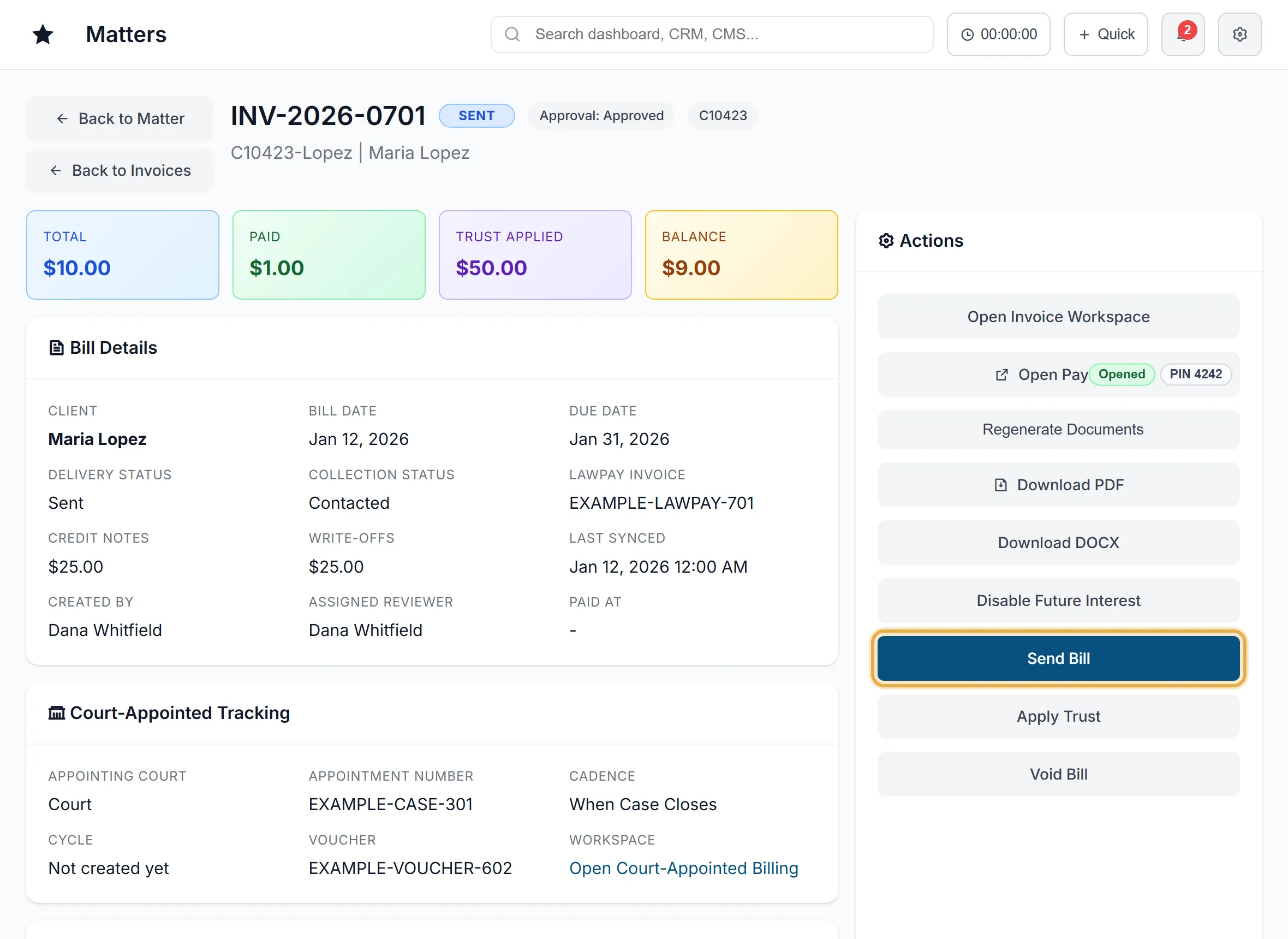
On the matter's Billing card, open the bill, or create one with Create Bill. The bill page shows its status, Total, Paid, Trust Applied and Balance, the Bill Details, and an Actions panel.
Send it
Select Send Bill. The client gets the bill with a secure link. Open Pay Link shows you exactly what the client will see. Download PDF and Download DOCX give you copies, and Regenerate PDF rebuilds the document after changes.
Protect it with a PIN
Use Change Pay Link PIN: enter a 4-digit PIN and Save PIN. The client must enter it before seeing the bill. Share it separately, by phone or text, never in the same email. Disable PIN removes it.
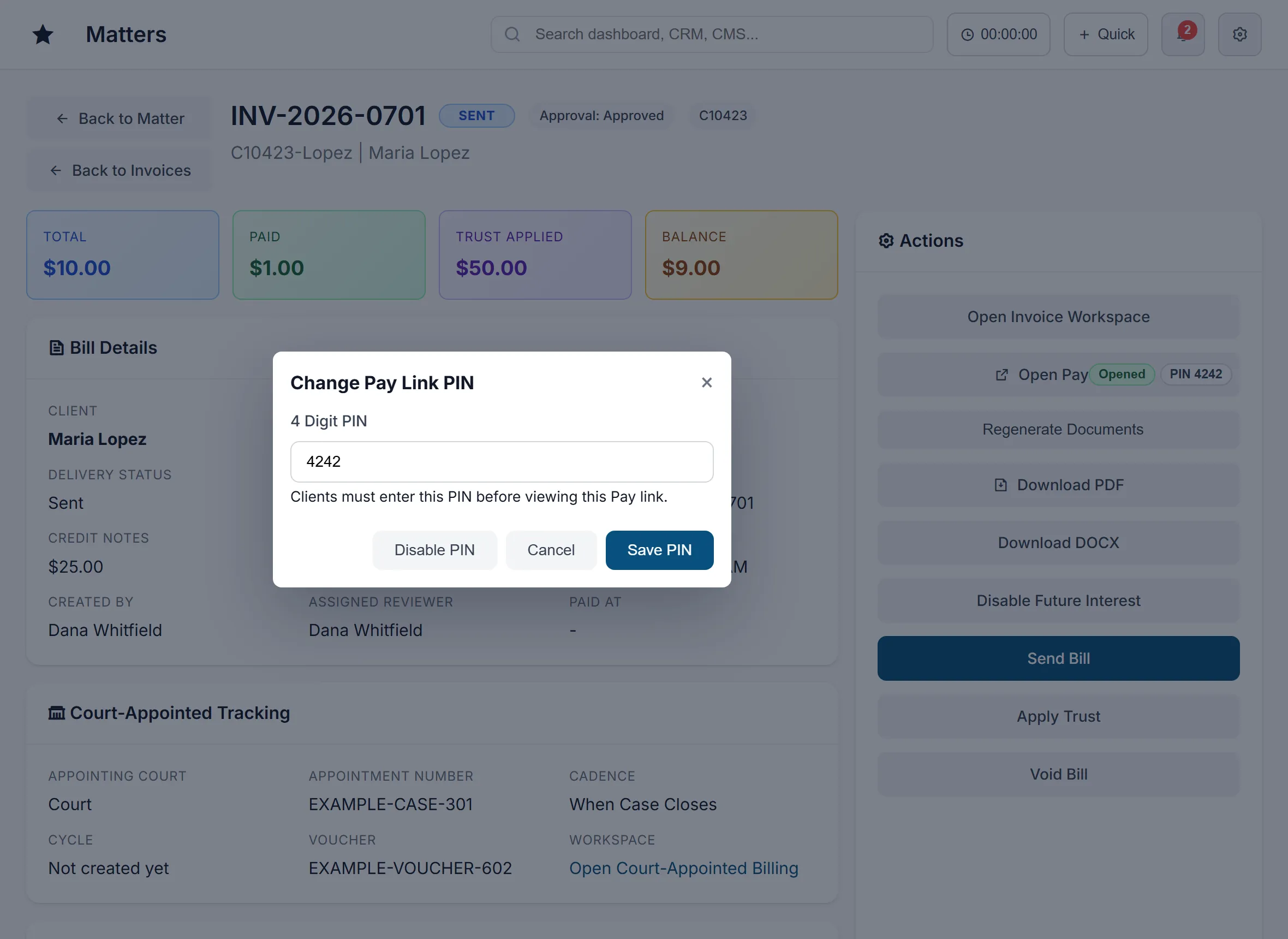
Use a PIN for anything sensitive, such as a trust request on a family law matter. Then send clients Pay your bill online so they know what to expect.
Watch the activity
Pay Link Activity shows when the link was opened and when payment was made. Card payments through your firm's processor post to the bill on their own.
Record payments made another way
For a check, cash or bank transfer, use Record Manual Payment: enter the Payment Date, Payment Method, Payment Source and a Payment Note, then Save Payment. Use Apply Trust to pay from the client's trust balance where they've agreed to it. If they overpaid, use Record Overpayment, and later Refund Overpayment if needed.
Correct mistakes properly
To undo a payment, use Refund Payment or Refund Part Of Payment. To cancel a bill issued in error, use Void Bill and give a Void Reason. Voids and refunds keep an audit trail. Never delete and re-enter.
Frequently asked questions
Does the client need an account to pay?
No. The link opens the bill directly. If a PIN is set, they enter it first.
Can I charge a card the client saved?
If your firm uses LawPay and the client saved a card, Charge Payment Method or Charge Client appears. Use it only with the client's authorization.
Last reviewed 2026-11-25