

The calendar in CRM and CMS shows the same firm calendars, so a consultation booked by intake shows up for the attorney in Nexus.
Open the calendar
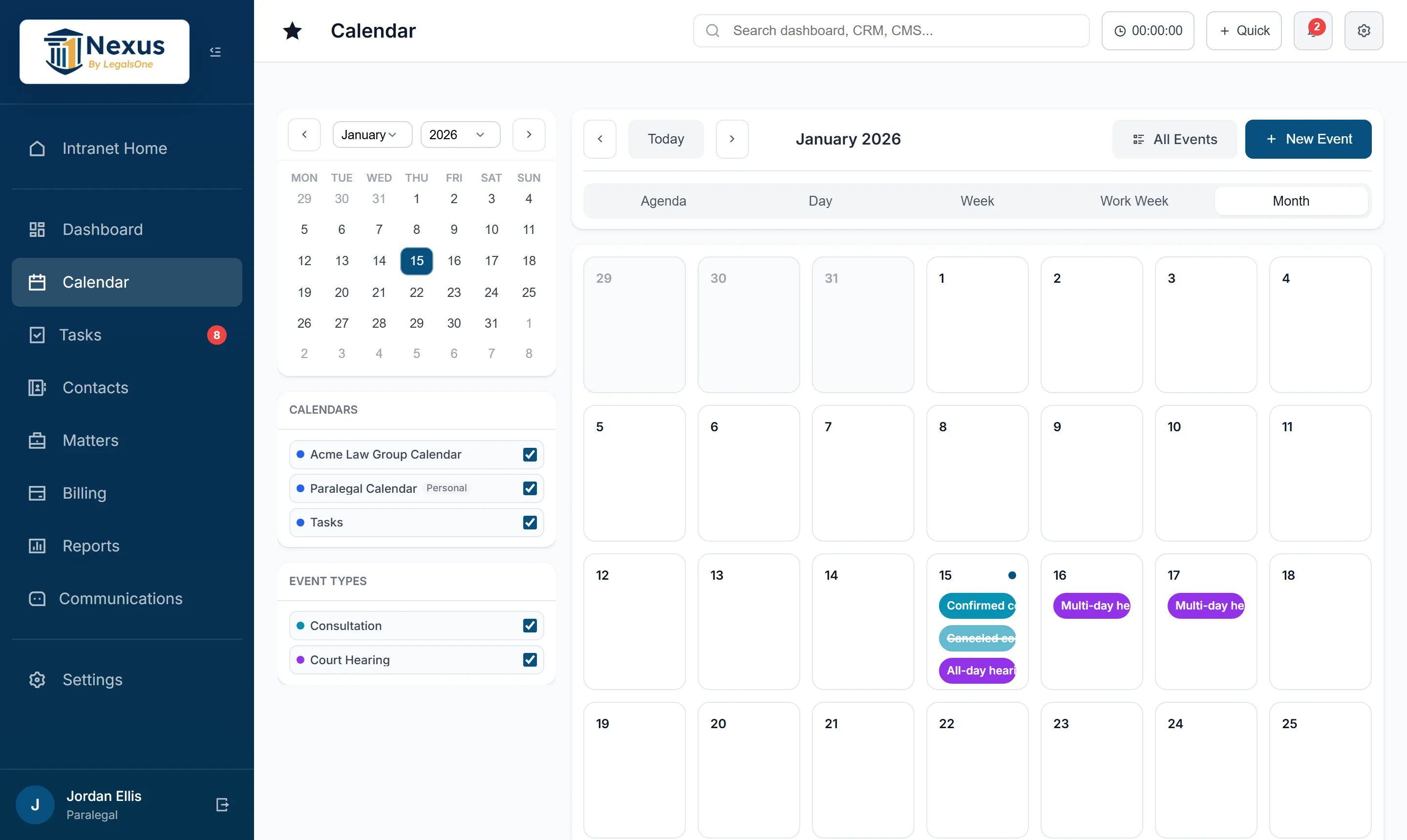
Select Calendar in the CRM or CMS sidebar. Switch views with Agenda, Day, Week, Work Week and Month. Today jumps back to the current date. Use the month and year pickers to go further back or forward.
Choose what you see
The left panel lists Calendars (the firm calendar, staff calendars, your Personal calendar and a tasks calendar) and Event Types, such as consultations and hearings. Tick and untick them to filter. Each event shows its status in brackets: Confirmed, Pending or Declined.
Create an event
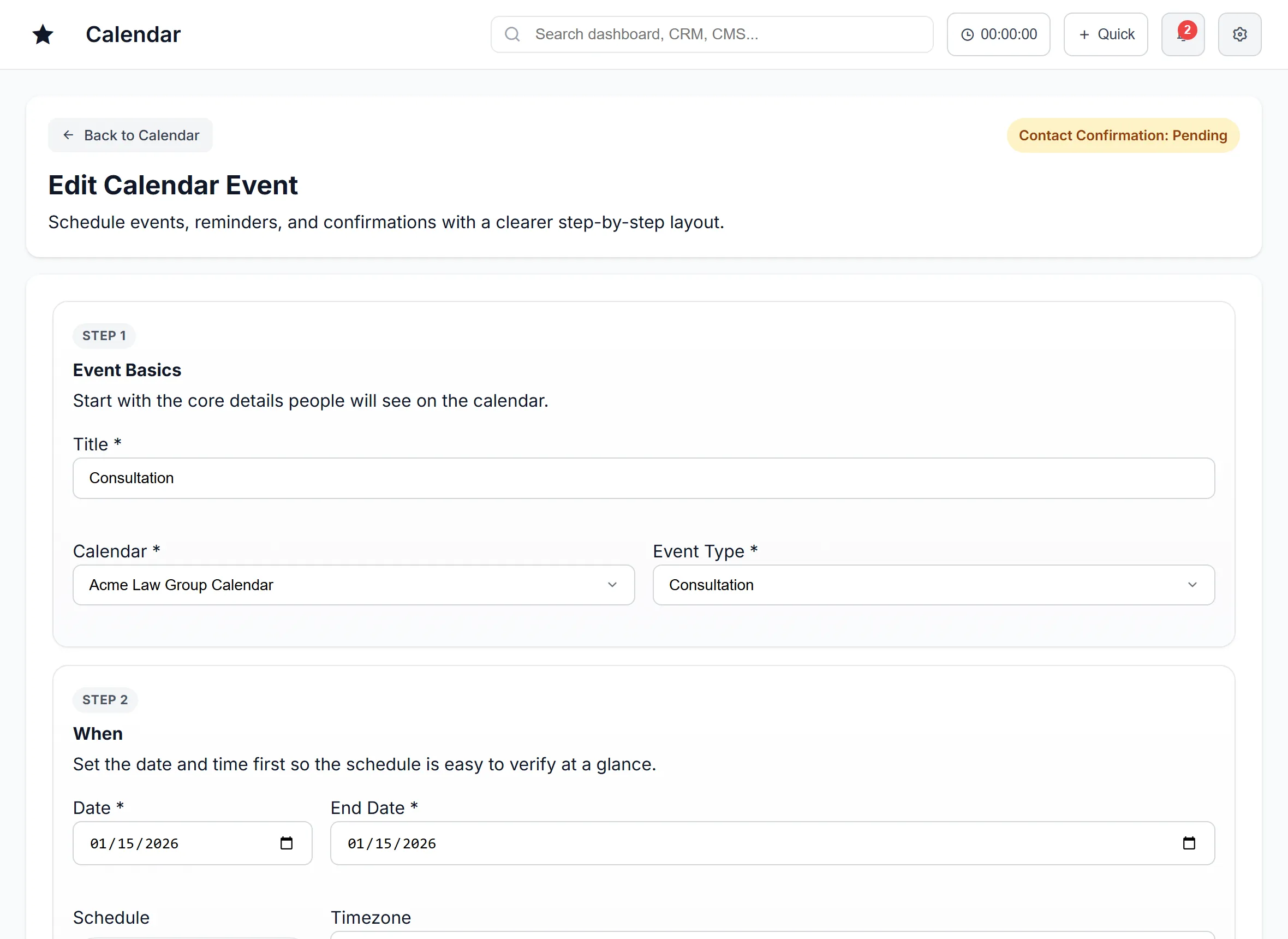
Select New Event, or use Event in the Quick menu. The form walks you through it step by step:
- Event Basics: Title, Calendar and Event Type.
- When: Date, End Date, Start Time and End Time, or All day. Timezone lets you enter times in the event's timezone or your own.
- Repeat: only if it recurs (see Step 4).
- Details: location, attendees, the linked matter and contact, reminders and notes.
Always link court dates and consultations to their matter. They then appear on the matter page and in the matter's reports.
Make it repeat
Under Repeat, choose Daily, Weekdays (Mon-Fri), Weekly, Every 2 weeks, Monthly on day of month, Monthly on weekday of month (for example, the second Tuesday) or Yearly. Add Repeat until or a number of Occurrences if the series should stop.
When you later edit or delete a repeating event, you choose whether the change applies to this event, future events or the entire series.
Track confirmations
Events with a contact show Contact Confirmation (for example Pending), so intake can see who has confirmed a consultation.
Set consultation availability
Scheduling Blocks mark when attorneys are available for consultations. Select Add, choose the calendar and time window, and save. These windows prepare for online booking.
Frequently asked questions
My Outlook or Google events don't show up.
Connect your calendar in Settings → My Integrations and choose which calendars to sync. See Choose your notifications and connect your calendar.
Event times look wrong.
Check the Timezone in My Profile. Times display in your timezone.
Last reviewed 2026-11-25