

Your role decides which pages and actions you can use. If you try something your role doesn't include, you'll see Access Denied instead of an error.
Read the Access Denied page
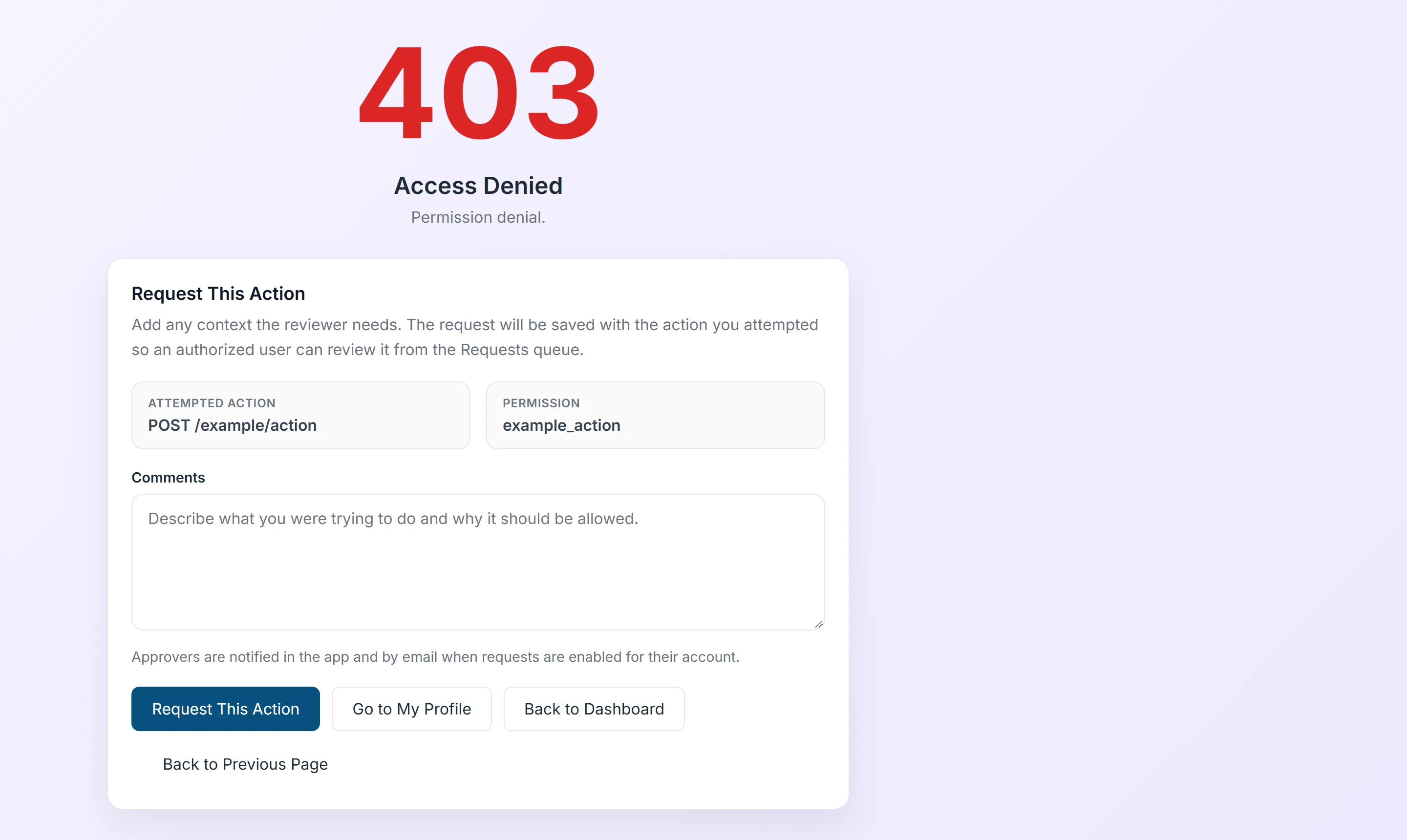
The page shows 403 Access Denied, the Attempted Action you tried and the Permission it needs. That's exactly what an approver needs to see.
Explain why you need it
In Comments, describe what you were trying to do and why it's part of your job. For example: "I'm covering billing while Sam is out and need to finalize this week's invoices."
Send the request
Select Request This Action. The request is saved with the action you attempted and sent to the people at your firm who review requests. They're notified in the intranet and by email.
Carry on
Use Back to Previous Page or Back to Dashboard while you wait. When it's approved, try the action again. You may need to sign out and back in first.
If several people in the same role keep needing the same access, your admin can change the role instead of approving requests one by one.
Frequently asked questions
Who approves requests?
Whoever your firm has set up to review access requests, usually an administrator or office manager. They see your request under Settings → Requests.
Last reviewed 2026-11-25