

You need your firm's intranet address and an account. Your firm admin creates accounts. You may get a welcome email with a temporary password, and you may be asked to change it the first time you sign in.
Open your firm's sign-in page
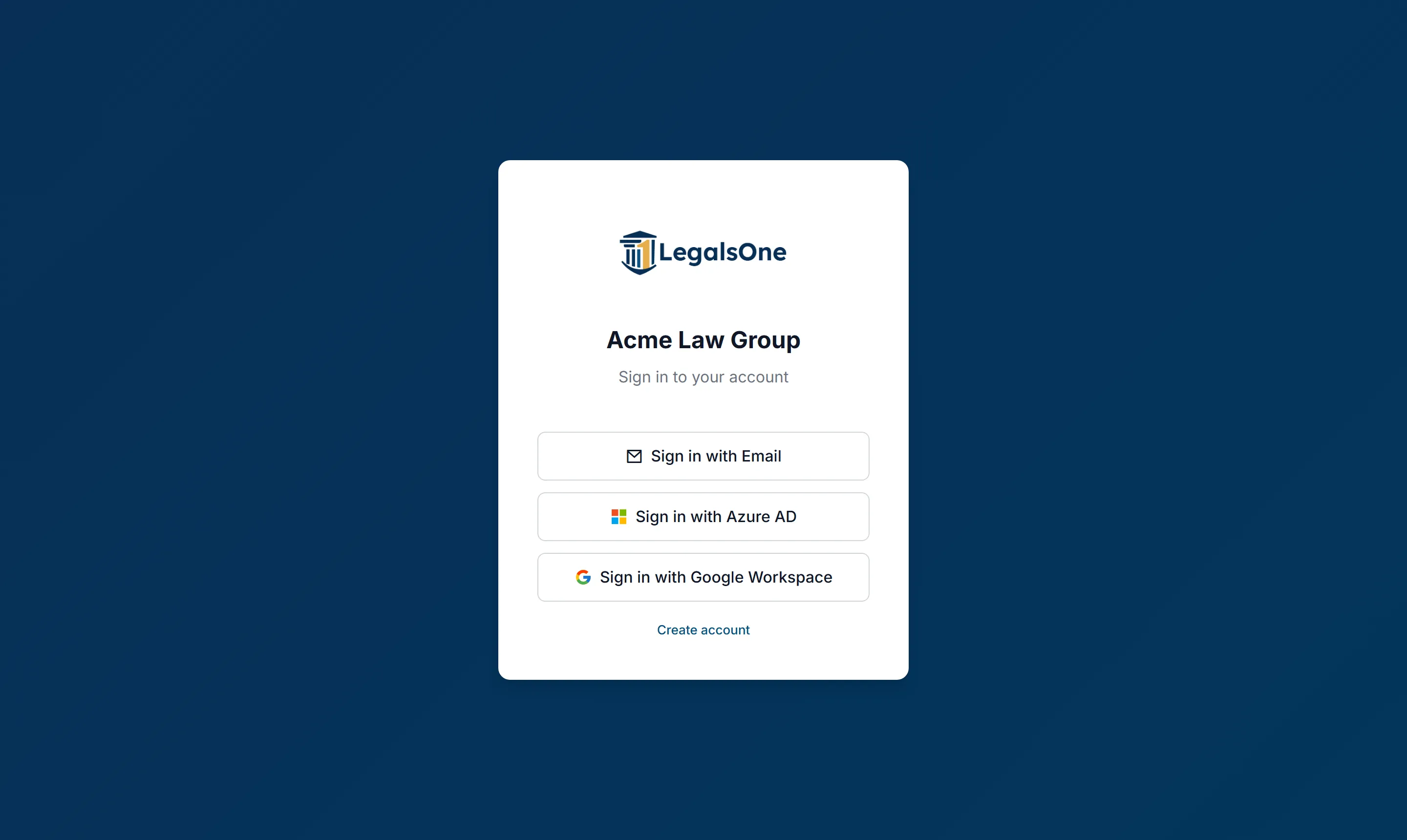
Go to the intranet address your firm gave you. You will see Sign in to your account with your firm's name.
Choose your sign-in method
Your firm decides which options appear:
- Sign in with Email: type your Email Address and Password, then select Sign In.
- Sign in with Azure AD: for firms on Microsoft 365. You sign in with your work Microsoft account.
- Sign in with Google Workspace: for firms on Google. You sign in with your work Google account.
Check Remember me only on a computer that is yours. Forgot password? sends a reset link if you sign in with email.
Verify your identity
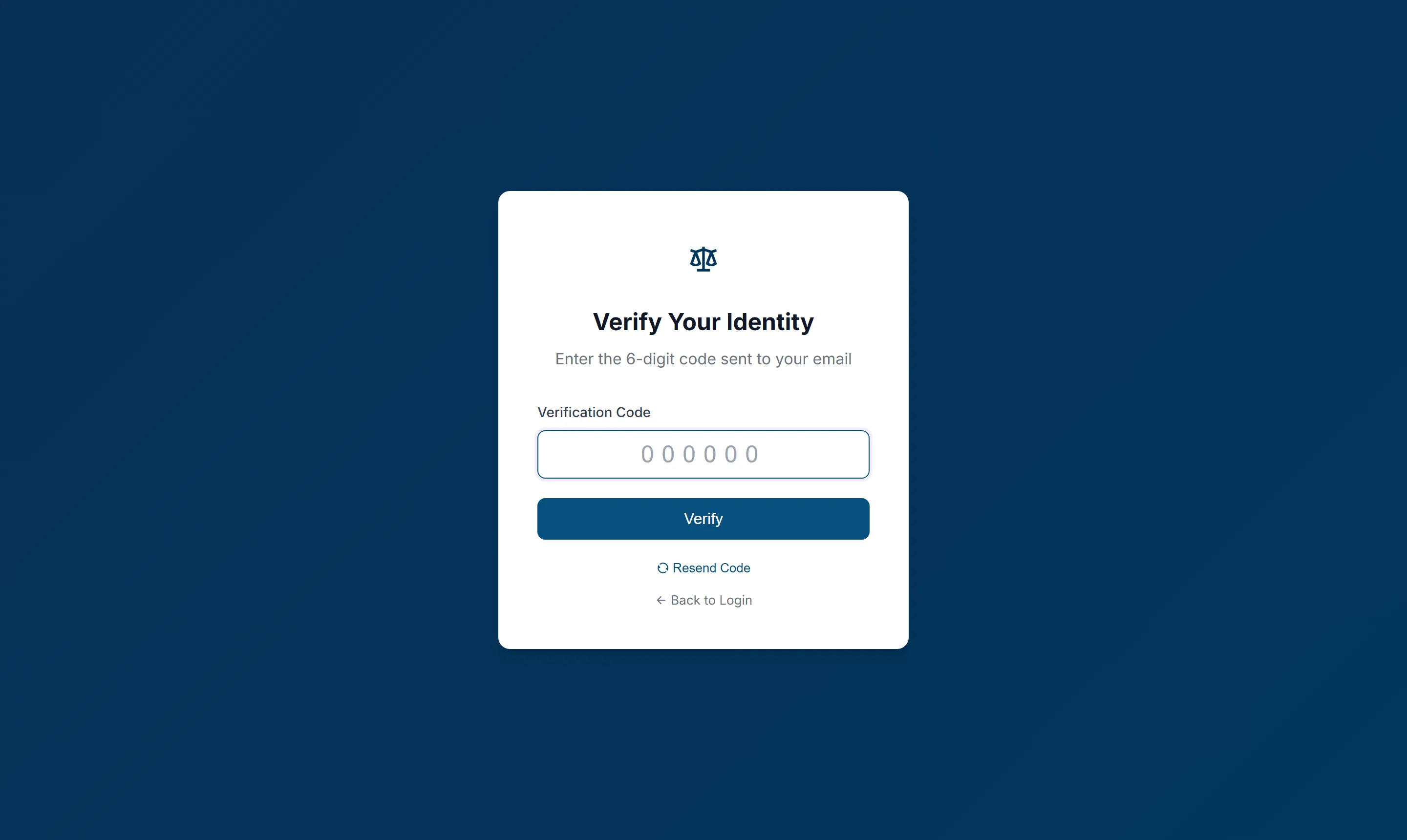
If your firm uses two-step verification, you will see Verify Your Identity next. Enter the 6-digit Verification Code sent to your email and select Verify. Didn't get it? Select Resend Code, and check your spam folder.
Open My Profile
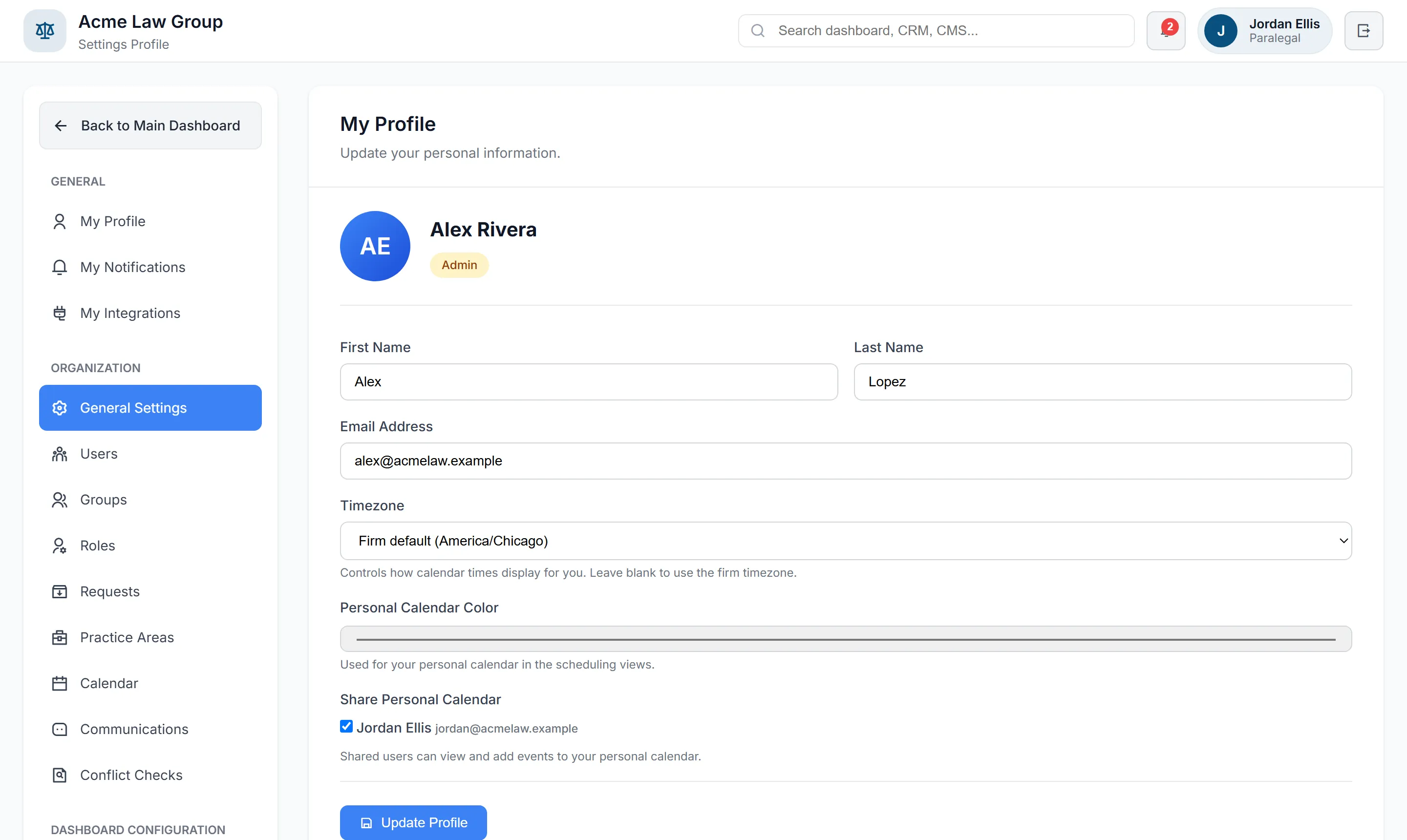
Select your name at the bottom of the sidebar. This opens Settings → My Profile. It is the same profile in every module.
Check your details and timezone
Confirm First Name, Last Name and Email Address. Timezone controls how calendar times display for you. Leave it on Firm default if you work in the firm's timezone, or pick yours if you're remote. Select Update Profile.
A wrong timezone moves every event and deadline by hours on your screen. If a hearing shows at 6 a.m., check this setting first.
Set your calendar color and sharing
Choose a Personal Calendar Color so your events stand out in scheduling views. Under Share Personal Calendar, add colleagues who should see your personal calendar. Shared users can view and add events to it, which suits an assistant who books your meetings.
Pick a theme
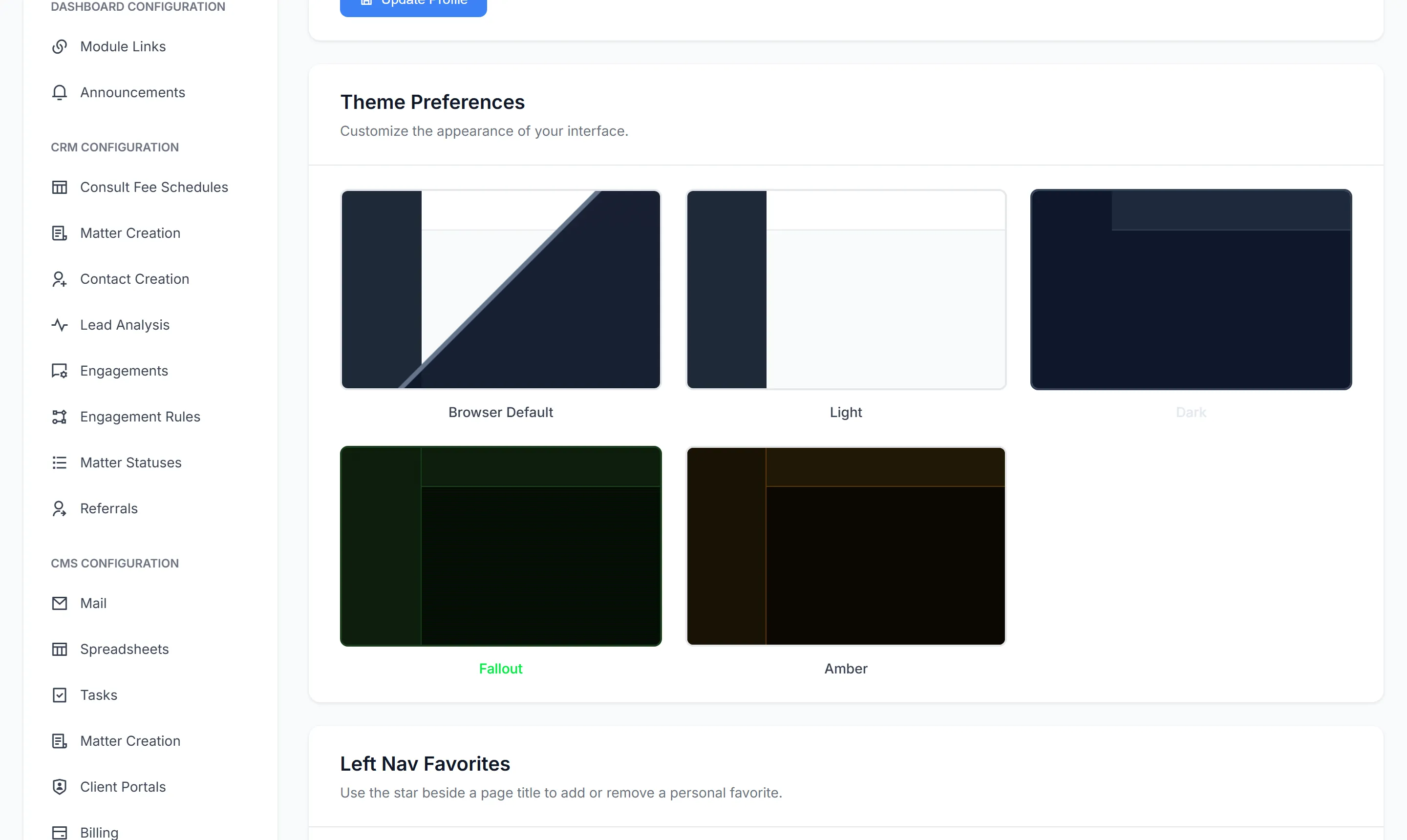
Scroll to Theme Preferences and choose Browser Default, Light, Dark, Fallout or Amber. Browser Default follows your computer's light or dark setting. The theme applies in every module.
Change your password (email sign-in only)
If you sign in with email, use Change Password: enter your Current Password, then the New Password twice. If you sign in with Azure AD or Google Workspace, change your password with Microsoft or Google instead.
Frequently asked questions
I get an access denied page after signing in.
Your account works, but your role doesn't include that page or module. The access denied page lets you request access, or you can ask your firm admin.
The verification code never arrives.
Check spam and any email filtering rules. If you still get nothing after Resend Code, ask your admin to confirm the email address on your account.
Can I sign in on my phone?
Yes. The intranet works in a mobile browser. Use the same address and sign-in method.
Last reviewed 2026-11-25