

Open My Notifications
Select your name at the bottom of any sidebar, then choose My Notifications under General.
Pick what reaches you, and how
Notifications are grouped by module (General, CRM, CMS, DMS and so on). Each type has an Email toggle and an In-app toggle. Switch them on or off, then select Save Preferences.
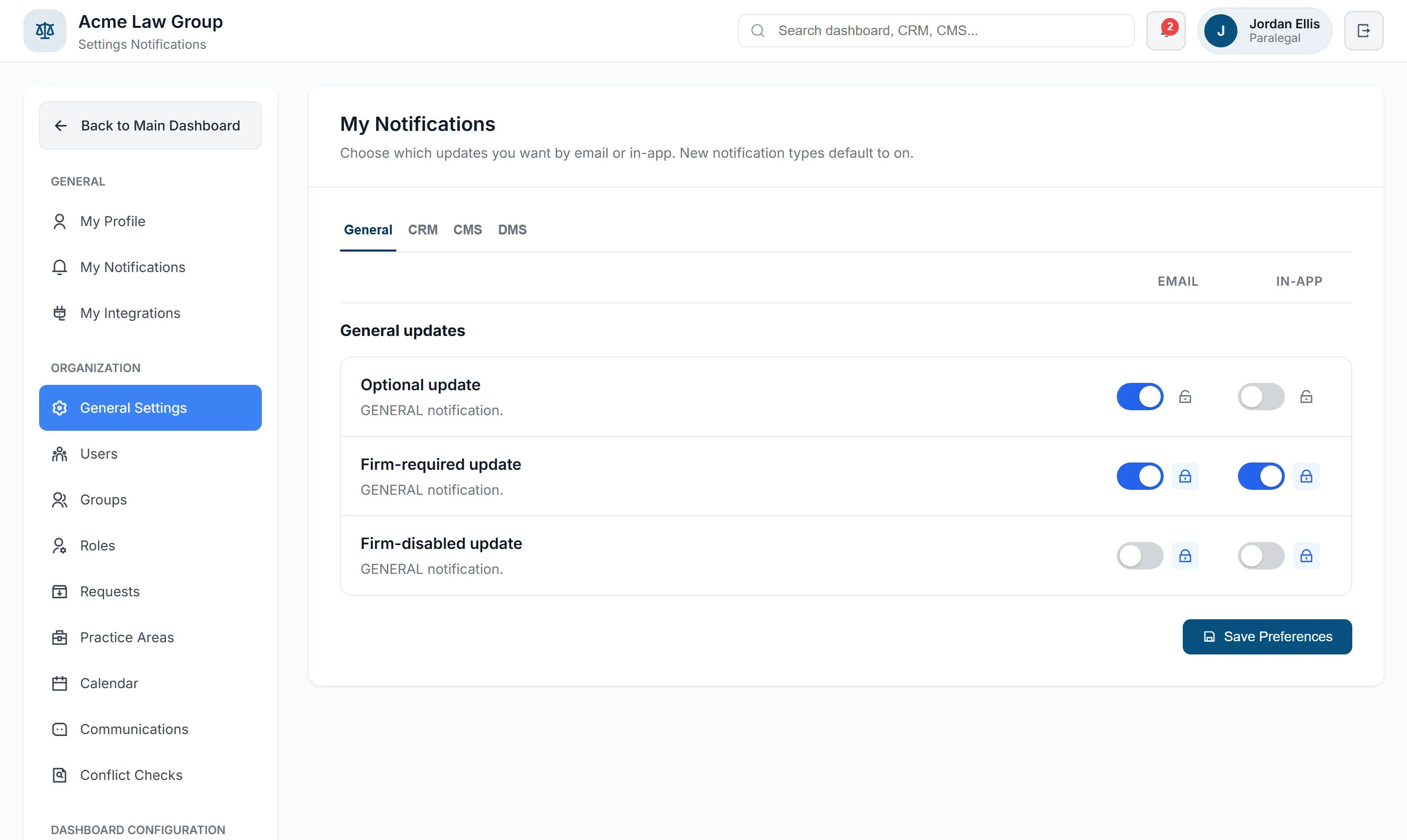
- New notification types start on, so check back after updates.
- Some toggles are locked: firm-required notices can't be turned off, and firm-disabled ones can't be turned on.
- You only see types for the modules and permissions you have.
Keep email on for anything with a due date: training assignments, task deadlines and time-off decisions. Turn off email for routine updates you already watch in the intranet.
Follow the matters you work on
In CMS, select Subscribe on a matter to get its updates. Client portal messages and uploads go to the matter's assigned paralegal and its subscribers, so subscribe to any matter you need to hear about.
Open My Integrations
Choose My Integrations under General. Anything you connect here belongs to your account only. It doesn't change anyone else's calendar or workflow.
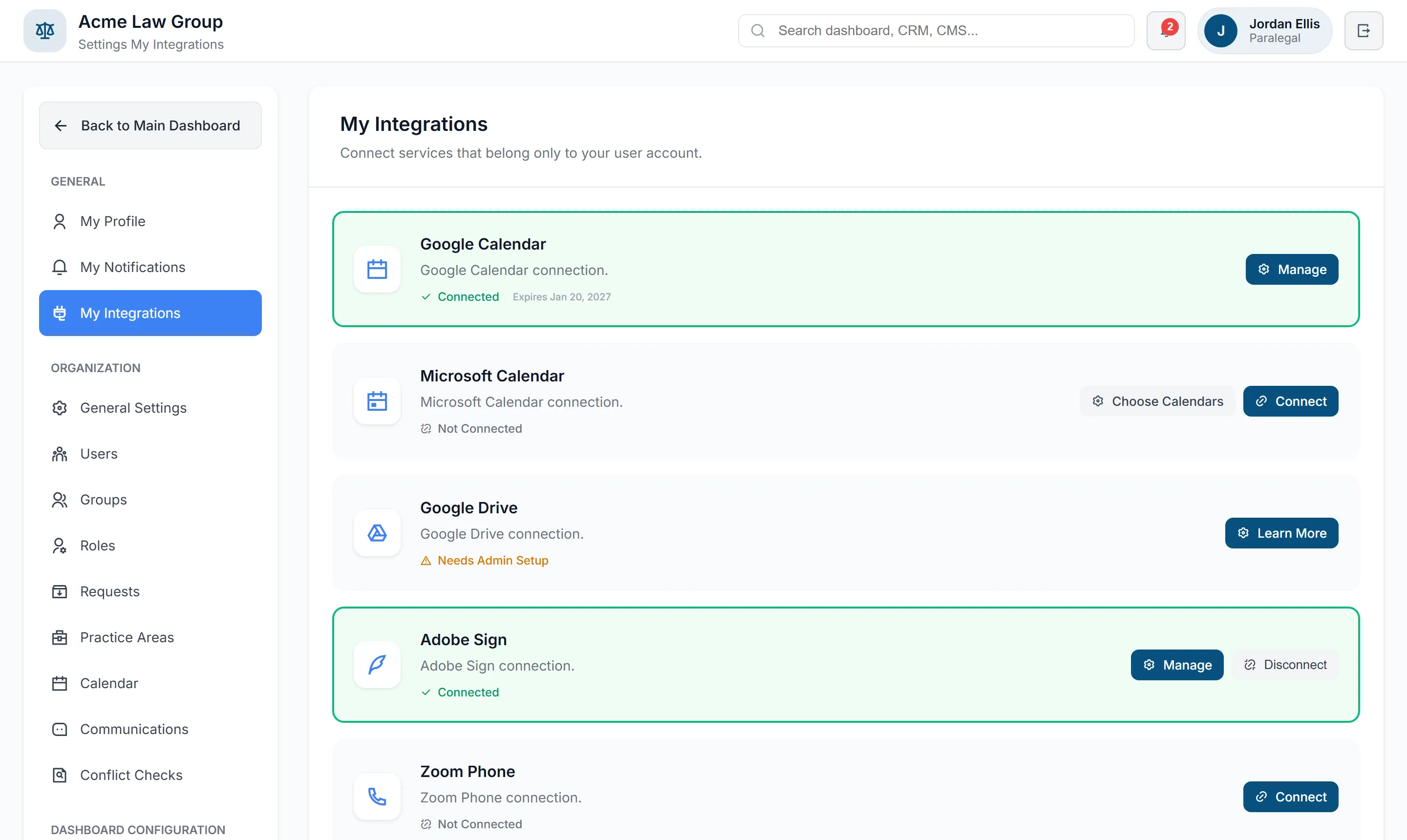
Each integration shows a status:
- Connected, with an expiry date if the connection must be renewed. Use Manage or Disconnect.
- Not Connected: select Connect.
- Needs Admin Setup: the firm-wide connection isn't configured yet. Learn More explains it. Ask your admin.
Connect your calendar
Connect Microsoft Calendar or Google Calendar, whichever your firm uses. Sign in with your work account and approve access. Then use Choose Calendars to pick which of your calendars sync with the intranet.
Connect the rest you use
Depending on your firm you may also see Zoom Phone, Google Drive, Adobe Sign and payment providers. Connect only what you use in your own work.
Frequently asked questions
I stopped getting training reminders.
Check the LMS rows in My Notifications. Reminders follow your settings, so if email is off there, it stays off.
My calendar connection expired.
Select Connect or Manage again and sign in. Events already in the intranet stay there.
Last reviewed 2026-11-25