

Open Security Settings
Open Settings and choose Security under System.
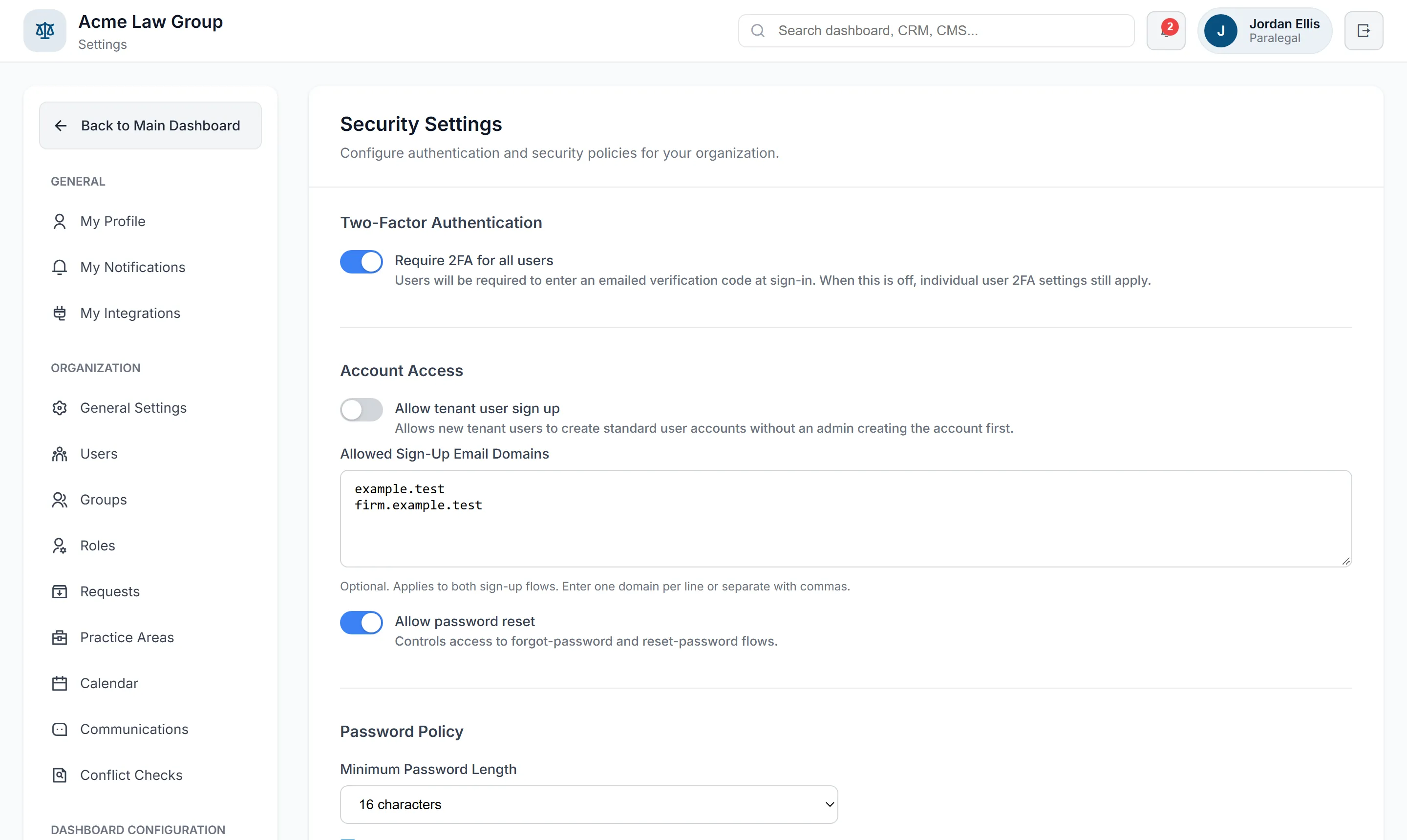
Require two-factor verification
Turn on Require 2FA for all users. Everyone then enters an emailed code at sign-in. When it's off, two-factor still applies to anyone who has it turned on individually.
Turn it on. A stolen password alone then can't open your firm's client files.
Self sign-up
Allow tenant user sign up lets new staff create a standard account without an admin. If you allow it, restrict it with Allowed Sign-Up Email Domains (your firm's domain only), one per line.
Password reset
Allow password reset controls the forgot-password link on the sign-in page. Firms that sign in only with Microsoft or Google can turn it off.
Save
Save your changes. They apply at each person's next sign-in.
Last reviewed 2026-11-25