

Imports are usually run with LegalsOne during your build. Read this so you know what each step means, and talk to your LegalsOne contact before running one yourself.
Open the import workspace
Open Settings → Imports and choose Clio Manage To CMS. The workspace shows how many records are Staged, Selected and Importable, and which snapshot you're working from. A snapshot comes from the Clio API or an uploaded CSV/data export.
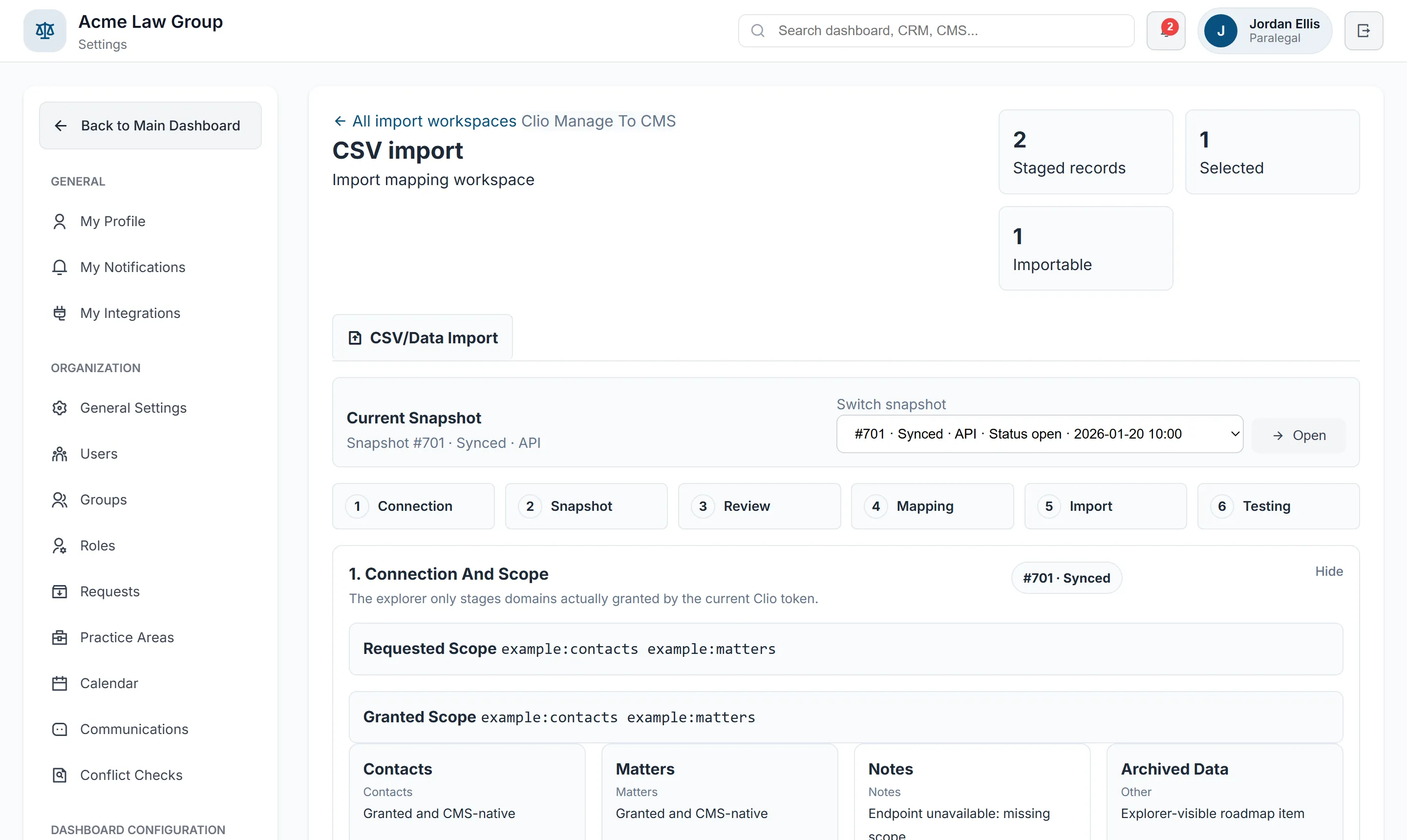
Follow the six steps
- Connection: connect Clio and check which data the connection is allowed to read (the granted scope).
- Snapshot: take a snapshot of the data at a point in time. You can switch between snapshots.
- Review: look through the staged contacts, matters and other records, and select what to bring over.
- Mapping: match Clio fields, practice areas and statuses to their LegalsOne equivalents.
- Import: create the records in Nexus.
- Testing: spot-check imported matters against Clio before anyone works in them.
Re-run safely
Imports are staged and tracked, so you can take a fresh snapshot just before go-live and import only what changed.
Freeze changes in Clio during the final snapshot and import. Work entered in Clio afterwards won't come across.
Last reviewed 2026-11-25