

Open Assignments
In LMS, select Assignments. It shows Active rules and the number of assignments, then Plans and Rules: training plans with their steps and status.
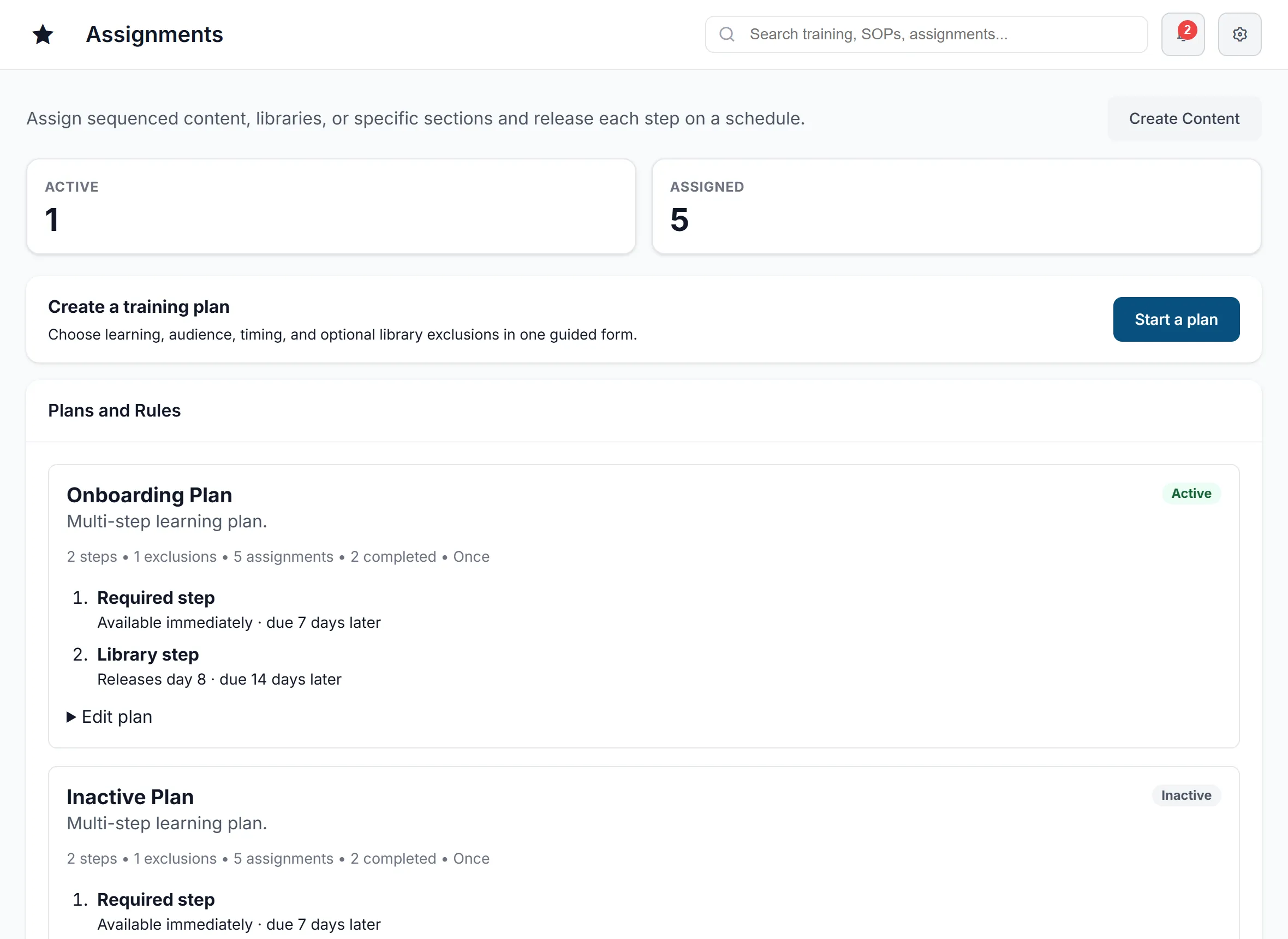
Choose what to assign
You can assign:
- Individual content: one policy or lesson
- Entire library: everything in a library, such as the staff handbook
- Specific section: one part of a long document
- a training plan: a Learning sequence of Plan Steps released in order (Create a training plan, or Start a plan)
Choose who
Under Audience, choose Assign to all staff, specific users, groups or roles, or Apply Audience Preset to reuse a saved audience (for example "All paralegals"). Save new audiences with Save Audience Preset. Add Library exceptions to leave certain items out.
Set dates and renewals
Set when it's Due, and the Cadence: One Time, or Renewal with Renewal Interval Days, such as 365 for annual policies. Choose Active and sync immediately to send it now, or Sync Now later.
For new hires, assign training from their onboarding checklist in People instead. It shows on the checklist and in My Learning at the same time. See Onboard a new employee.
Track completion in Reports
LMS → Reports shows Completed and Overdue counts, Content Engagement (active minutes and read progress per person), required video progress, and Completion Activity with assigned, read, acknowledged and completed dates. View response opens a person's lesson answers.
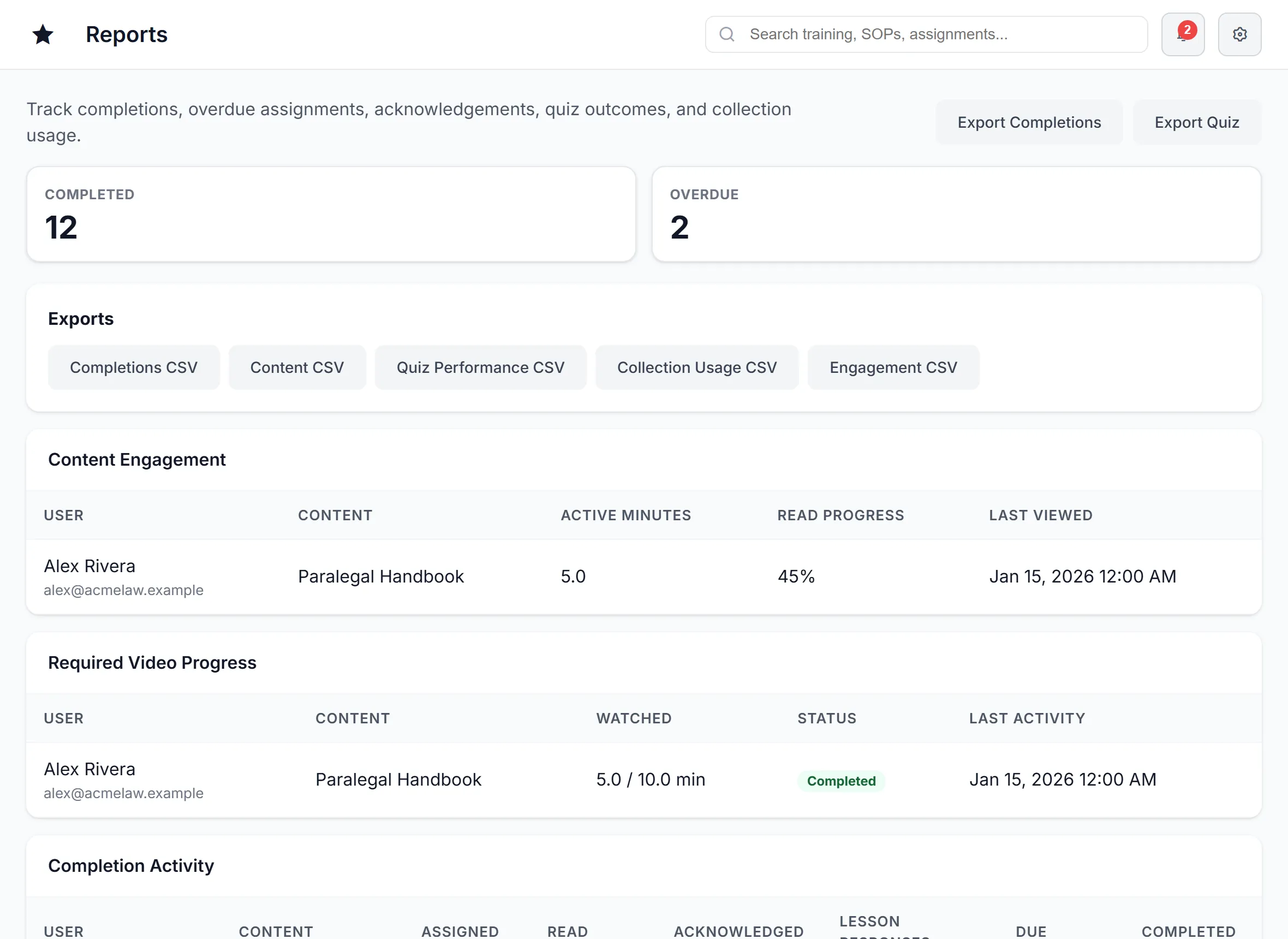
Export for your records
Use Export Completions, Export Quiz, or the CSVs for content, quiz performance, collection usage and engagement. They're useful for audits and annual reviews.
Frequently asked questions
Someone left the firm. Do I need to remove their assignments?
Deactivating their account stops reminders. Their completion history stays for your records.
Last reviewed 2026-11-25