

Open Content
In LMS, select Content. The counters show your Drafts, Published items, Libraries, Categories and Media. All Content lists each item with its status, category, libraries and versions, and actions to View, Publish, Manage, Duplicate, Archive or see Versions.
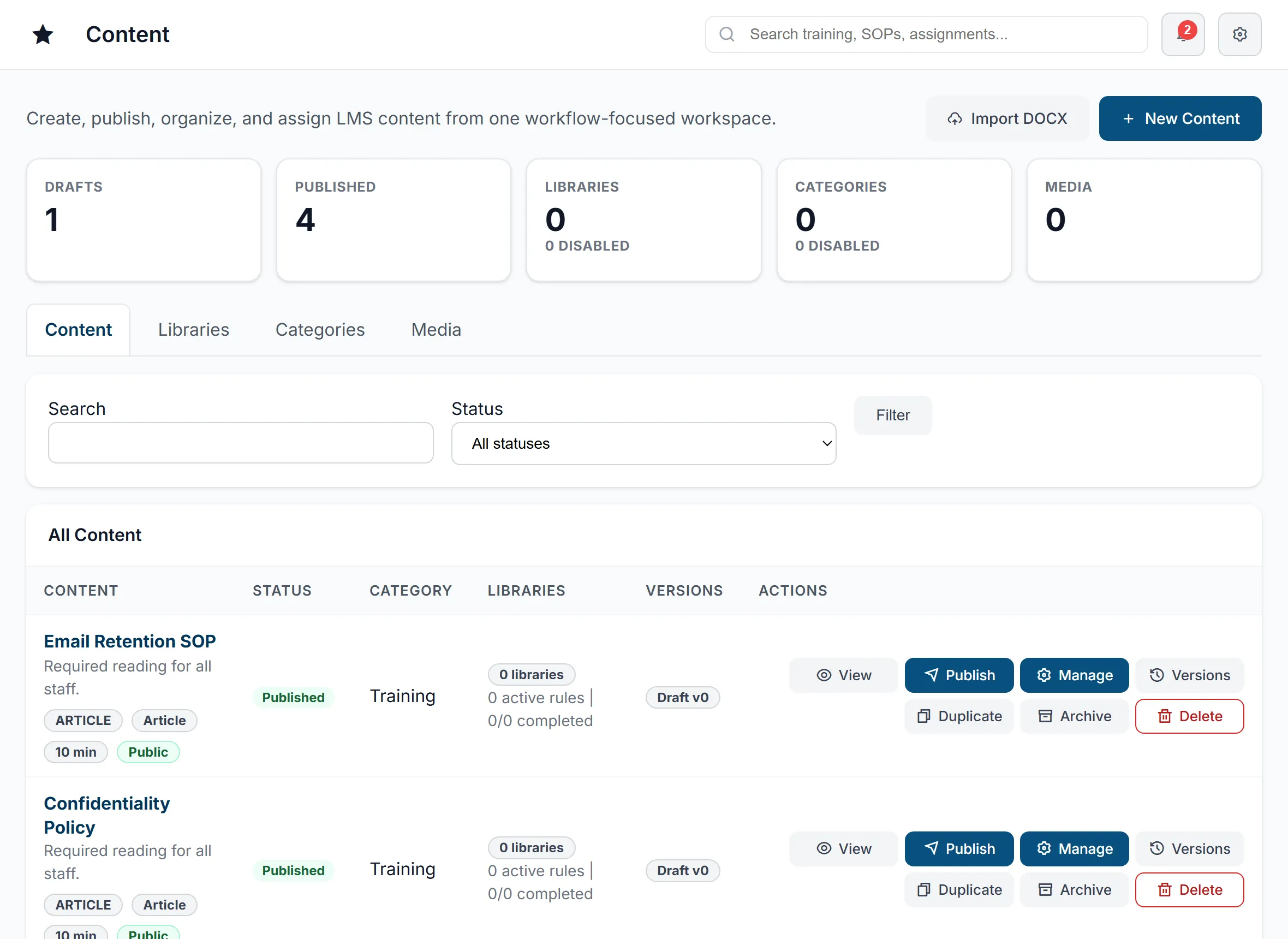
Start from Word, or from scratch
- Import DOCX turns a Word handbook or procedure into a lesson. Upload DOCX For Preview, then Review Detected Sections: each heading becomes a chapter with a word count. Choose to Split by chapters (one lesson per section) or make One content page, then create the drafts.
- New Content starts a blank lesson.
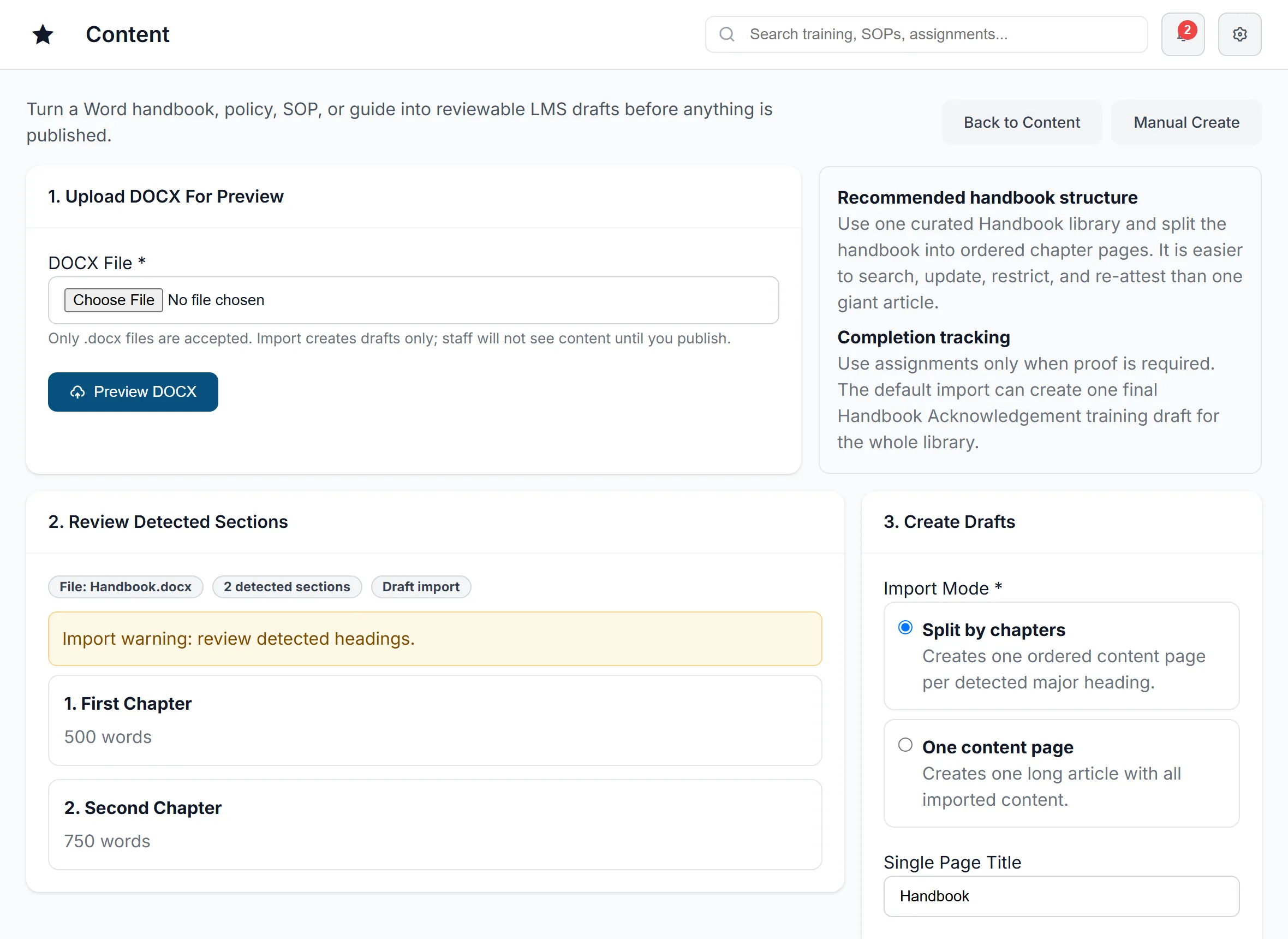
Work through the sections
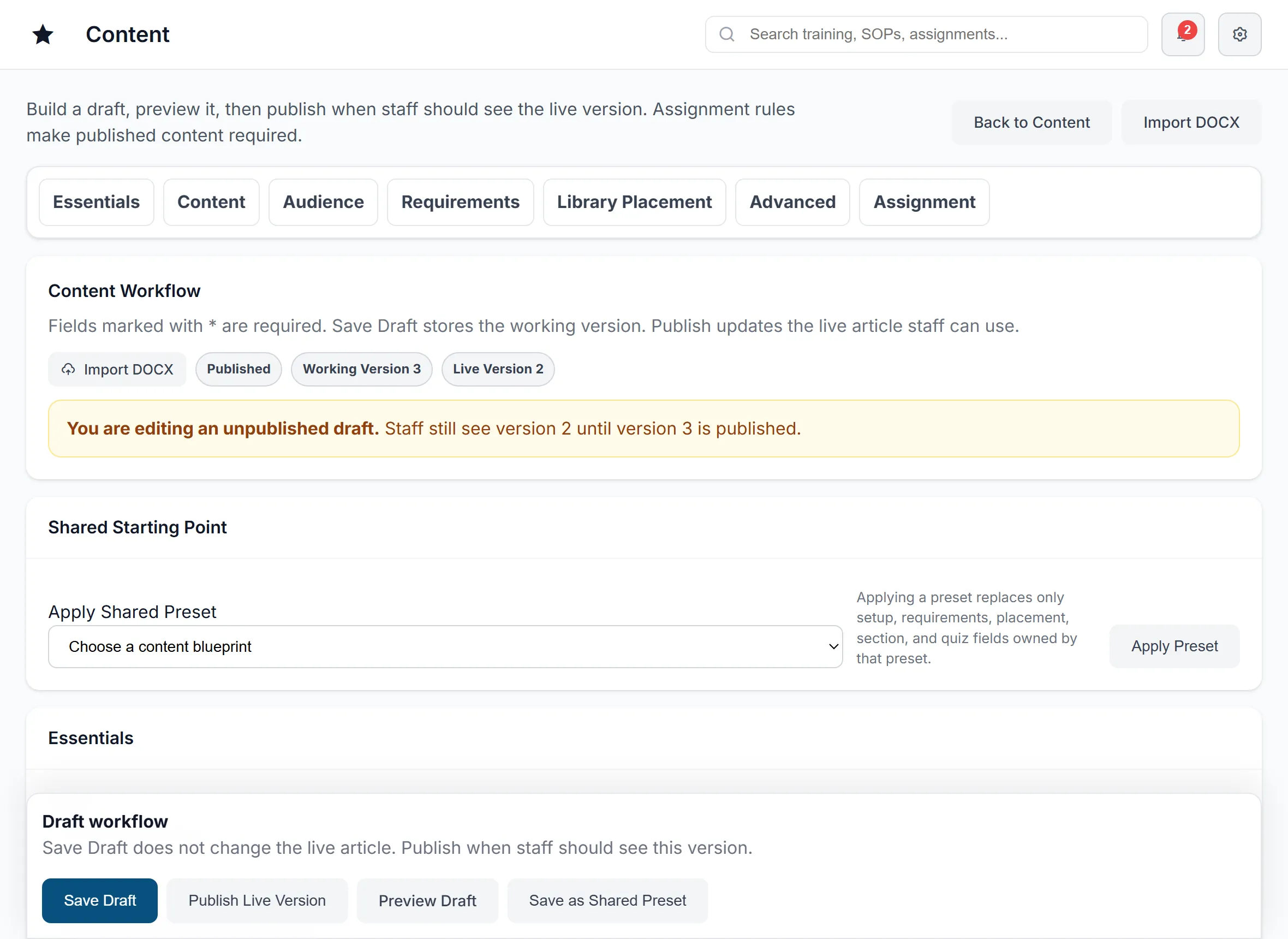
The editor has tabs: Essentials, Content, Audience, Requirements, Library Placement, Advanced and Assignment. Apply Shared Preset fills common settings from a firm blueprint. In Essentials, set the title, content type, category and estimated minutes.
Add activities, a quiz and an acknowledgement
- Select text in the lesson and turn it into a Checkbox or Fill in the blank from the toolbar. Selecting several lines makes one checkbox per line.
- Under Requirements, add a quiz (questions, the correct answer and an explanation) and an Acknowledgement Form with checkboxes, typed signature and date.
- Use Insert variable for values such as the firm name, so they stay current.
Place it and limit who sees it
Under Library Placement, choose the library and category. Under Audience, restrict it to certain roles, groups or users if it isn't for everyone.
Save, preview and publish
Save Draft keeps your work. Existing readers keep seeing the published version until you publish the new one. Preview it as a reader, fix any completeness warnings, then Publish. Each new version is kept under Versions.
For policy changes, publish the new version, then reassign it so everyone re-acknowledges. See Assign training.
Frequently asked questions
Can I edit a published lesson without everyone seeing half-finished changes?
Yes. Edits go into a draft. Readers keep the live version until you publish.
Last reviewed 2026-11-25