

Open My Learning
In LMS, select My Learning. The tabs across the top count your training: Needs Action, Overdue, Due Soon, Failed and Completed. Start with Overdue.
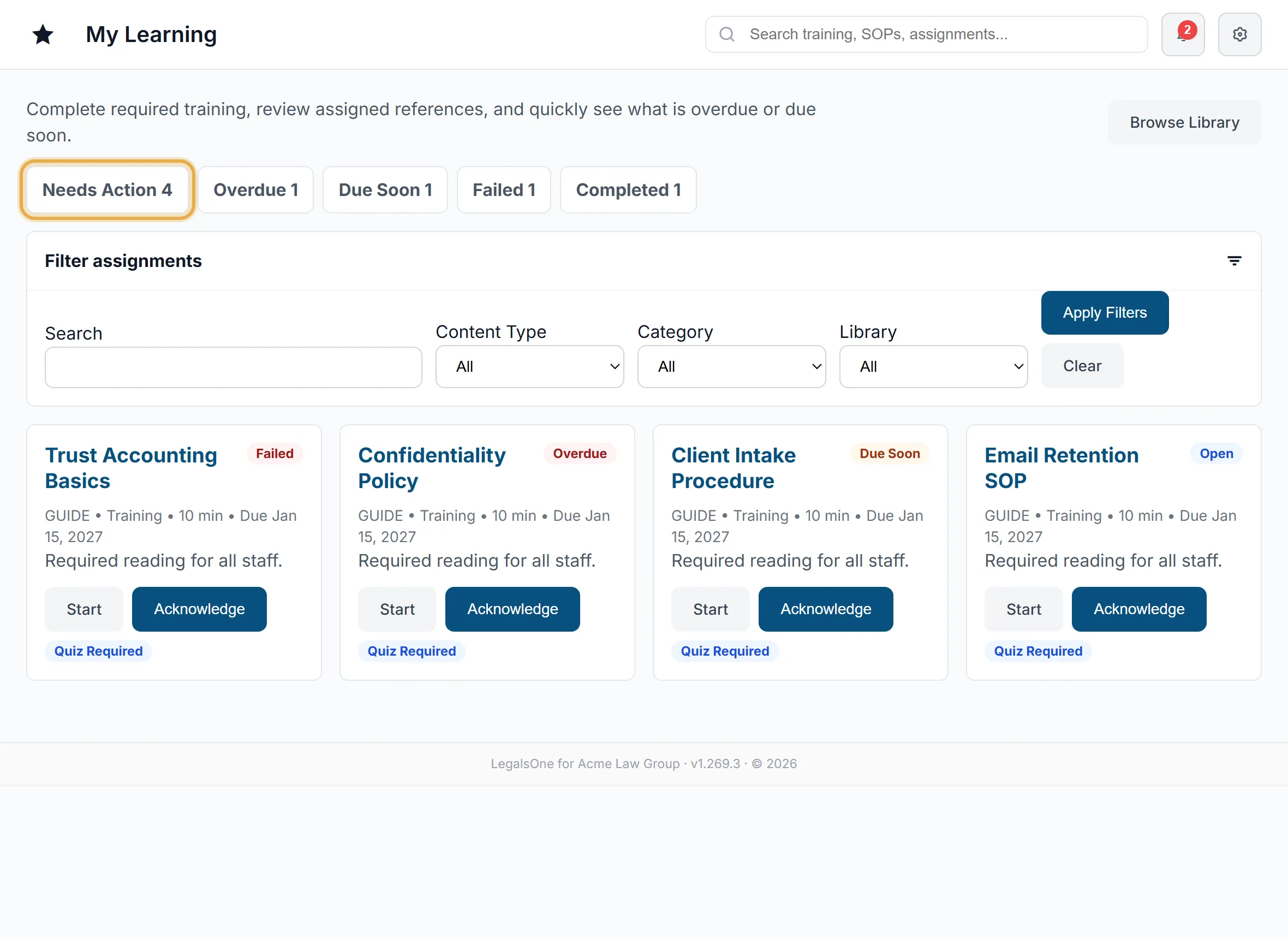
Each assignment card shows the content type (Policy, Procedure, SOP, Guide…), category, reading time and due date, plus what it requires: Acknowledge, Quiz Required or both. Filter by Search, Content Type, Category or Library.
Open and read it
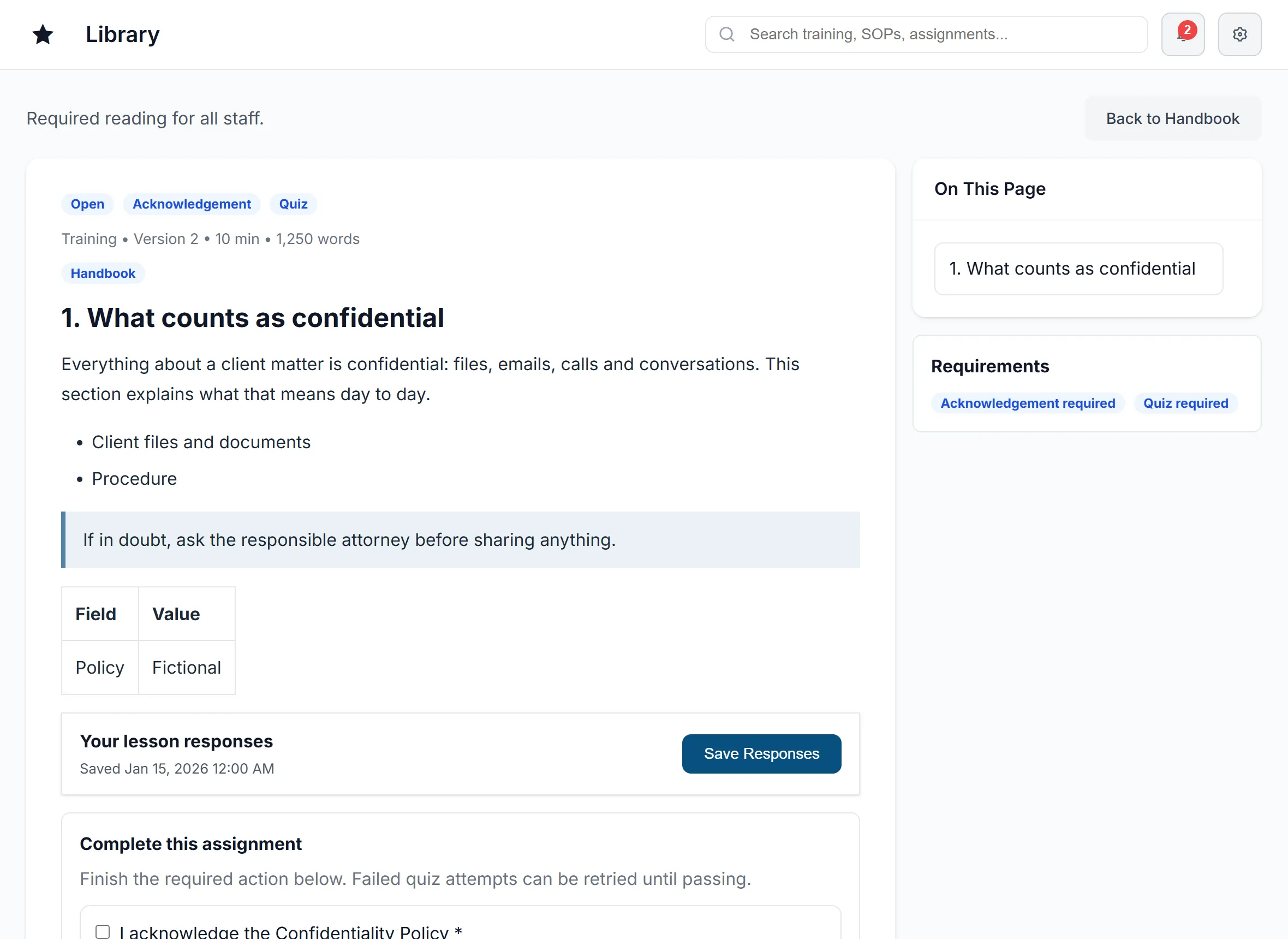
Select Start. The lesson shows its version, reading time and word count. On This Page jumps between sections, and the Requirements box lists what you must do to finish. Your reading position is saved, so Continue Reading brings you back later.
Fill in the lesson activities
Some lessons have checkboxes, fill-in-the-blank questions or written answers in the text. Your answers save as you go (you'll see Saved with a time), or select Save Responses. Required answers must be done before you can finish.
Pass the quiz
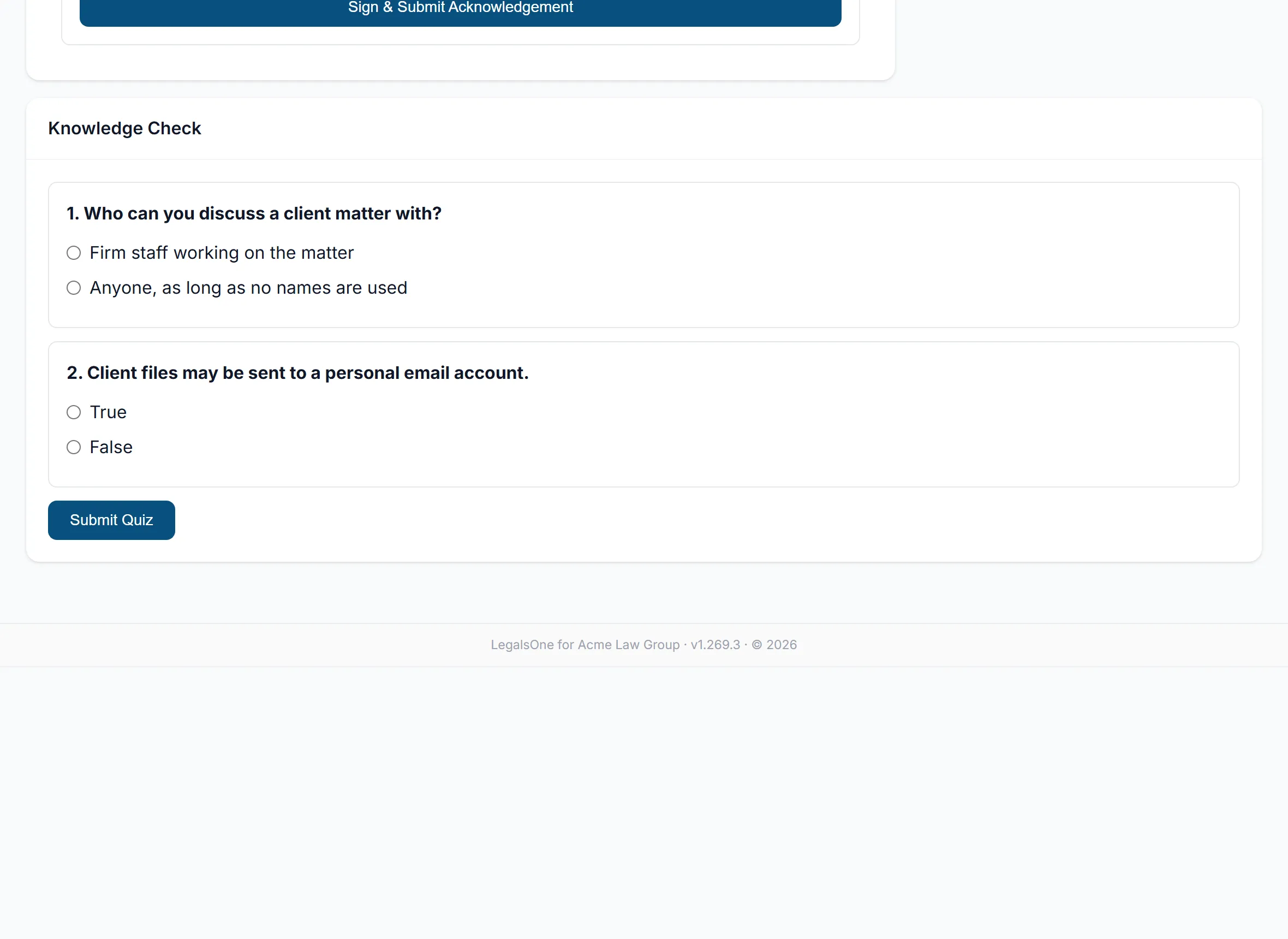
If a quiz is required, answer each question in the knowledge check and submit. You'll see which answers were right, with an explanation. If you don't pass, you can try again until you do.
Sign the acknowledgement
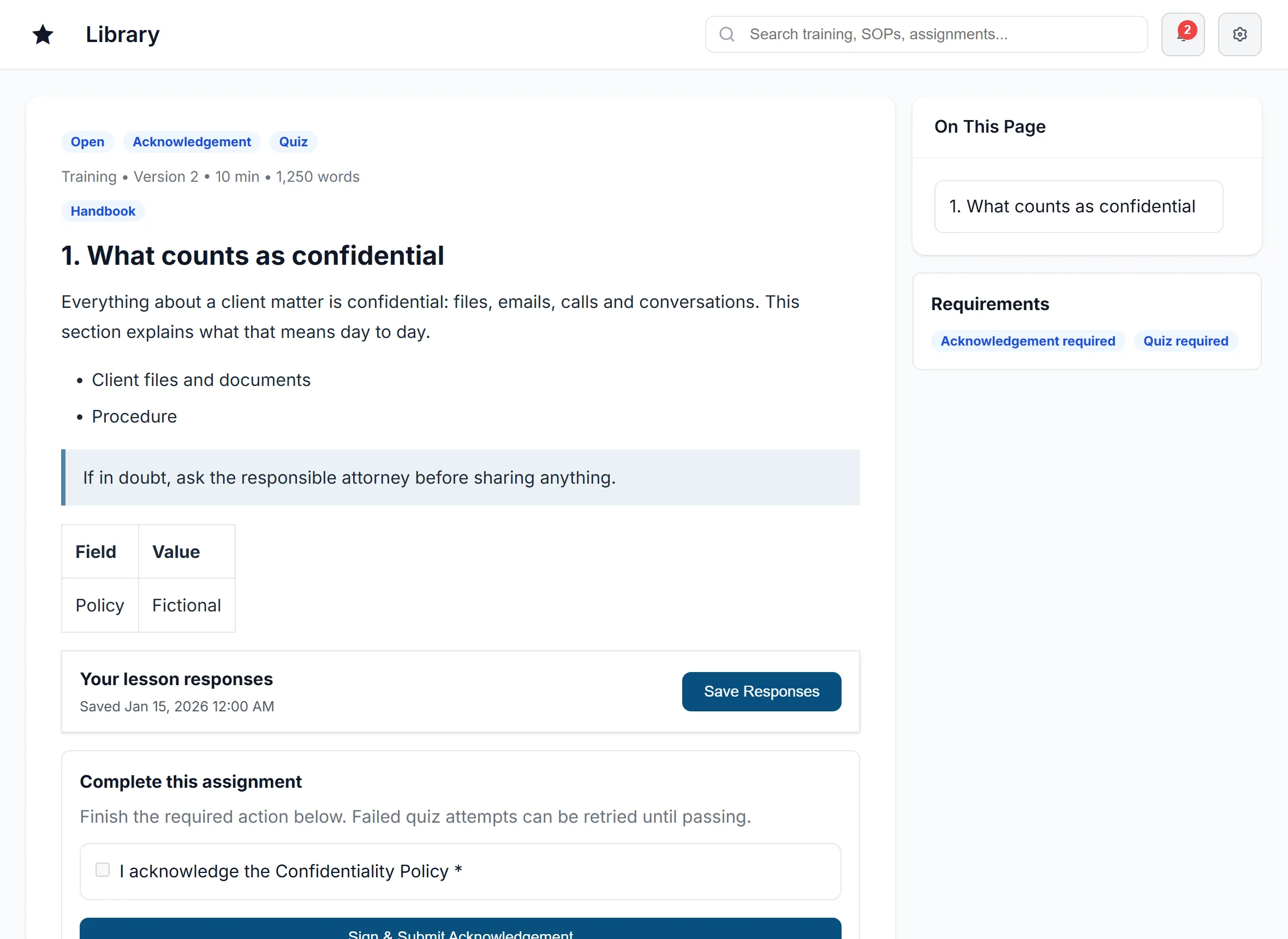
Under Complete this assignment, tick the statement (for example "I acknowledge this policy"), type your signature and the date if asked, and select Sign & Submit Acknowledgement. The assignment moves to Completed.
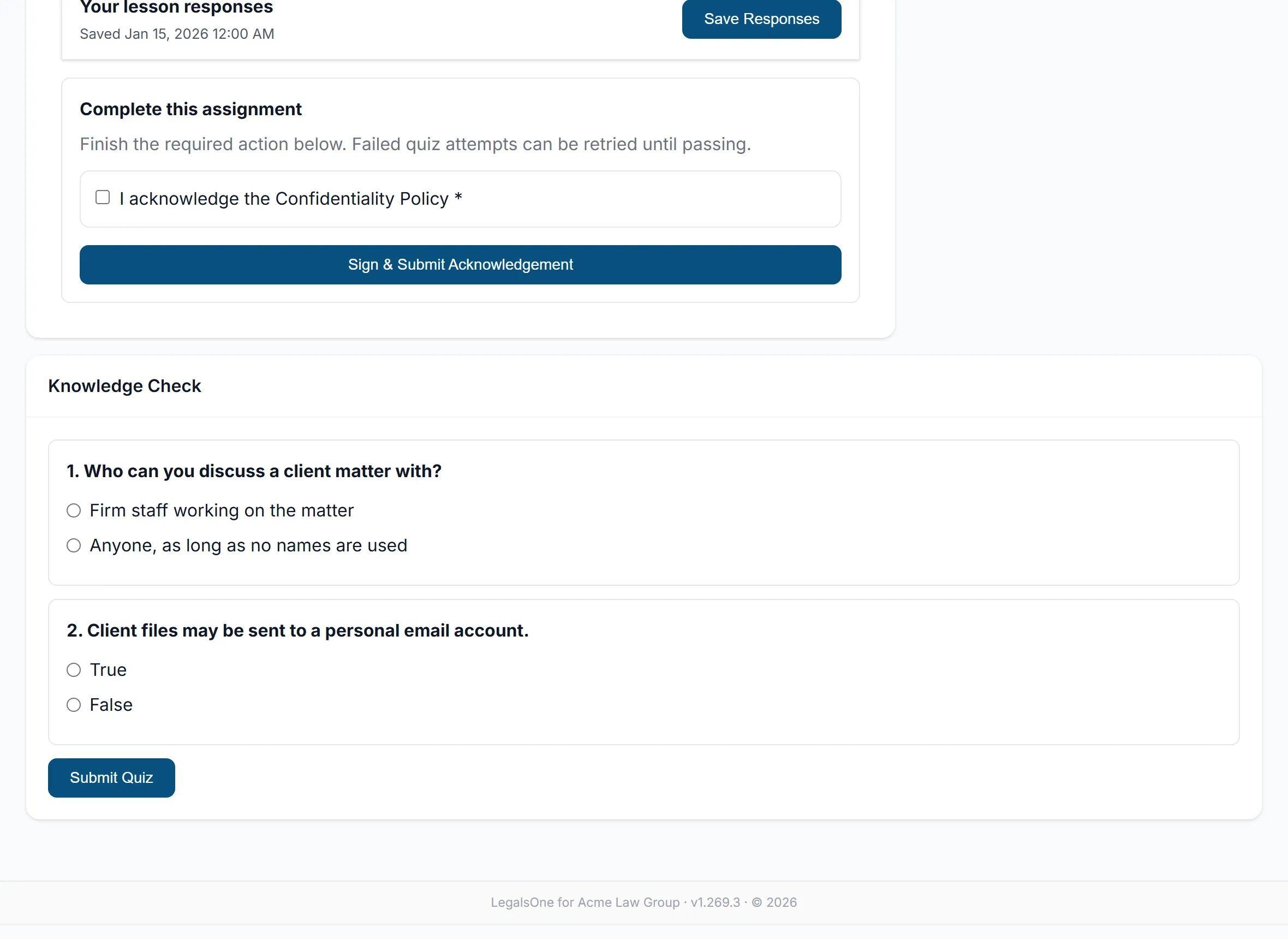
Your acknowledgement is kept with your assignment as a record. Read the policy before signing it.
Browse the library
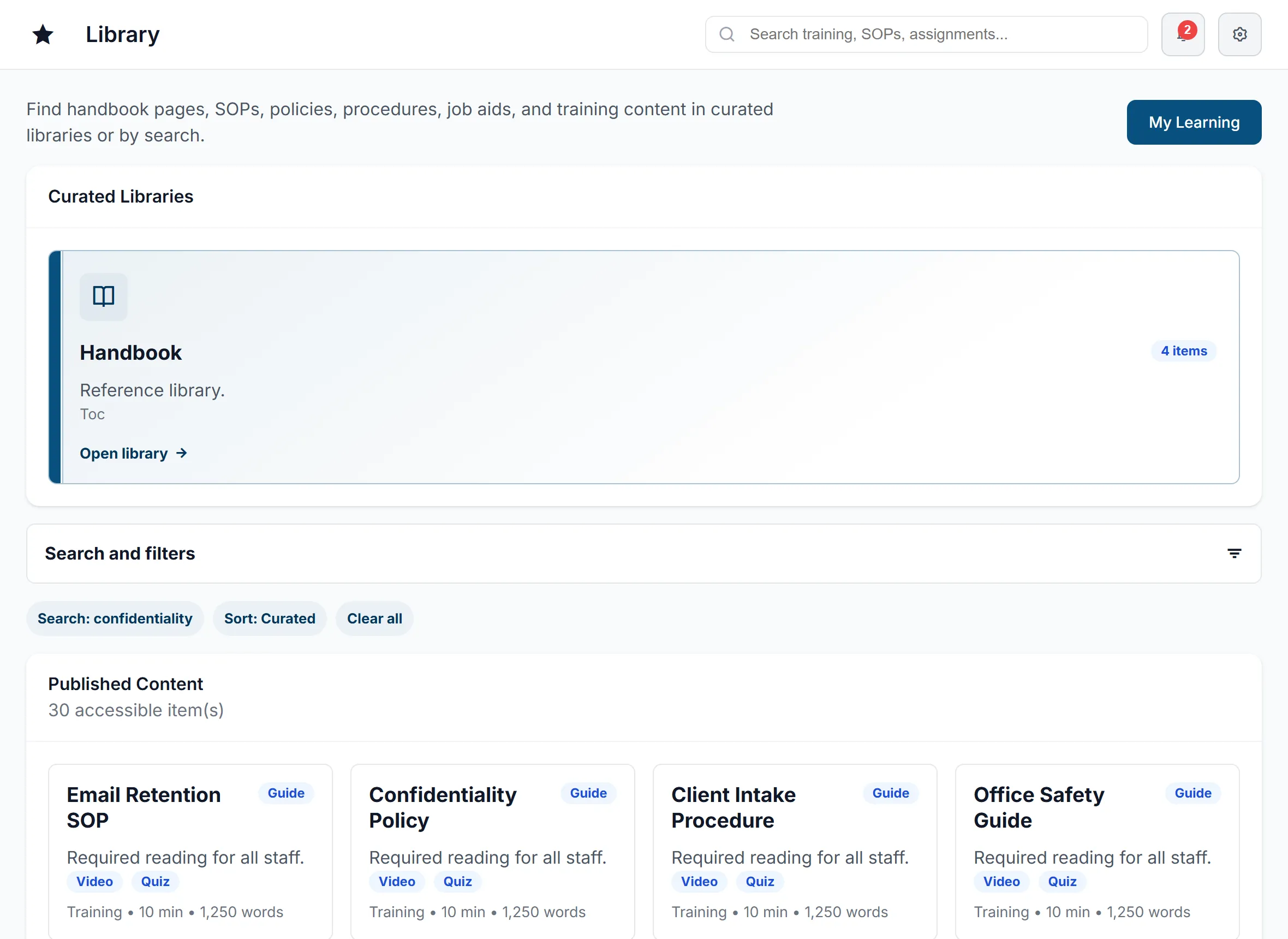
Select Browse Library to read anything else your firm has published. The Curated Libraries (such as the staff handbook) are at the top, and Search and filters finds anything by title, type or category.
Frequently asked questions
An item came back after I finished it.
Some policies must be re-acknowledged on a schedule, for example every year. It shows a new due date.
I'm getting too many reminders.
Reminders follow My Notifications. Due-soon and overdue reminders stop once you complete the item.
Last reviewed 2026-11-25