

Start from your best clean copy of the document in Word (.docx), with tracked changes accepted and comments removed.
Open Templates
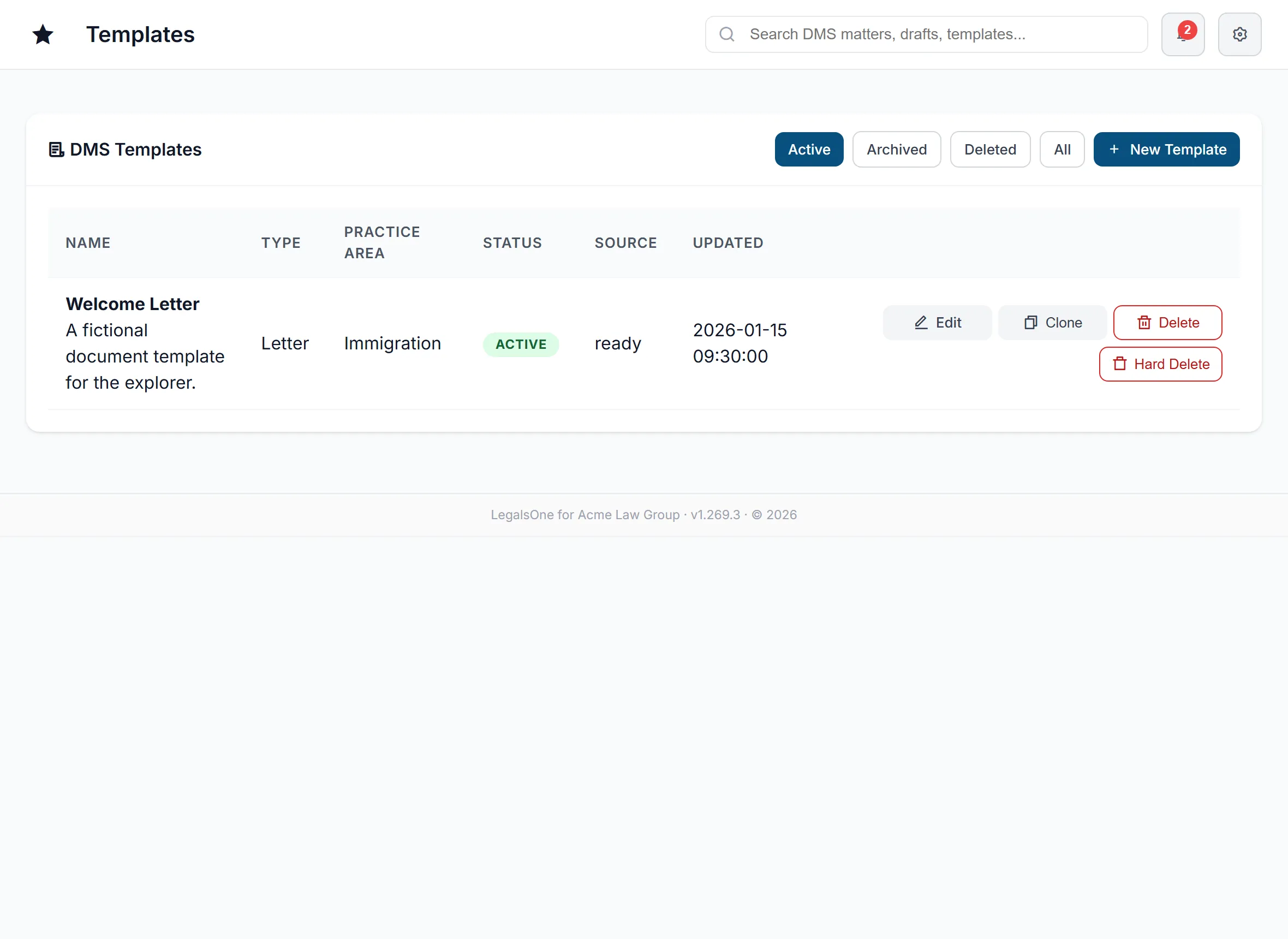
In DMS → Templates, the list shows every template's type, practice area, status and source. Filter by Active, Archived, Deleted or All. Select New Template, or Edit an existing one.
Set it up
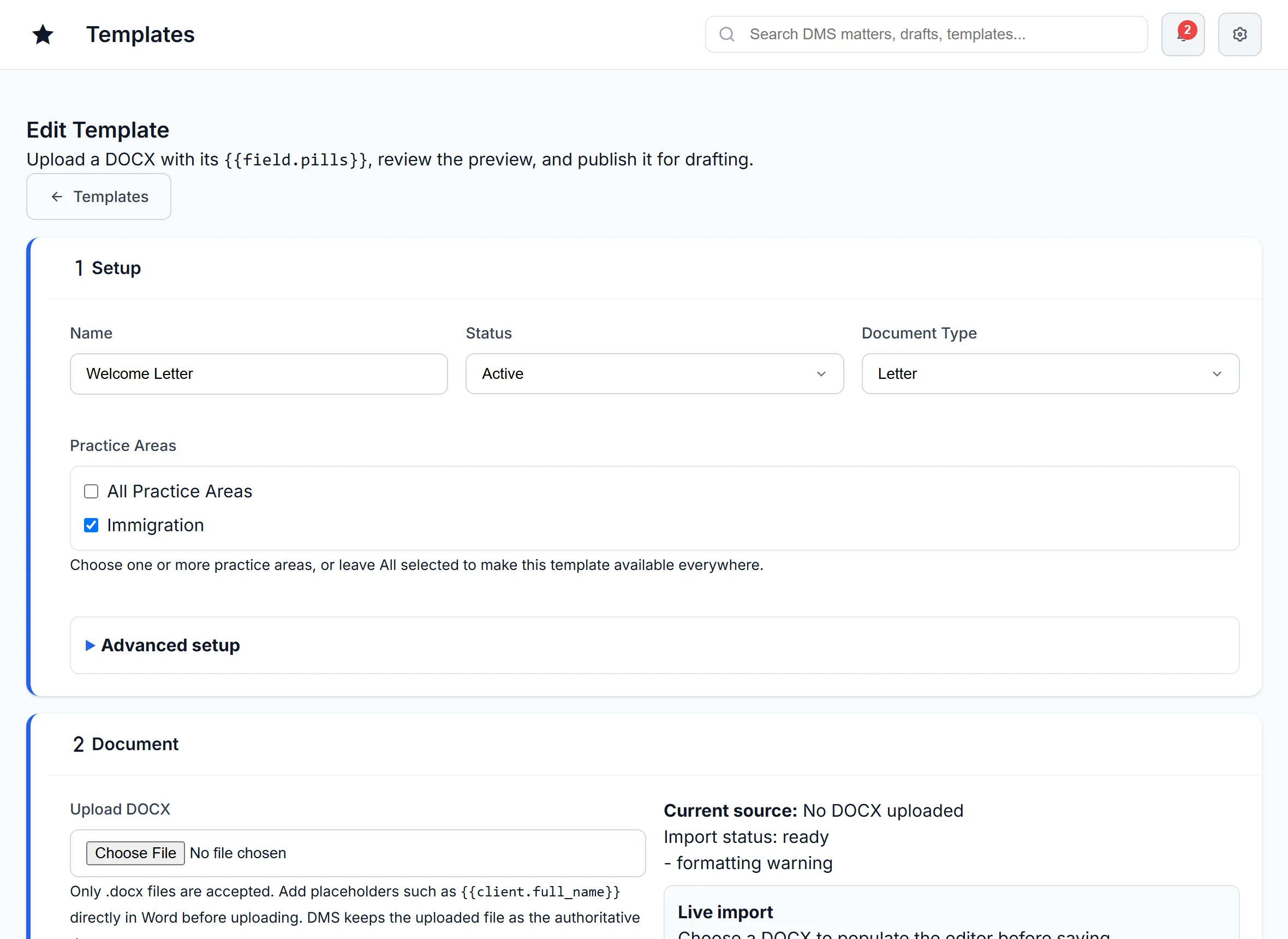
Under Setup, give it a Name, set the Status and Document Type (letter, motion, agreement…), and tick the Practice Areas it belongs to. Advanced setup holds the rarer options.
Add fields to your Word file
In Word, replace client- and matter-specific text with fields written in double braces, for example {{client.full_name}} or {{matter.number}}. Use the field names from your firm's Matter Data list so they match exactly. Fields also come in Title Case and UPPERCASE versions for captions and headings.
Wrap optional language
Put matching markers around any clause that only applies sometimes. Both markers use the same name:
{{options.pets[}} The tenant may keep one domestic pet. {{options.pets]}}
{{block.name[}} … {{block.name]}} works the same way. While drafting, staff see one choice for each name. Chosen text is kept and the rest is removed.
To make a choice depend on another, nest the markers. The inner choice only appears once the outer one is ticked:
{{options.pets[}} Pets are allowed. {{options.pet_deposit[}} A pet deposit applies. {{options.pet_deposit]}} {{options.pets]}}
Every opening marker needs a closing marker with the same name. A missing or misspelled marker leaves text in documents that shouldn't be there.
Upload and check the preview
Under Document, select Choose File and upload your .docx (only .docx is accepted). Live import shows the converted preview and any formatting warnings. Fix problems in Word and upload again.
Test, then publish
Make a test draft on a sample matter and try each option combination. When it reads correctly, set the template Active. Each later change creates a new version, and you can restore an earlier one.
Frequently asked questions
Can I reuse one clause across many templates?
Yes. Save it as a snippet. See Reuse packets and snippets.
Upload or preview fails.
Ask your admin to check DMS Health. It confirms the server can read and write Word files.
Last reviewed 2026-11-25