

Have your documents ready as PDF files or clear photos. Scan or photograph every page, in good light, with all four corners showing.
Find the request
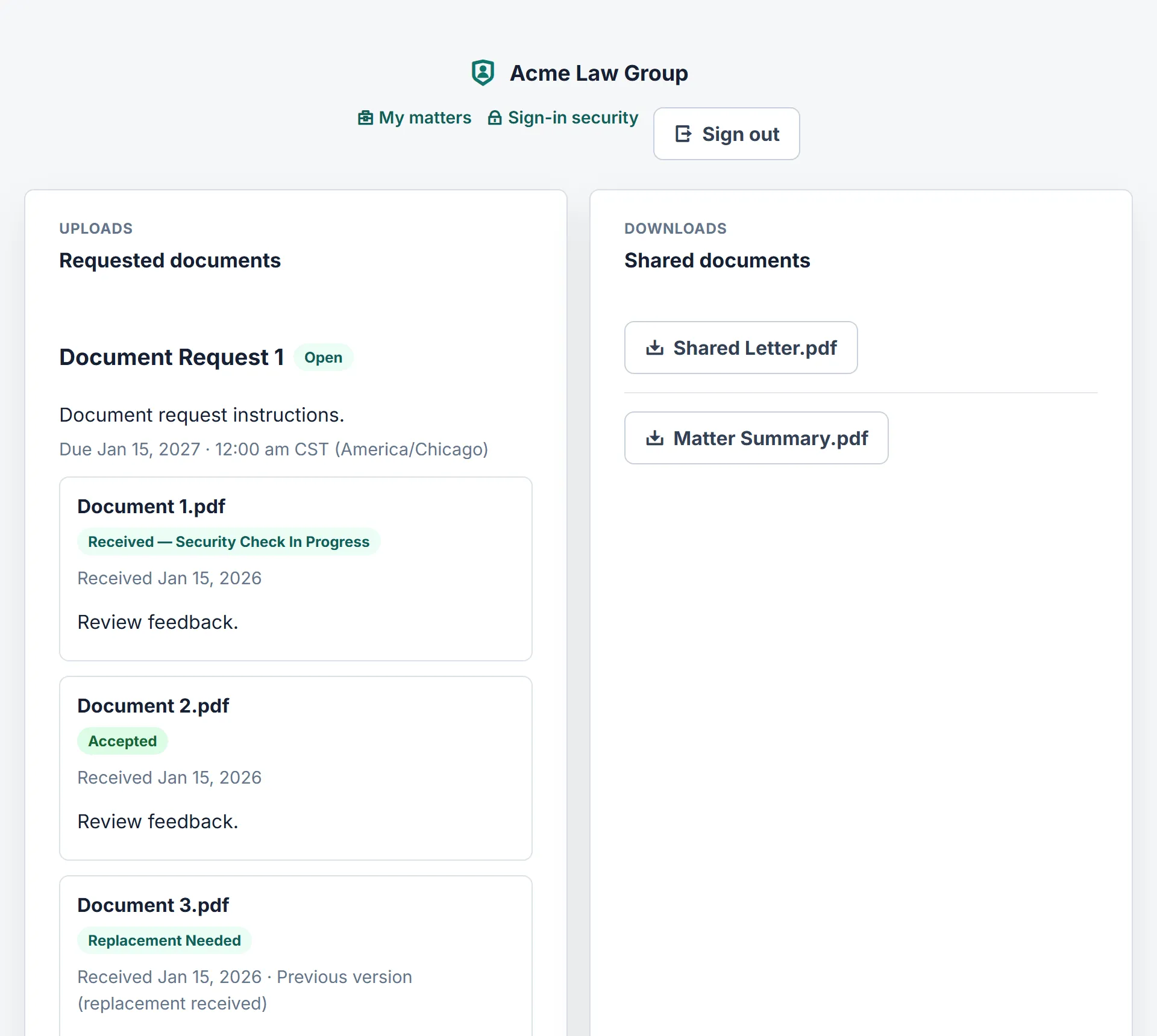
Sign in and open Requested documents (under Uploads), or select the document request in Your next steps. Each request says what your team needs and when it is due.
Choose your file and upload it
Under the request, select Choose document, pick the file, then select Upload document. Files can be up to 20 MB each. Upload one file at a time if you have several.
If an upload fails, check your internet connection and try again. You won't send the same document twice. The portal confirms each file before counting it.
Check the status
Each file you send shows a status:
| Status | What it means |
|---|---|
| Received, security check in progress | Your file arrived and is being scanned for safety. |
| Received, awaiting review | Your legal team will look at it soon. |
| Accepted | Your team has what they need. Nothing else to do. |
| Replacement needed | Your team needs a new copy. Read their note to see why. |
| Unsafe file, safe replacement needed | The file failed the security check. Send a different copy. |
| Processing problem | Something went wrong on the portal's side. Your team can retry it. |
Replace a file if asked
If a file says Replacement needed, read your team's feedback (for example "page 2 is missing"). Then upload a new copy in the same request and choose to replace the file named in the note. The older version stays on record.
Frequently asked questions
What kinds of files can I upload?
PDFs and common image formats work best. If your team needs a specific format, they will say so in the request.
My phone photo is too large.
Most phones let you choose a smaller size when you share a photo. Or take a screenshot of the photo and upload that instead.
Last reviewed 2026-11-25